This is the print version of this page. All content is copyright Indezine.com 2000-2026.
This is a listing of content created about PowerPoint 2010 for Windows. You will find detailed pages on features introduced, and also tutorials on other features.
Author: Geetesh Bajaj
OS: Microsoft Windows XP and higher
Here's a listing of new features in PowerPoint 2010 tutorials. If there's a link available, click it to get a more detailed explanation of the feature:
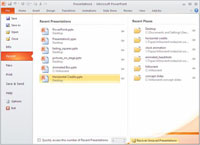
In PowerPoint 2010, the Office Button is replaced by the File menu! However this File menu is completely different from what you might have used in older versions of PowerPoint.
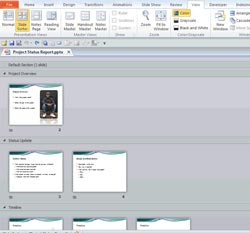
The Section option is new within PowerPoint 2010, and enables you to divide your presentation slides into logical parts.
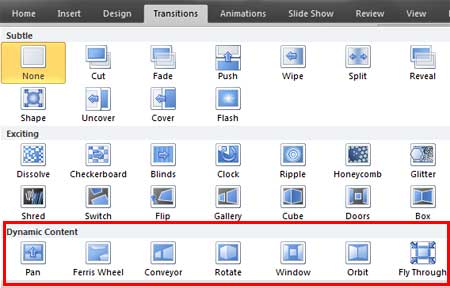
When Dynamic Content transitions are applied to your slide, the actual transition occurs on all areas of the slide except the backgrounds, making your content move independently on and off the screen.
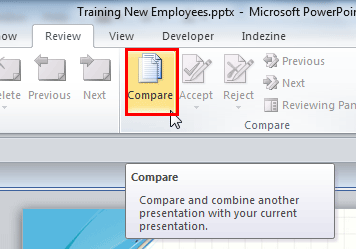
This feature combines two presentations and then shows you the differences between them. You can then decide which changes to include and which ones to discard.

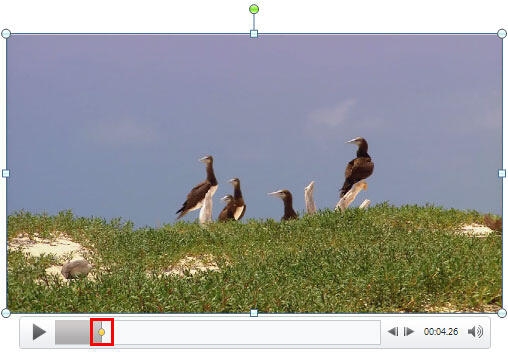
Trim your video Clips and audio clips to remove the portions that are not relevant to the message of your presentation, or just to make them short.
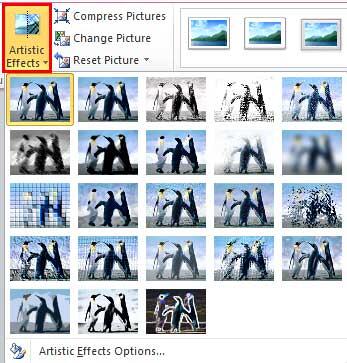
Some Artistic Effects can make your pictures look like paintings or sketches, and others can change the texture of your pictures.
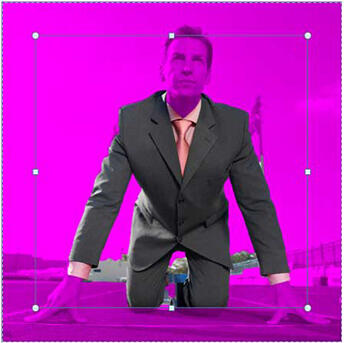
This option can be used to remove a part of your picture to make a transparent background.
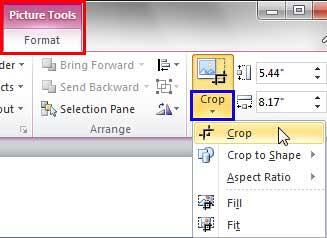
The new Crop tool includes options to crop pictures to shapes and also to reposition picture fills with Fit and Fill options to achieve great results.
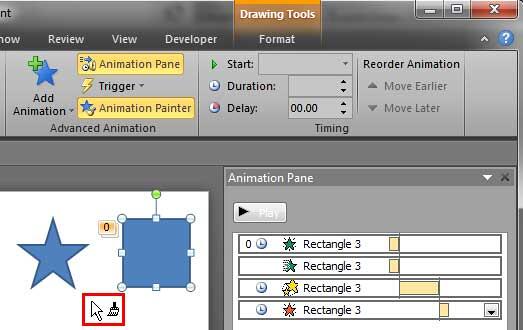
Animation Painter copies animation attributes from one slide object to another just like Format Painter.
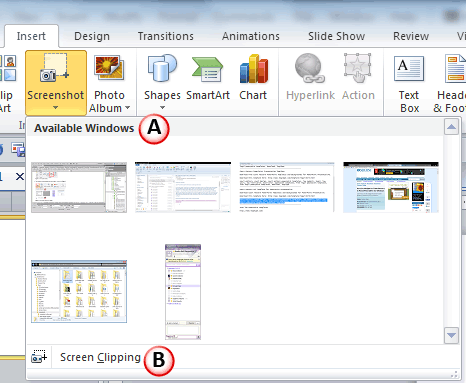
Screenshot option allows you to quickly and easily add a screenshot on your slide, being within PowerPoint.
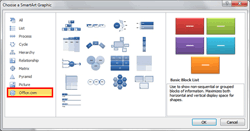
All available SmartArt is available in different SmartArt categories. In addition to these categories, you can also add an additional SmartArt category that shows content from Office.com.
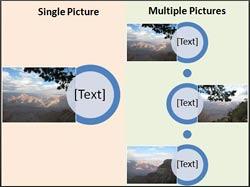
Picutre Layout option converts selected picture(s) into SmartArt, in the same way as the Convert to SmartArt option convers text to SmartArt.


Microsoft and the Office logo are trademarks or registered trademarks of Microsoft Corporation in the United States and/or other countries.