
This is the print version of this page. All content is copyright Indezine.com 2000-2026.
Learn about the Save and Send tab within Backstage view in PowerPoint 2010 for Windows. This tab has features to save presentations as PDFs, videos, handouts, and more.
Author: Geetesh Bajaj
Product/Version: PowerPoint 2010 for Windows
OS: Microsoft Windows XP and higher
Among the options within Backstage view, we have already explored some such as Open, New, Recent, Print, etc. In this tutorial, we will explore the Save & Send option used to save and share the current presentation in so many ways including broadcasting, creating a video, packaging to a CD, creating handouts, saving to a SharePoint site, etc. Follow these steps to learn more about Save & Send options within Backstage view in PowerPoint 2010:
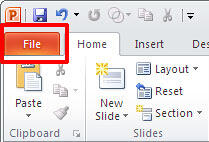
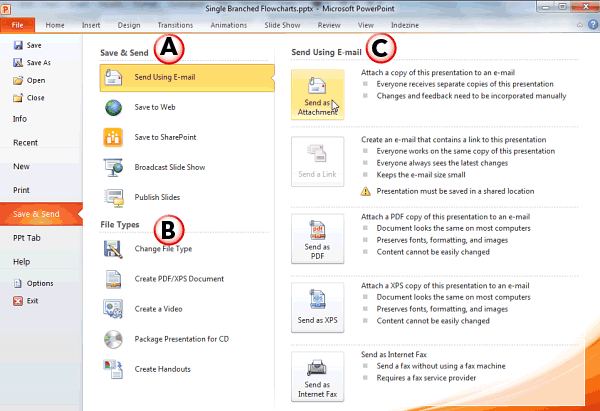
The options within the Save & Send section marked as A within Figure 2, above, are:
Send your presentation to others via email. You get many options, as shown in the area marked C in Figure 2, above. These options are explained below:
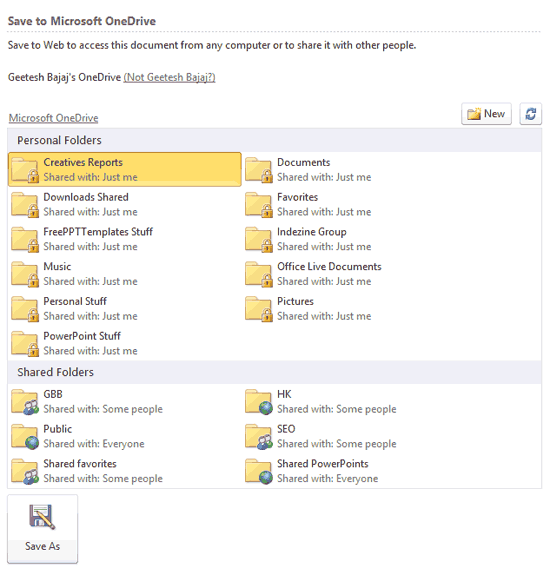
Save your presentation to a SharePoint site, as shown in Figure 4, below. For this feature to work, SharePoint must be set up first. If you work in a corporate environment, you need to talk to your system administrator.
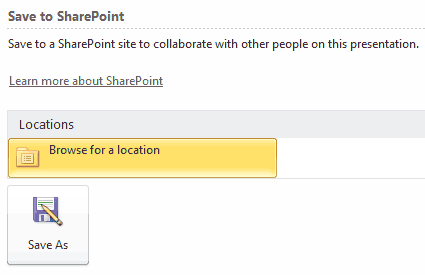
Figure 4: Save your presentation to SharePoint
Broadcast your slide show on the web, as shown in Figure 5, below. This feature needs nothing other than PowerPoint, a web browser, and an online connection to work.
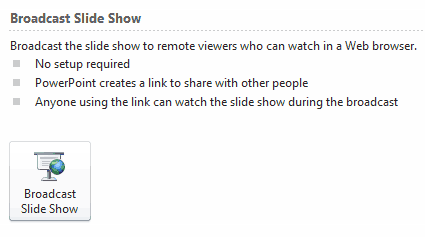
Figure 5: Broadcast Slide Show
Publish slides to a Slide Library hosted on SharePoint, as shown in Figure 6, below.
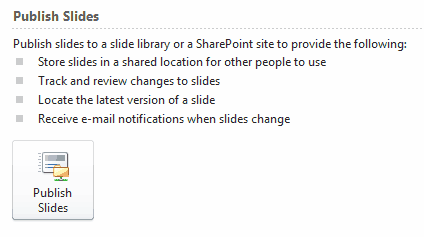
Figure 6: Publish Slides
You can save your active presentation in various File Types, marked as B within Figure 2, shown previously on this page:
This option, as shown in Figure 7, below, allows you to save the presentation to many other formats such as older PPT PowerPoint 97–2003 Presentation, OpenDocument Presentation, Template, PowerPoint Show, PowerPoint Picture, Presentation, PNG Portable Network Graphics, JPEG File Interchange Format, etc. To learn more about these other file types, look at our File Formats in PowerPoint 2010 for Windows page.
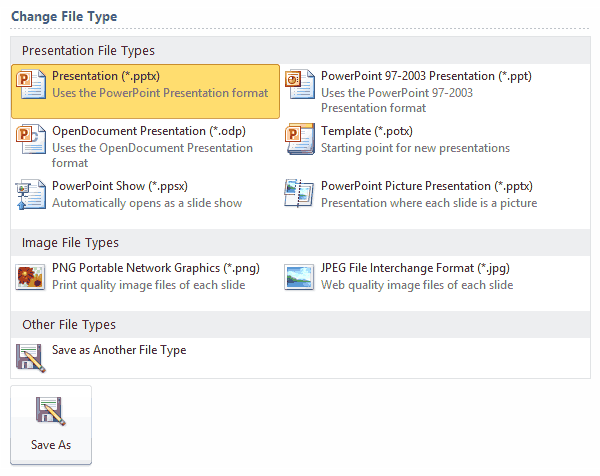
Figure 7: Change File Type
Save the presentation to PDF or XPS files.
This option creates a WMV video file from your presentation, as shown in Figure 8, below. Learn more in our Export a Presentation to a Video Clip in PowerPoint 2010 for Windows tutorial.
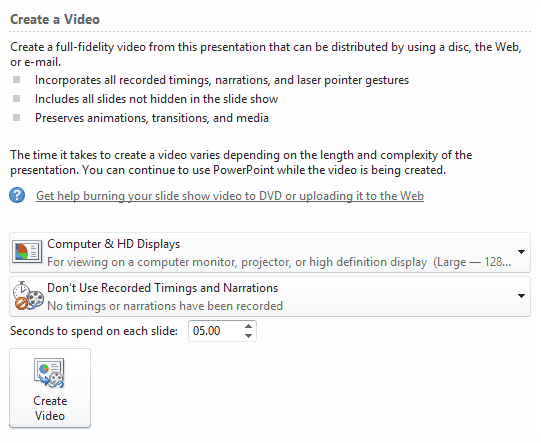
Figure 8: Create a Video
Creates a CD package of your presentation with linked files, as shown in Figure 9, below. Learn more in our Package a Presentation to a CD or Folder in PowerPoint 2010 for Windows tutorial.
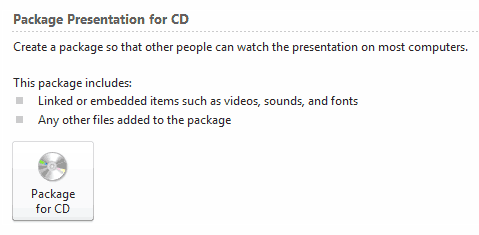
Figure 9: Package Presentation for CD
This option creates a handout of your presentation in Microsoft Word, as shown in Figure 10, below. Learn more in our Create Handouts in PowerPoint 2010 for Windows tutorial.
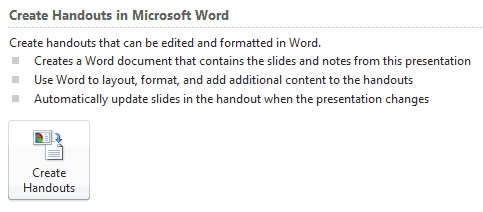
Figure 10: Create Handouts
The section on the right side of Backstage view displays options based on what is selected on the left side of Backstage view, marked as C within Figure 2, shown previously on this page. For instance, in Figure 1, above, displays the options for Send Using E-Mail options are displayed on the right side.
01 08 28 - File Types, File Menu, and Backstage View: Save and Send Tab in Backstage View in PowerPoint (Glossary Page)
Export Tab in Backstage View in PowerPoint 2016 for Windows
Export Tab in Backstage View in PowerPoint 2013 for Windows
You May Also Like: Three Simple Rules for Slideshow Animation | Iraq Flags and Maps PowerPoint Templates



Microsoft and the Office logo are trademarks or registered trademarks of Microsoft Corporation in the United States and/or other countries.
