Let us imagine that you have a long numbered list that forms the content of your PowerPoint slide. Now, it is not uncommon for slides to have
numbered lists that comprise twenty lines, and that is singularly unfortunate because even if members of your audience have perfect eyesight, they
won't be able to read the teeny-weeny sized text! And let us face the fact that too much text is downright boring, and nowadays any sort of bulleted
or numbered lists seem to signify a poorly designed slide. One approach you can take to combat this problem is by dividing your list across multiple
slides. But even then, PowerPoint may default to numbering your lists from 1 on each slide, even though you want it to start at 6, 11, or 16! Luckily,
that is an easy problem to conquer in PowerPoint 2010 for Windows:
- Open any PowerPoint presentation that includes a slide with a long numbered list, or create a new slide with a long numbered list.
Then navigate to a slide that contains a long numbered list, as shown in Figure 1. Although the text is fitted within the
placeholder on the slide, the text is almost unreadable because of its small size.
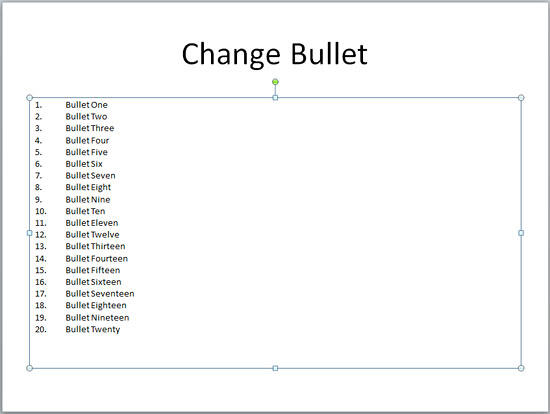
Figure 1: Slide with too much text in a numbered list- Go to Slide Sorter view, and select your slide
that contains the long, numbered list. Press Ctrl + D thrice to create three duplicates of
the selected slide, as shown in Figure 2.

Figure 2: The original slide, and the three duplicates- Now retain 5 lines in the numbered lists of each slide while maintaining the continuation so that your list is divided,
as explained below:
- Lines 1 to 5 on Slide 1
- Lines 6 to 10 on Slide 2
- Lines 11 to 15 on Slide 3
- Lines 16 to 20 on Slide 4
- Note that even after you divide the numbered list across multiple slides, PowerPoint still defaults to numbering
each list in successive slides from 1, as shown in Figure 3 below.
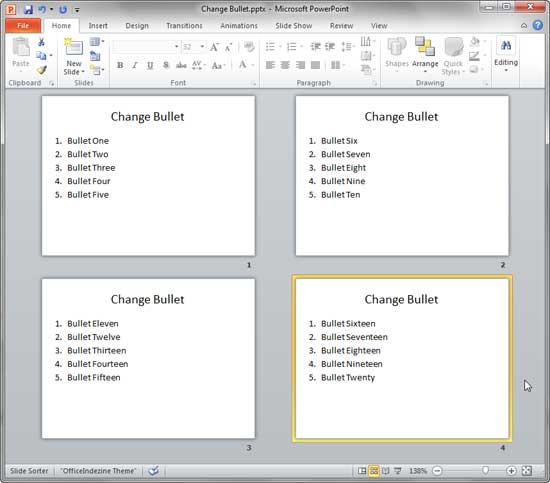
Figure 3: Slides with numbered list starting with 1- To correct the continuation of the numbered slides, go to the slide where you want to alter the numbering. Select the entire
placeholder by clicking on the edge of the placeholder. Access the Home tab of the
Ribbon. Within the Paragraph group, click the arrow beside
the Numbering button (highlighted in blue within Figure 4). This brings up the Numbering
gallery, as shown in Figure 4. Within this gallery, choose the Bullets and Numbering option (highlighted in
red within Figure 4).
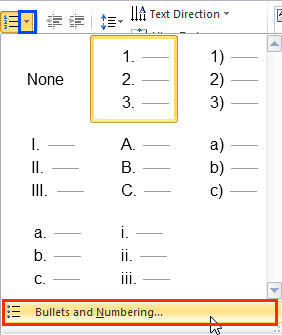
Figure 4: Numbering gallery- This will open the Bullets and Numbering dialog box, as shown in Figure 5. Make sure that the
Numbered tab of this dialog box is selected. The Start at option is set at 1, shown highlighted
in red within Figure 5 below.

Figure 5: Numbering options within the Bullets and Numbering dialog box- Type in a new number in the Start at box. We changed this value to 6 (highlighted in red
within Figure 6). As soon as the new number is typed in, you can see that the change also shows in the number style previews
(highlighted in blue within Figure 6.
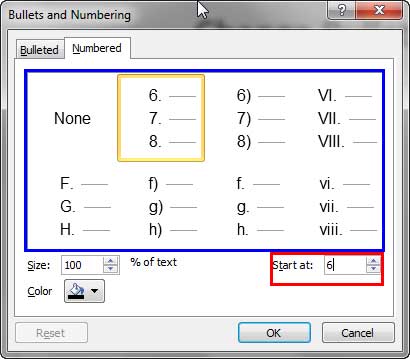
Figure 6: Start at number changed to 6- Click the OK button to apply the changes you have made to your selected text placeholder. Repeat steps
4, 5, and 6 for other slides as required.
- Figure 7 shows the changed number list that continues with new starting numbers in consecutive slides (compare
Figures 3 and 7). You will also note that we changed the title in all but the first slide of this numbered list
series to include the word Contd. after the original title.

Figure 7: Numbered list continued across successive slides- Save your presentation often.




