Indezine Logo


Save and Save As Tabs of Backstage View in PowerPoint 2010 for Windows

Explore saving options in Backstage view of PowerPoint 2010 for Windows. You can save existing files or save to a new file name, location, or file type.


Author:

Product/Version: PowerPoint 2010 for Windows

OS: Microsoft Windows XP and higher


When you click the File menu and access Backstage view in PowerPoint 2010 for Windows, you are presented with several options. On this page, we explore two of those options, as shown in Figure 1, below:

Save
Save As
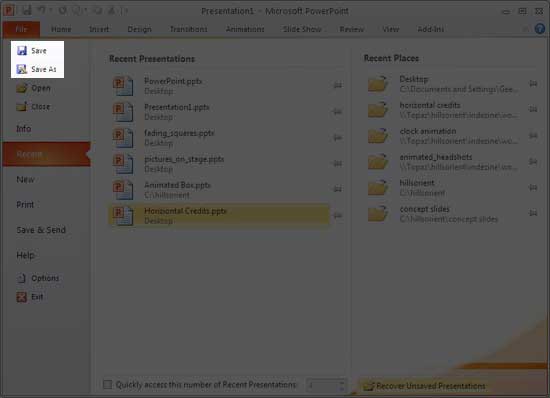
Save and Save As options
Figure 1: Save and Save As options

The Save option works differently depending upon whether you are working with a new presentation or a presentation that has already been saved earlier:
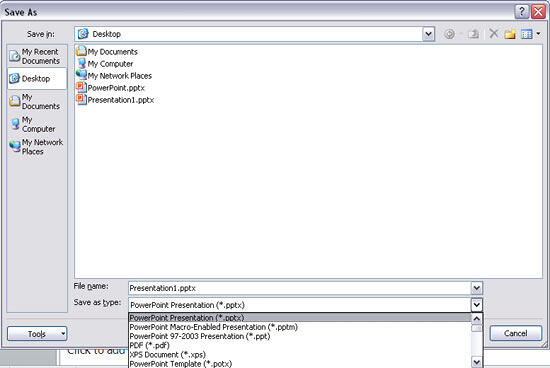
  1. When you choose File | Save option for a hitherto unsaved presentation, it opens the Save As dialog box, as shown in Figure 2, below. Here, you can provide a name for your presentation and choose a save location. In addition, you can also opt to save as different file types that PowerPoint supports. The default File save type is PPTX (PowerPoint Presentation) but there are several other formats you can choose.
  2. Save As dialog box in PowerPoint 2010
    Figure 2: Save As dialog box in PowerPoint 2010
  3. When you select the File | Save option for a file that has been previously saved, you'll not be presented with any dialog box. Instead, PowerPoint overwrites your old file with any new changes made since the last save.
  4. File Location for Save

  5. Options for choosing a location, providing a file name, and selecting a file type are provided only when you save the newly created presentation for the first time. Thereafter, the Save option just saves all changes made since the presentation was saved last. If you want to save as a new file, choose the Save As option that we'll discuss next.
  6. When you choose File | Save As for a presentation that has been saved hitherto or not, you always end up summoning the Save As dialog box that we looked at in Figure 2, shown previously on this page.

See Also:

01 08 09 - File Types, File Menu, and Backstage View: Save and Save As Tabs of Backstage View in PowerPoint (Glossary Page)

Save and Save As Tabs of Backstage View in PowerPoint 365 for Windows
Save and Save As Tabs of Backstage View in PowerPoint 365 for Mac
Save and Save As Tabs of Backstage View in PowerPoint 2019 for Windows
Save and Save As Tabs of Backstage View in PowerPoint 2016 for Windows
Save and Save As Tabs of Backstage View in PowerPoint 2013 for Windows

You May Also Like: How to Prevent Your Online Audience from Getting Distracted | Lines PowerPoint Templates


Popular Posts

What is Animation in PowerPoint?
Learn what animations is and how to effectively plan animation for PowerPoint.

Apply Bevel Effects to Shapes in PowerPoint 2016 for Windows
Learn how to apply bevel effects to shapes in PowerPoint 2016 for Windows.

Creating Curved Shapes in PowerPoint 2010 for Windows
Learn how to create curved shapes in PowerPoint 2010.s

Shapes
Shapes
Learn how you can create and manipulate shapes in PowerPoint -- knowledge of working with shapes is significant because they are the building blocks of creativity in PowerPoint.


Handmade Slides: Pushpins for PowerPoint

These “pushpin” graphics are already placed in PowerPoint slides. Just copy them and paste within your slides to create a look that makes a picture, shape, or anything else appear as if it has been pushed onto a surface, board, or wall with a pin! These ready-made pushpins are already within PowerPoint slides, and have been provided in five colors. Just copy them and paste them on your slides.

Download these Pushpins for just $19.99


Microsoft and the Office logo are trademarks or registered trademarks of Microsoft Corporation in the United States and/or other countries.

Home | PowerPoint | Photoshop | PowerPoint Templates | PowerPoint Tutorials | Blog | Notes | Ezine | Media Kit | Feedback | Site Map | About Us | Contact Us

Link to Us | Privacy | Testimonials

PowerPoint Backgrounds | Christian PowerPoint Backgrounds | Business PowerPoint Presentation Templates

Plagiarism will be detected by Copyscape

©2000-2026, . All rights reserved.