There are twelve default slide Background Styles available in PowerPoint 2010 for Windows. Beyond that, you can always change the default background to a solid color, a gradient, a pattern or texture, or even a picture. In this tutorial, you will learn how to change the default slide background in PowerPoint 2010 for Windows:
- Create a new presentation or open an existing presentation. Select the Design tab of the Ribbon. Click on the Background Styles button that you can see highlighted in red within Figure 1.

Figure 1: Background Styles button within Design tab - Doing so opens the Background Styles drop-down gallery. Now, select the Format Background option (highlighted in red within Figure 2). Alternatively, you can click the dialog launcher within the Background group, as shown highlighted in blue within Figure 1.
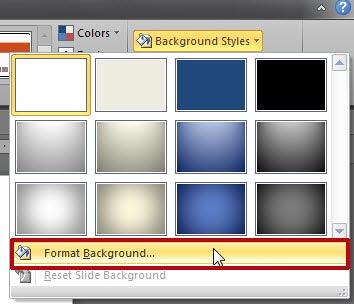
Figure 2: Format Background option within Background Styles gallery - This launches the Format Background dialog box, as shown in Figure 3.
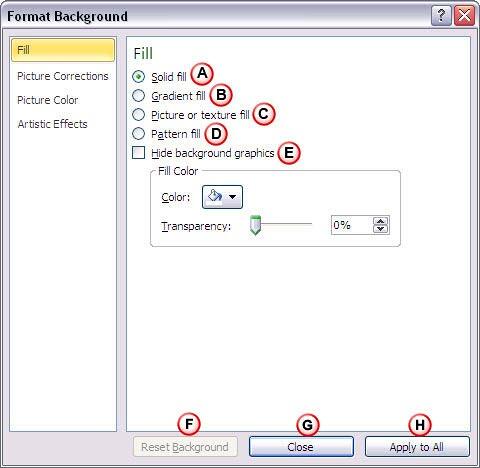
Figure 3: Format Background dialog box - The options within the Format Background dialog box are explained below, as marked in Figure 3. You can use any of these options to change your slide background. Options listed below provide links to detailed tutorials:
A. Solid fill
- This option adds a solid color background to your slide. You can use any of the Theme colors, Standard colors, or any other color of your choice. To learn more about this option, read our Solid Fills for Slide Backgrounds in PowerPoint 2010 for Windows tutorial.
B. Gradient fill
- This option applies a gradient as a slide background. A gradient is a blend of two or more colors merging into each other. For more information on this option, refer to our tutorial Gradient Fills for Slide Backgrounds in PowerPoint 2010 for Windows.
C. Picture or texture fill
- Allows you to use a picture or a texture as a background. More info can be found in our Picture Fills for Slide Backgrounds and Texture Fills for Slide Backgrounds tutorials.
D. Pattern fill
- Choose from 48 different patterns contained within PowerPoint. Learn more in our Pattern Fills for Slide Backgrounds tutorial.
E. Hide background graphics
- If your slide background includes graphics which you want to hide for printing purposes, or another reason, you can select this check box. Although the background graphics will remain part of your presentation, it will be hidden from view. Compare Figures 4 and 5 below, to understand the difference this option makes to the visual look of your slides.
Tip: The Hide Background Graphics check box can also be found below the Background Styles button on the Design tab of the Ribbon (highlighted in red within Figures 4 and 5).
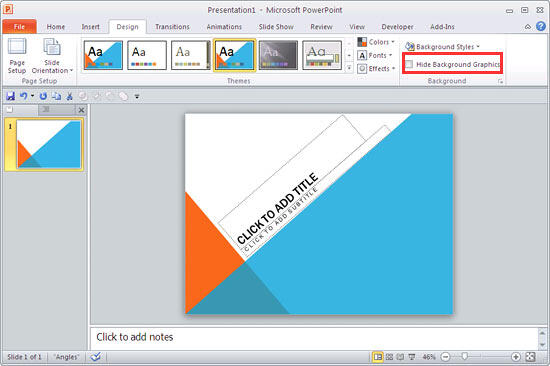
Figure 4: Slide background with Hide Background Graphics box unchecked 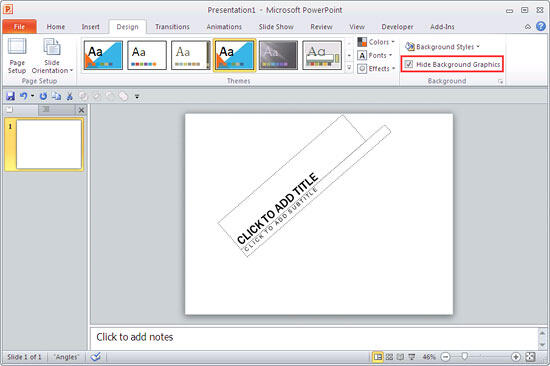
Figure 5: Slide background with Hide Background Graphics check-box selected F. Reset Background
- If you want to abandon all changes you made to the slide background, click the Reset Background button. Note that this button will be grayed out unless you make some changes to the slide background.
- You will find this option within the Background Styles gallery with a different name, Reset Slide Background (highlighted in red within Figure 6).
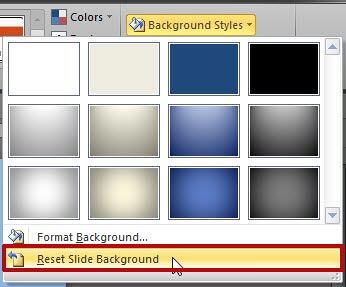
Figure 6: Reset Slide Background option within Background Styles gallery G. Close
- Make changes as required, and click this button to apply the changes only to the active slide (or selected slides).
H. Apply to All
- Click this button if you want changes made to be applied to all slides within the active presentation.
- Save your presentation.


