
This is the print version of this page. All content is copyright Indezine.com 2000-2026.
Learn how to edit Theme Fonts in PowerPoint 2010 and 2007 for Windows.
Author: Geetesh Bajaj
Product/Version: PowerPoint 2010 and 2007 for Windows
OS: Microsoft Windows XP and higher
Although PowerPoint (and Microsoft Office) includes several Theme Fonts sets, you can take this concept further by creating your own custom Theme Fonts sets. When you create a custom Theme Fonts set, the new set will appear within the Custom section of the Fonts drop-down gallery, as shown highlighted red within Figure 1, below.
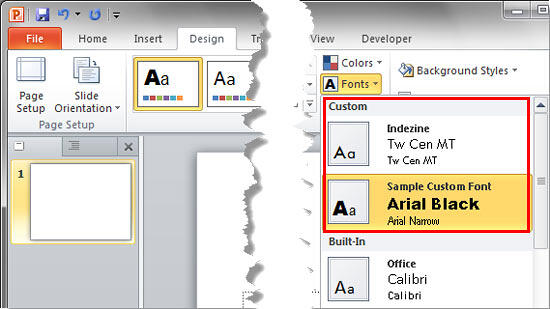
Figure 1: Custom Theme Fonts within the Fonts drop-down gallery
Although steps outlined in this tutorial were followed using PowerPoint 2010, the same steps should work in PowerPoint 2007 as well.
However, what do you do when you want to delete a Theme Fonts set because you made a mistake, or if you have too many of these sets that you no longer use? Or let us assume that you have created several custom Theme Fonts sets, and you now need to copy them to a new computer, or even a friend's or colleague's system. Do remember that all custom Theme Fonts sets you create are saved in a particular folder as individual XML files. You can easily delete, backup, move, or copy these files as you deem fit!
If you have more than one User for your computer, then the custom Theme Fonts sets you create will only be available to the User who created them. However, you can copy the XML files that represent these Theme Fonts sets to the other User's designated folders.
Before you can do any of these activities, you need to find out where these XML files are stored on a computer. The custom Theme Fonts sets are typically stored in a separate folder for each local User:
Figure 2, below, shows a local User folder with some custom Theme Fonts XML files.
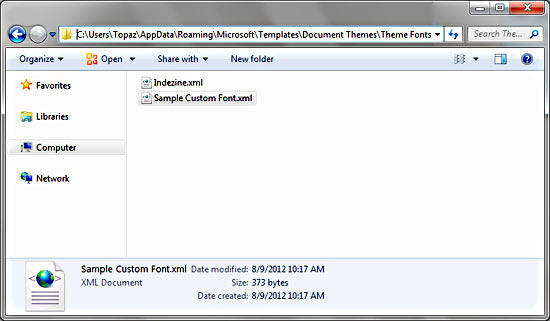
Figure 2: Local User folder with custom Theme Fonts XML files
Select the XML file that represents the required Theme Fonts set. Then copy the file to the local User folder of another computer, or paste it within another User folder on the same computer. To delete any custom Theme Fonts set, just select the file and press the Delete key.
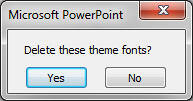
In addition, you can also edit a Theme Fonts' name or delete it altogether from within PowerPoint. To do so, follow these steps:
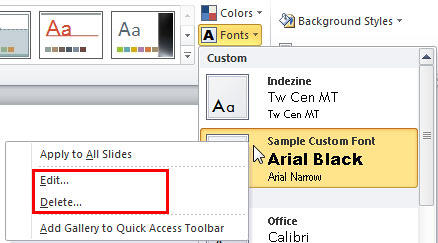
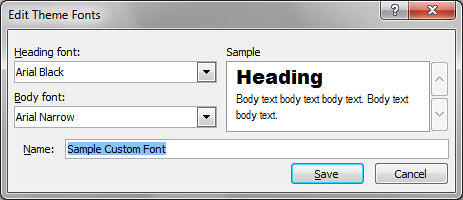
If you made changes to your Theme Fonts sets, the action will only influence the fonts in any new presentation you create henceforth. Older presentations will remain unaltered unless you apply the updated Theme Fonts sets to them manually.
See Also:
Theme Fonts: Edit Theme Fonts Set in PowerPoint (Index Page)
Edit Theme Fonts Set in PowerPoint 2016 for WindowsYou May Also Like: How to Give a Short Speech at a Celebratory Festive Event | Rupee PowerPoint Templates



Microsoft and the Office logo are trademarks or registered trademarks of Microsoft Corporation in the United States and/or other countries.
