Ever peeked at a phone, tablet, or laptop screen and noticed a shiny streak gliding across it—like it's been kissed by a spotlight? That's called a glossy highlight, and it's not magic (though it might look like it). It’s a visual trick designers use to give your device a polished, high-end sparkle, like it’s fresh out of the tech spa.
You can see an example of this effect in Figure 1, below.
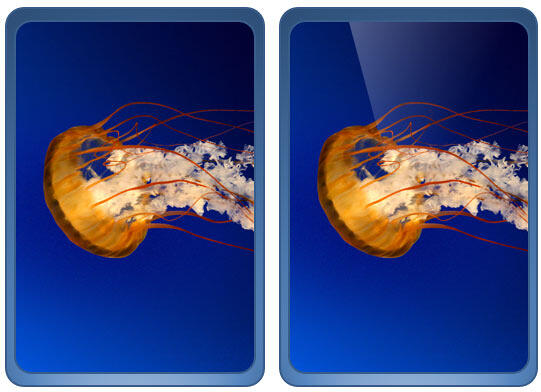
Figure 1: Sample of glossy highlight
The one on the left looks clean and matte, kind of like a chalkboard.
The one on the right? It has that shiny swoosh—like someone drew a glimmer with varnish. That gleam gives the illusion of a reflective surface, even if the screen isn't truly shining.
Fun Fact: Cartoons and Comics
Did you know the glossy effect traces back to early cartooning, and even some comic art, where artists used a white swoosh or glimmer to imply glass, water, or slick plastic? Yep—your PowerPoint is secretly learning from old-school animation tricks!
Ever wish your slide had that shiny, showstopper look like a brand-new smartphone screen under a spotlight? Well, good news: PowerPoint isn’t just for bullet points—it's a mini art studio hiding in plain sight.
You don’t need Photoshop, a design degree, or even fairy dust. All you need is a custom shape that fakes that slick shine. Once you’ve built it, it’s reusable, adaptable, and ready to glam up any screen or slide!
Here’s the fun part:
- You create a shape that looks like a highlight.
- That shape can then be plopped anywhere—on a phone mock-up, a tablet diagram, even on an imaginary unicorn's sunglasses (okay, maybe not that last one… unless you’re making a magical PowerPoint for kids).
Follow these steps to learn how to create this glossy highlighted shape within PowerPoint:
- Think of PowerPoint as your craft table. Today, we’re building a pretend tablet—not the kind you charge overnight, but one that lives happily on your slide. First, fire up PowerPoint, just like opening your sketchbook before doodling your masterpiece. Now we’re ready to shape some pixels!
- Now, insert a shape that represents a Tablet. Click the Insert tab. Then, choose Shapes | Rounded Rectangle. Plop it onto your slide, as shown in Figure 2, below. Voilà! You’ve got the silhouette of a futuristic gadget.
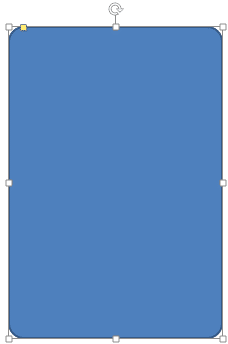
Figure 2: Rounded Rectangle placed on the slide- See that little yellow diamond or square hugging the shape? That’s your corner stylist! Drag it around to adjust the roundness:
- Want super smooth, soft corners? Pull it way in!
- Want firm, almost-square corners? Push it outward!
- Apply a picture fill to the tablet shape, as shown in Figure 3, below. Now, we need to add the glossy highlighted shape above this tablet.
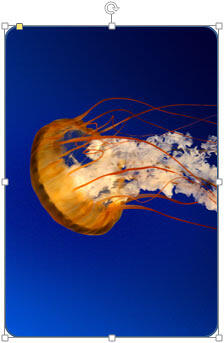
Figure 3: Picture fill applied to tablet shape- Now, insert a smaller Rectangle shape, as shown in Figure 4, below. Right-click the rectangle and from the contextual menu that appears, select the Edit Points option, as shown highlighted in red within Figure 4.
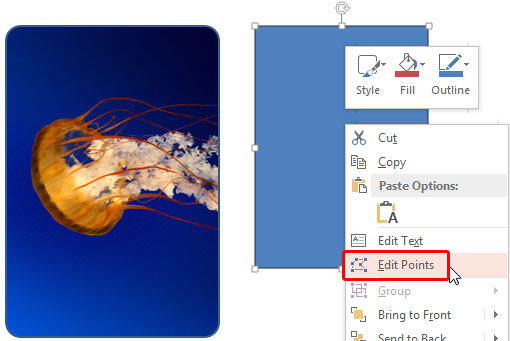
Figure 4: Edit Points option- Once you are into Edit Points mode, select the bottom left point and drag it inwards to get a shape sloped at around 120 degrees, as shown in Figure 5, below. This is going to be our glossy highlight shape.
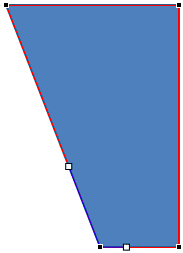
Figure 5: Point repositioned within a Rectangle shape- Place the edited rectangle shape over the tablet shape, as shown in Figure 6, below.
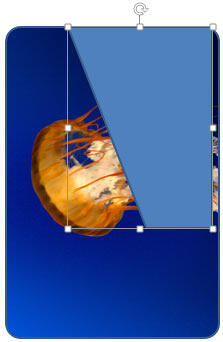
Figure 6: Edited Rectangle shape placed on Rounded Rectangle- Now, alter the fill of this edited rectangle shape so that it has a Gradient fill. You will need to have three Gradient stops so that you can edit, delete, or add to end up with three gradient stops that have the exactly same parameters, as mentioned below:
- Gradient Stop 1, as shown highlighted in red within Figure 7, below.
- Make these changes:
- Color: White (choose from Theme colors)
Position: 0%
Transparency: 70%.
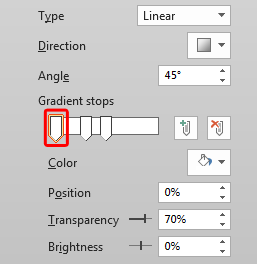
Figure 7: Gradient Stop 1- Gradient Stop 2, as shown highlighted in red within Figure 8, below.
- Make these changes:
- Color: White (choose from Theme colors)
Position: 30%
Transparency: 90%.
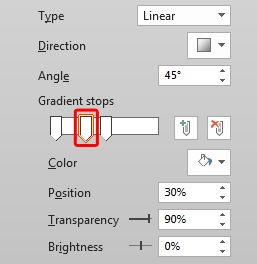
Figure 8: Gradient Stop 2- Gradient Stop 3, as shown highlighted in red within Figure 9, below.
- Make these changes:
- Color: White (choose from Theme colors)
Position: 50%
Transparency: 100%.
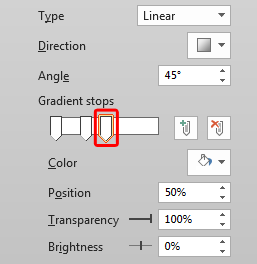
Figure 9: Gradient Stop 3- Do note that you also must set these three attributes, as shown in Figures 7, 8, and 9:
- Type: Linear
Direction: Top Left to Bottom Right
Angle: 45°
- Also, remove the line attribute from the rectangle. After applying all the parameters, you can see the result, as shown in Figure 10, below.
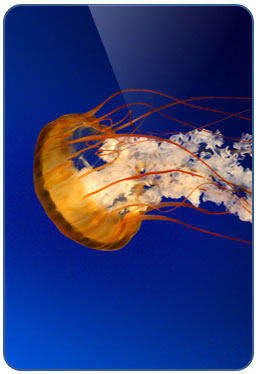
Figure 10: Glossy highlight shape ready- You can use this same glossy highlight shape for other objects too, as shown within the squares in Figure 11, below. Just copy the highlight shape and paste over other objects, and resize as required depending upon the size of the object beneath.

Figure 11: Glossy highlight shape for other objects- Make sure to save your presentation often.


