This tutorial shows you how you can create a full slide puzzle effect in PowerPoint. Although we use PowerPoint 2007 and 2010 in this tutorial,the basic technique works the same way all the way back to PowerPoint 97.
You can use your own jigsaw shapes, or you can buy some ready-to-use jigsaw shapes to follow this tutorial from here.
- Launch PowerPoint, and open the presentation you downloaded from link provided. Within the downloaded presentation you'll find Jigsaw Pieces created with various shapes. We choose the Typical shape with 4x3 lines, as shown in Figure 1, below.
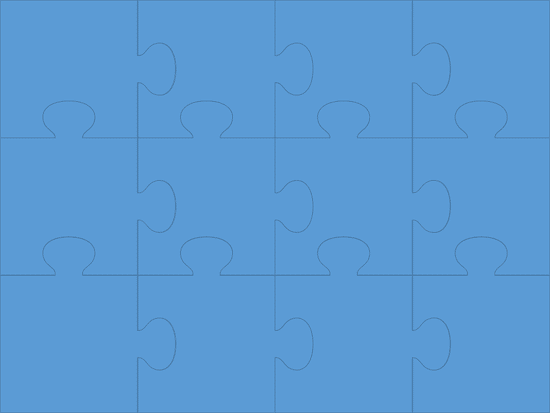
Figure 1: Jigsaw typical shapes 4x3 slide - Within the Home or Insert tab of the Ribbon, access the Shapes drop-down gallery, as shown in Figure 2, below, and choose the Rectangle shape.
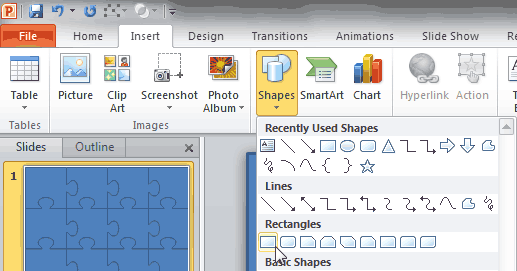
Figure 2: Rectangle shape selected within the Shapes drop-down gallery - Draw a Rectangle that spans the entire Slide Area. This rectangle will serve as a "mock background" for your slide. You might want to change the fill and line attributes of Rectangle to match the slide background of the rest of your slides. Now, right-click this Rectangle, and from the context menu choose the Send to Back | Send to Back option, as shown in Figure 3.
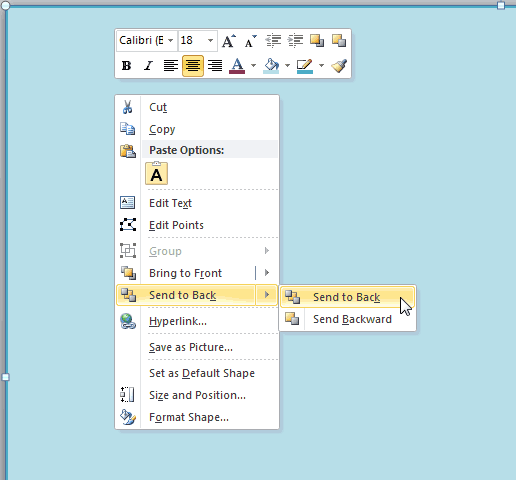
Figure 3: Send the Rectangle to the back - You’ll end up with the jigsaw puzzle shapes being visible over the rectangle, as shown in Figure 4, below. The Rectangle placed behind them won't be visible.
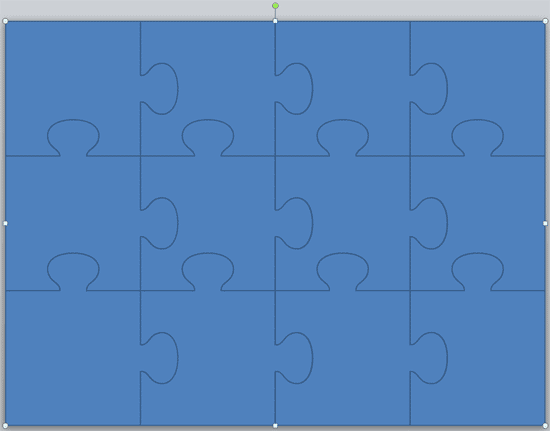
Figure 4: Jigsaw puzzle shapes over the Rectangle shape - Now change the background of the presentation to any picture that you want to use for your jigsaw. To do so, select the Design tab of the Ribbon and click the Background Styles button, as shown in Figure 5, below. From the Background Styles drop-down gallery choose the Format Background option, as shown Figure 5.
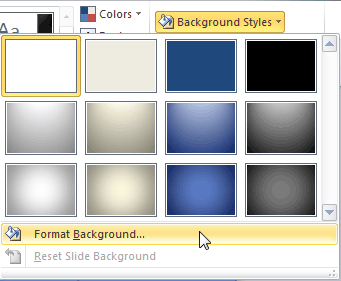
Figure 5: Background Styles drop-down gallery - This brings up the Format Background dialog box, as shown in Figure 6, below. Within the dialog box select the Fill tab on the sidebar, and on the right side of the dialog box select the Picture or texture fill radio button (see Figure 6 again).
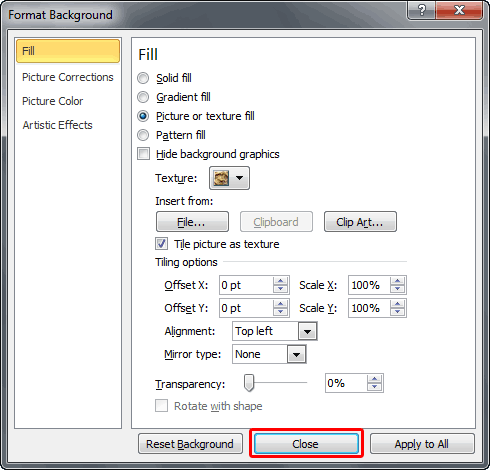
Figure 6: Format Background dialog box- Within the Format Background dialog box, click the File button to bring up the Insert Picture dialog box, as shown in Figure 7, below. Select any picture, and click the Insert button to get back to the Format Background dialog box.
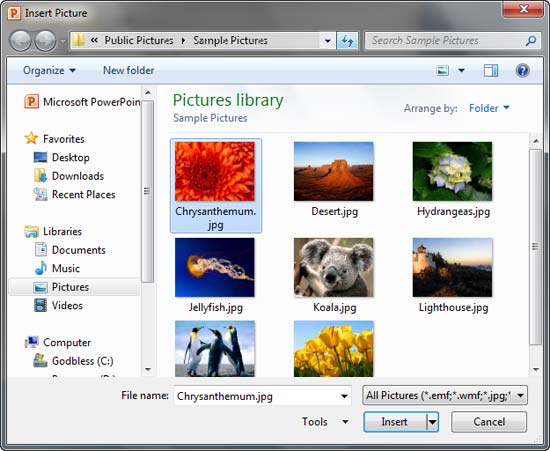
Figure 7: Insert Picture dialog box- Once in the Format Background dialog box, click Close button, as shown highlighted in red within Figure 6, previously on this page. Make sure you do not click the Apply to All button.
- You won’t find any visible change on the slide since our Rectangle already covers the slide background, and we really want it to stay this way. To see the actual change, select all the jigsaw puzzle shapes, as shown in Figure 8, below. Make sure you only select these jigsaw puzzle shapes and nothing else.
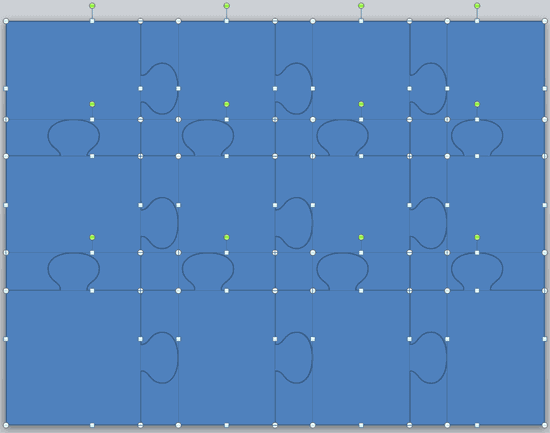
Figure 8: Jigsaw puzzle shapes selected- Right-click these selected shapes, and from the context menu that appears, select the Format Object option to bring up the Format Shape dialog box, as shown in Figure 9, below. Within the sidebar of Format Shape dialog box select the Fill tab, and on the right side of the dialog box change the fill attribute to Slide background fill, as shown in Figure 9.
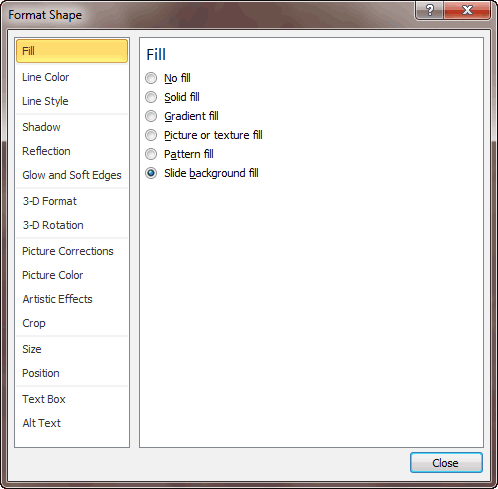
Figure 9: Select the Slide background fill radio button- Figure 10, below, shows the result of applying the Slide background fill to the jigsaw shapes.
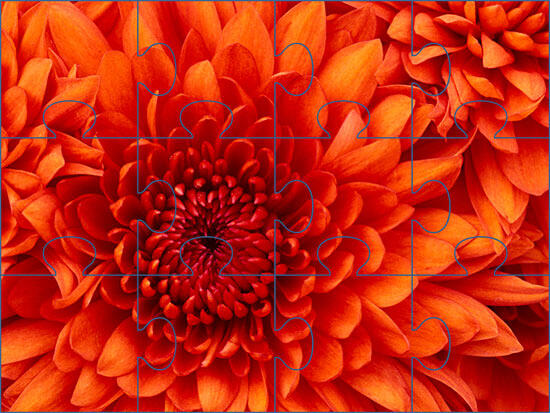
Figure 10: Jigsaw picture puzzle created- You may further want to change the jigsaw puzzle shapes' line width, or change the line color. All of these changes can be done within the Line Color and Line Style tabs in the sidebar of Format Shape dialog box so that the jigsaw puzzle shapes stand apart from each other more distinctly. See Figure 11, below, where we changed the line width and the line color.
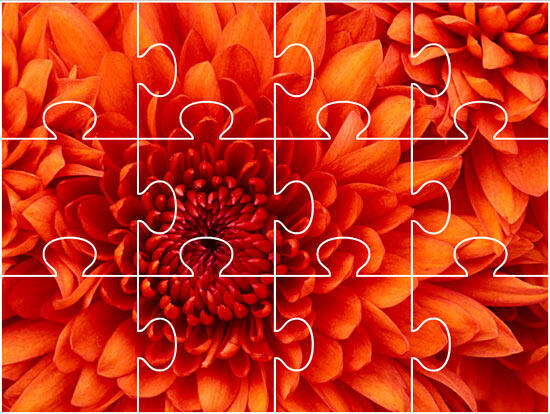
Figure 11: Jigsaw puzzle shapes with thicker outlines- Save your presentation.
Tips
- Remember, once you have a puzzle slide of this sort created, all you need to do is change the background of any particular slide to another picture to create a new picture puzzle!
- You can animate individual puzzles to come one after the other (or to exit as required).
- This technique works with any other shape, not just puzzles.

