
This is the print version of this page. All content is copyright Indezine.com 2000-2026.
Explore Outline pane options in PowerPoint 2010 for Windows.
Author: Geetesh Bajaj
Product/Version: PowerPoint 2010 for Windows
OS: Microsoft Windows XP and higher
Introducing the Slides/Outline Pane
Outline Pane Options
The Slides/Outline pane in PowerPoint 2010 looks and works almost the same as it did in previous versions. Unfortunately Microsoft took away the Outlining toolbar in PowerPoint 2007 and provided no replacement commands in any Ribbon tab, this state of affairs continues in PowerPoint 2010 for Windows. Yes, this does mean that most of the outline tasks now have to be accessed through right-click options, and we'll show how you can do that.
As shown in Figure 1, below, the Slides/Outline pane is normally placed on the left side of the interface. In Figure 1, the Slides tab is selected, but to get to the Outline tab, all you need to do is select the tab.
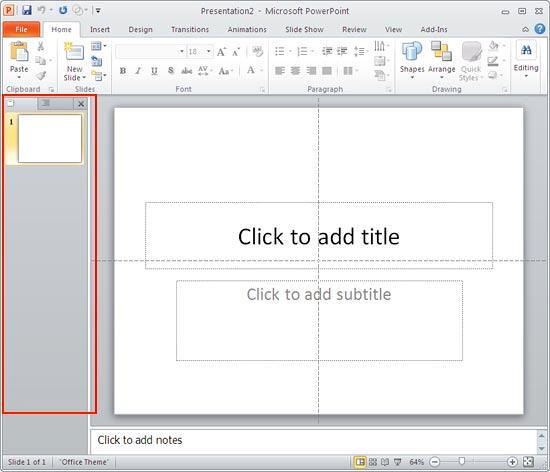
Figure 1: Slide/Outline pane
Is the Slides/Outline pane not visible even in Normal view? Choose the View tab of the Ribbon, and click the Normal button.
You can learn more about the Slide/Outline Pane in another tutorial, this one builds on it, and explores the various outline options available in PowerPoint 2010.
BackThe Outline tab typically displays the title and text content of the slides, as shown in Figure 2, below. The content shown here is what you insert in the text placeholders of a slide.
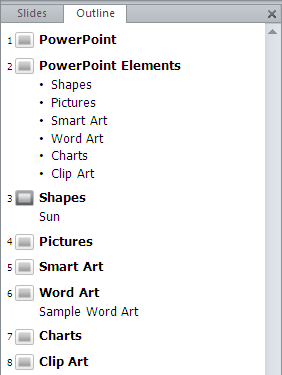
Figure 2: Outline tab
Tip: You can differentiate a text placeholder from other text boxes very easily:
Remember: The text delete tip that we mention above should be followed with an immediate Undo command so that all your existing text is back in the placeholder or the text box! Also, do look at our Text Placeholders vs. Text Boxes in PowerPoint 2010 tutorial.
Getting back to the outline, you can use the Outline pane to change bullet hierarchies, change bullets to titles, and the other way around. You can also reorder the slides, or move bullets from one slide to another fairly quickly.
Whatever you might need to do, the first thing you need to do is select the text for which you want to effect a change. Thereafter, with the text still selected, right click anywhere in the Outline tab of the pane to bring up the options in the context menu, as shown in Figure 3, below.
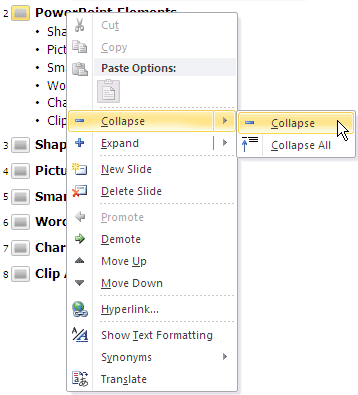
Figure 3: Outline Tab Edit Options
All the options related to outlining, as shown in Figure 3, above, are explained in the next page of this tutorial.
BackSee Also:
Text and Outlines: Outline Pane Options in PowerPoint (Index Page)
Outline Pane Options in PowerPoint 2016 for WindowsYou May Also Like: The Art of Skillful and Sincere Speaking – on Video or in Person | Hungary Flags and Maps PowerPoint Templates


Microsoft and the Office logo are trademarks or registered trademarks of Microsoft Corporation in the United States and/or other countries.
