Indezine Logo


Enable the Missing Developer Tab in the Ribbon in PowerPoint 2010 for Windows

Learn about the Developer tab of the Ribbon in PowerPoint 2010 for Windows.


Author:

Product/Version: PowerPoint 2010 for Windows

OS: Microsoft Windows XP and higher


Learn PowerPoint

Why does my Windows computer have no PowerPoint?


The Developer tab of the Ribbon in PowerPoint 2010 has options that let you work with VBA content and macros. In addition, you also use this tab to access options that allow you to insert Flash movies through an ActiveX controls in PowerPoint 2010 for Windows. By default, this tab is not visible and has to be turned on. Follow these steps to make the Developer tab visible (or invisible):
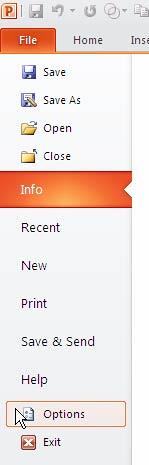
  1. Choose the File menu and select Options, as shown in Figure 1, below.
  2. Options within File menu
    Figure 1: Options within File menu
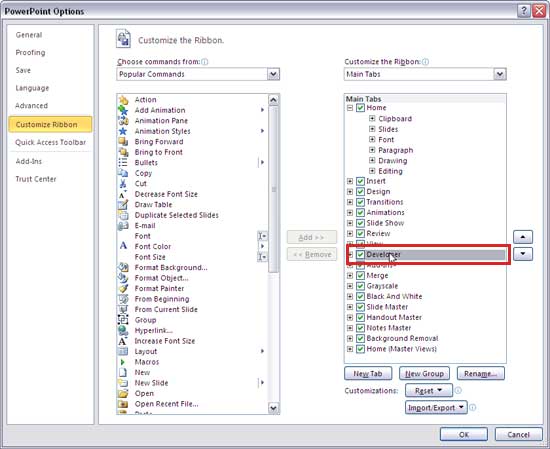
  3. This will bring up PowerPoint Options dialog box, as shown in Figure 2, below. Select the Customize Ribbon tab (within the left pane) and select the Developer check-box, as shown highlighted in red within Figure 2, the list on the right side. Click the OK button.
  4. Developer check-box selected
    Figure 2: Developer check-box selected
  5. Now the Developer tab is visible on the Ribbon, as shown in Figure 3, below.
  6. Developer tab made visible on the Ribbon
    Figure 3: Developer tab made visible on the Ribbon
Tip

Follow the same steps, and deselect the Developer check-box, as shown in Figure 2, above, to disable the Developer tab of the Ribbon.


See Also:

Customize Interface: Enable the Missing Developer Tab in the Ribbon (Index Page)

Enable the Missing Developer Tab in the Ribbon in PowerPoint 2016 for Windows
Enable the Missing Developer Tab in the Ribbon in PowerPoint 2016 for Mac
Enable the Missing Developer Tab in the Ribbon in PowerPoint 2013 for Windows
Enable the Missing Developer Tab in the Ribbon in PowerPoint 2011 for Mac
Enable the Missing Developer Tab in the Ribbon in PowerPoint 2007 for Windows

You May Also Like: Presentation Summit 2015: Conversation with Alexander Hanauer | Poland Flags and Maps PowerPoint Templates


Popular Posts

Use Safe Fonts Available on All Systems in PowerPoint
Learn about using safe fonts in PowerPoint.

10 Tips for Pecha Kucha
Read 10 amazing Pecha Kucha tips that will help you create and deliver a better Pecha Kucha presentation.

Creating Slide Backgrounds in Photoshop for PowerPoint
Learn how to create slide backgrounds for PowerPoint in Photoshop.

Formatting Arrows (Arrowheads) in PowerPoint 2016 for Windows
Learn how to format arrowheads for lines in PowerPoint 2016 for Windows.


Polygon Center Circles for PowerPoint

These special circles have polygon centers: the centers are made of triangles, squares, pentagons, and hexagons! And based on the sides of the polygon, the rest of the circle has that many segments.

Download and use these Polygon Center Circles in your slides for just $4.99


Microsoft and the Office logo are trademarks or registered trademarks of Microsoft Corporation in the United States and/or other countries.

Home | PowerPoint | Photoshop | PowerPoint Templates | PowerPoint Tutorials | Blog | Notes | Ezine | Media Kit | Feedback | Site Map | About Us | Contact Us

Link to Us | Privacy | Testimonials

PowerPoint Backgrounds | Christian PowerPoint Backgrounds | Business PowerPoint Presentation Templates

Plagiarism will be detected by Copyscape

©2000-2025, . All rights reserved.
