Indezine Logo


Align Shapes in PowerPoint 2010 for Windows

Learn how to align shapes in PowerPoint 2010 for Windows. Placing slide objects properly-aligned will help create an aesthetic slide.


Author:

Product/Version: PowerPoint 2010 for Windows

OS: Microsoft Windows XP and higher


Learn PowerPoint

How to Create a Gantt Chart Template in PowerPoint


Creative freedom may require no aligning of objects on a slide geometrically. Indeed, you may want everything placed in an organic, non-aligned manner. Ultimately, the decision to align can differ on a case-by-case basis. Sometimes, alignment works, and at other times, an unaligned bunch of shapes looks perfectly natural and organic, as you can see in the two different examples shown in Figure 1, below.

Alignment works great many times, but is better not done at other times
Figure 1: Alignment works great many times, but is better not done at other times

Look closely again at Figure 1, and you'll tend to agree that the bunch of circles on the right seems to follow a natural S curve and aligning them all in the same straight line would not benefit at all. On the other hand, the bunch of rectangles on the left certainly benefits from being aligned in a straight line.

Also, remember that alignment works with more than just shapes, and you can also combine shapes with other slide objects and align them all together. Now for those times when you place shapes on a PowerPoint slide anywhere you want, and then you need these shapes to be arranged in a straight line.

Follow these steps to align shapes and other slide objects in PowerPoint 2010 for Windows:
  1. Select all the shapes which you want to align.
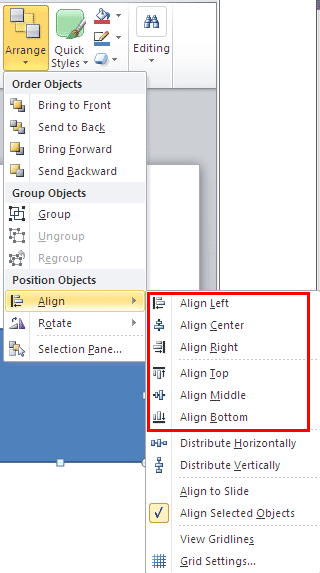
  2. Access the Home tab of the Ribbon, and click the Arrange button. You'll find an Align option in the resultant gallery. Clicking Align brings up the Align gallery, as shown in Figure 2, below.
  3. Align Options on the QAT

  4. If you use the Align tools often, consider adding them to your Quick Access Toolbar by customizing it.
  5. Align gallery in the Home tab of the Ribbon
    Figure 2: Align gallery in the Home tab of the Ribbon
  6. Align Selected Objects?

  7. Before you begin aligning shapes, make sure the Align Selected Objects option is activated in the Align gallery, as shown in Figure 2, above.
  8. The Align gallery provides six align options, as shown highlighted in red within Figure 2, above:
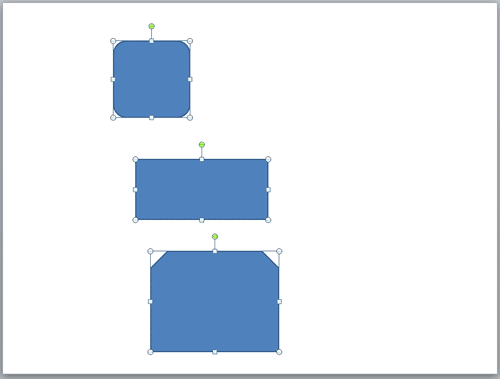
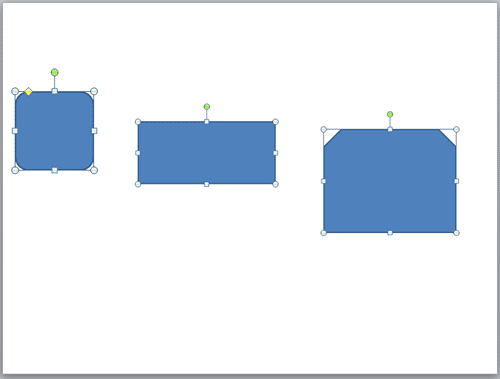
  9. The Align Left, Align Center, and Align Right options works with shapes and slide objects suitable for alignment vertically on the slide, as shown in Figure 3, below.
  10. Shapes placed for vertical alignment on the slide
    Figure 3: Shapes placed for vertical alignment on the slide
  11. Align Left

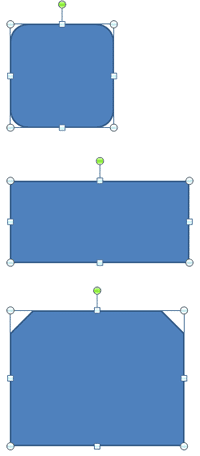
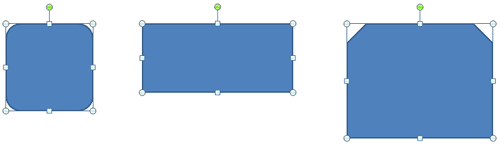
  12. The left-most shape within the selection determines the left point for alignment of all shapes, as shown in Figure 4, below.
  13. Shapes aligned to left
    Figure 4: Shapes aligned to left
  14. Align Center

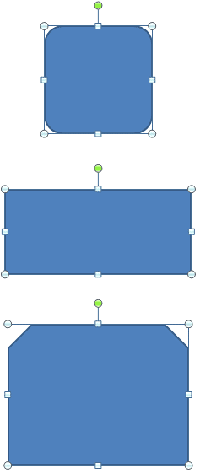
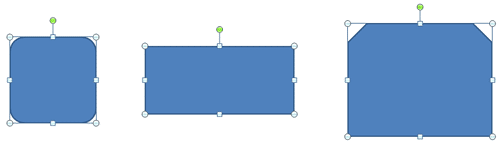
  15. This Align Center option calculates the center of all objects in the selection, by first determining the left-most and right-most points, and then determining the center between those end points. This command will align all shapes vertically along their centers, as shown in Figure 5, below.
  16. Shapes aligned to center
    Figure 5: Shapes aligned to center
  17. Align Right

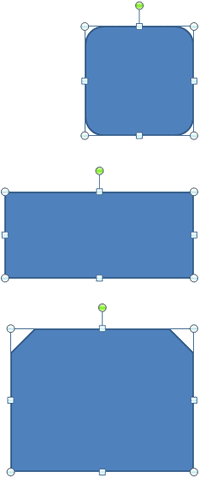
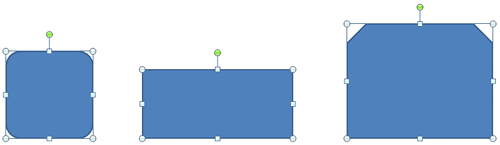
  18. The right-most shape within the selection determines the right point for alignment of all shapes, as shown in Figure 6, below.
  19. Shapes aligned to right
    Figure 6: Shapes aligned to right
  20. The Align Top, Align Middle, and Align Bottom options are suitable for selected shapes and other slide objects, placed horizontally on the slide, as shown in Figure 7, below.
  21. Shapes placed for horizontal alignment on the slide
    Figure 7: Shapes placed for horizontal alignment on the slide
  22. Align Top

  23. The top-most shape within the selection determines the top point for alignment of all shapes, as shown in Figure 8, below.
  24. Shapes aligned to top
    Figure 8: Shapes aligned to top
  25. Align Middle

  26. This Align Middle option calculates the middle of all objects by determining the top-most and bottom-most points, and then determining the middle between those end points. This command will align all shapes horizontally along their middles, as shown in Figure 9, below.
  27. Shapes aligned to middle
    Figure 9: Shapes aligned to middle
  28. Align Bottom

  29. The bottom-most shape within the selection determines the bottom point for alignment of all shapes, as shown in Figure 10, below.
  30. Shapes aligned to bottom
    Figure 10: Shapes aligned to bottom
  31. Save your presentation often.

See Also:

06 05 02 - Aligning and Distributing Shapes: Align Shapes in PowerPoint (Glossary Page)

Align Shapes in PowerPoint 2016 for Windows
Align Shapes in PowerPoint 2013 for Windows
Align Shapes in PowerPoint 2011 for Mac

You May Also Like: Presentation Hero Academy: Conversation with Matteo Cassese | Bicycle PowerPoint Templates


Popular Posts

Insert Picture from the Office ClipArt Collection in PowerPoint 2013
Learn how to insert picture using Office ClipArt in PowerPoint 2013.

Snow Effect in PowerPoint
Create a snow fall effect inside PowerPoint using animation techniques.

PowerPoint Transitions: Curtains
Explore the Curtains transition effect in PowerPoint.

Pivot Tables in PowerPoint: by Kasper Langmann
One of the most commonly used features in Microsoft Excel is the Pivot Table. A Pivot Table simply allows you to make better sense of data by giving you different options of how to view that data.


Polygon Center Circles for PowerPoint

These special circles have polygon centers: the centers are made of triangles, squares, pentagons, and hexagons! And based on the sides of the polygon, the rest of the circle has that many segments.

Download and use these Polygon Center Circles in your slides for just $4.99


Microsoft and the Office logo are trademarks or registered trademarks of Microsoft Corporation in the United States and/or other countries.

Home | PowerPoint | Photoshop | PowerPoint Templates | PowerPoint Tutorials | Blog | Notes | Ezine | Media Kit | Feedback | Site Map | About Us | Contact Us

Link to Us | Privacy | Testimonials

PowerPoint Backgrounds | Christian PowerPoint Backgrounds | Business PowerPoint Presentation Templates

Plagiarism will be detected by Copyscape

©2000-2025, . All rights reserved.