
This is the print version of this page. All content is copyright Indezine.com 2000-2026.
Learn to crop pictures using the Crop to Shape option in PowerPoint 2010 for Windows. This option allows you to restrain a picture to a shape.
Author: Geetesh Bajaj
Product/Version: PowerPoint 2010 for Windows
OS: Microsoft Windows XP and higher
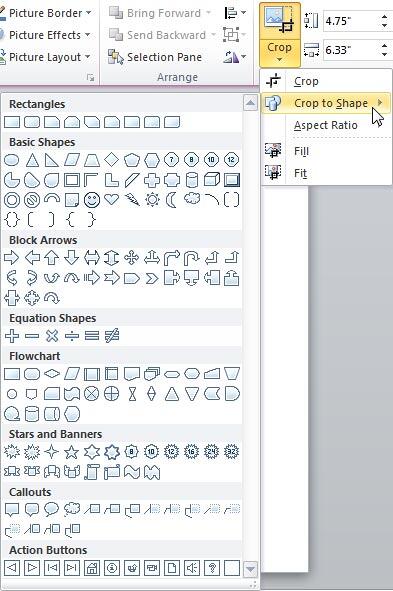
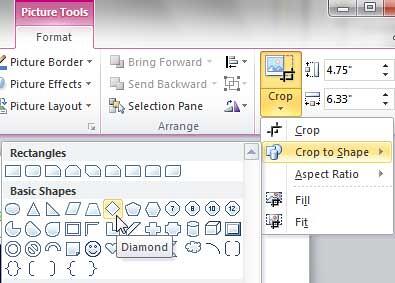
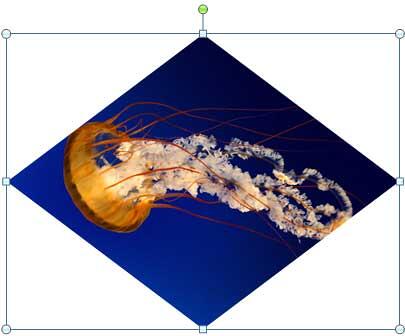
We already broadly explored Crop options in PowerPoint 2010. While you can do conventional cropping within PowerPoint, you can also decide to not crop within the typical rectangular constraints, and use another shape instead. This tutorial explains the Crop to Shape option that lets you choose non-rectangular cropping shapes for your pictures. The results tend to look like a picture has been contained within a shape.
Figure 1 below shows a conventional rectangular picture towards the left. Both the examples to the right have been created using the Crop to Shape option, that you will explore in this tutorial.

Figure 1: Picture cropped using the Crop to Shape option
Follow these steps to learn how to crop a picture using the Crop to Shape option:

See Also:
Pictures - Cropping: Crop Picture to Shape (Glossary Page)
Crop Picture to Shape in PowerPoint 2016 for Windows
Crop Picture to Shape in PowerPoint 2013 for Windows
Crop Picture to Shape in PowerPoint 2011 for Mac
You May Also Like: Using the Morph Transition with Characters in PowerPoint 365 for Windows | Scotland the Royal Standard Flags PowerPoint Templates



Microsoft and the Office logo are trademarks or registered trademarks of Microsoft Corporation in the United States and/or other countries.
