Indezine Logo


Duplicate Slides in PowerPoint 2010 for Windows

Learn quick methods to duplicate slides in PowerPoint 2010 for Windows. We explore keyboard shortcuts, menu commands, and drag options.


Author:

Product/Version: PowerPoint 2010 for Windows

OS: Microsoft Windows XP and higher


"Why would anyone want to duplicate slides?" There are many reasons to do so. You may want to:

  1. Create another slide that is similar to what you already have.
  2. Use the same slide twice.
  3. Create a slightly edited chart than what you already have on an existing slide; duplicating and editing is easier than redoing it again.

Whatever your reasons may be, it is easy to duplicate slides in PowerPoint 2010 for Windows in both the Slides Pane and Slide Sorter View:

Duplicating Slides within Slides Pane

Open your presentation and select the slide(s) to be duplicated within the Slides Pane. You can see that we have selected two slides, highlighted in red within Figure 1, below.
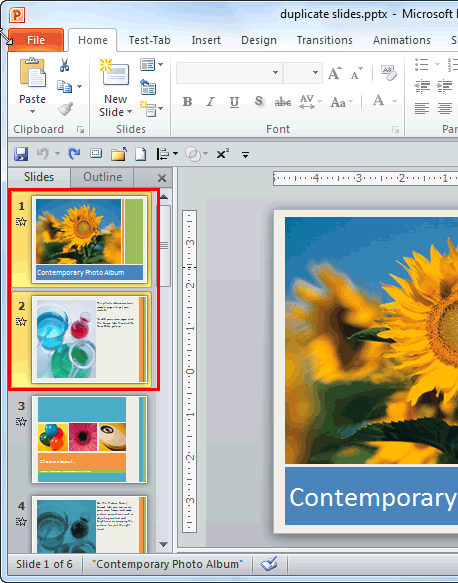
Slides to be duplicated selected within the Slides Pane
Figure 1: Slides to be duplicated selected within the Slides Pane

You can now duplicate selected slide(s) by following any of these four ways:

  1. Use the Ctrl + D keyboard shortcut. This action will duplicate the selected slide(s) and place them right below the selection.

    Keyboard Shortcuts for PowerPoint

    PowerPoint Keyboard Shortcuts

    Do you want more keyboard shortcuts?

    Explore our PowerPoint Keyboard Shortcuts and Sequences Ebook that is updated for all PowerPoint versions.
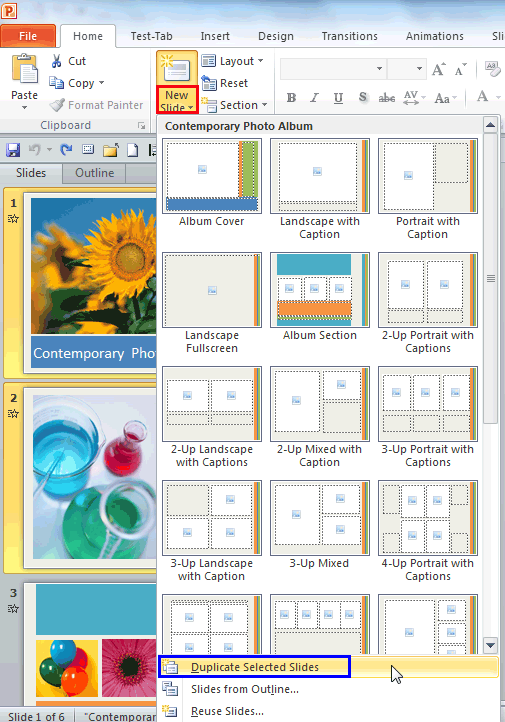
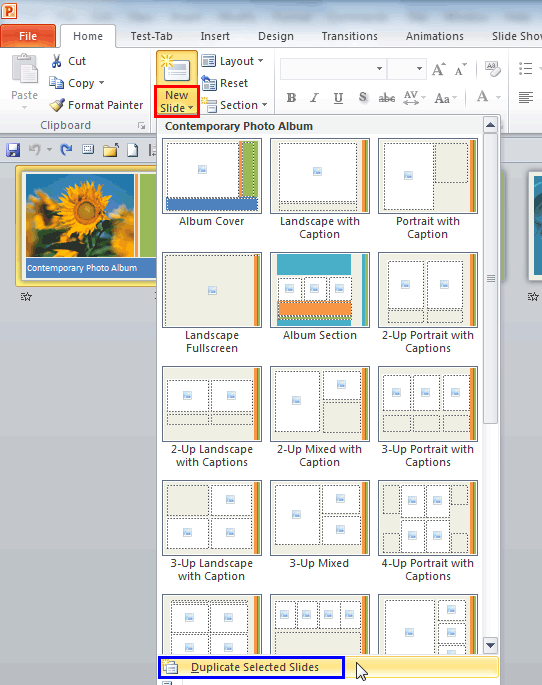
  2. With the slides selected, click the down-arrow within the New Slide button, as shown highlighted in red within Figure 2, below. Within the resultant drop-down menu, select the Duplicate Selected Slides option, as shown highlighted in blue within Figure 2.
  3. Duplicate Selected Slides option
    Figure 2: Duplicate Selected Slides option
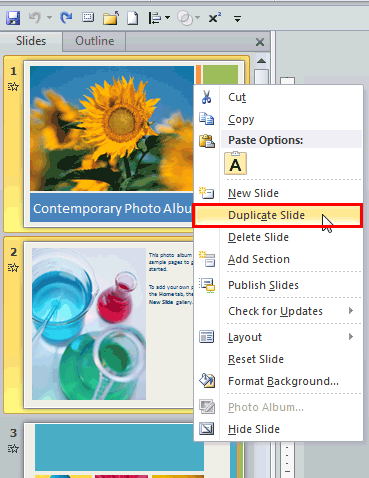
  4. Right-click the selected slide (or slides) to bring up a contextual menu, as shown in Figure 3, below. Within this contextual menu, select the Duplicate Slide option, as shown highlighted in red within Figure 3.
  5. Duplicate Slide option within the right-click contextual menu
    Figure 3: Duplicate Slide option within the right-click contextual menu
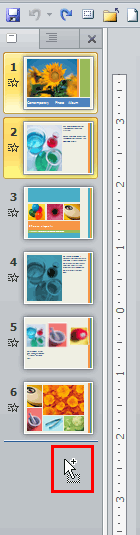
  6. Hold down the selected slide/slides and then drag within the Slides Pane to the location where you want to place the duplicated slides. Don't let go of your hold yet and press the Ctrl key so that your cursor shows a plus sign while Ctrl + dragging, as shown highlighted in red within Figure 4, below. Then, release the mouse button to place the duplicate slide in the new place.
  7. Ctrl+drag the slides to duplicate within Slides Pane
    Figure 4: Ctrl+drag the slides to duplicate within Slides Pane
  8. Save your presentation often.

Duplicating Slides within Slide Sorter View

Change the view to Slide Sorter and select the slide or slides to be duplicated, as shown in Figure 5, below.
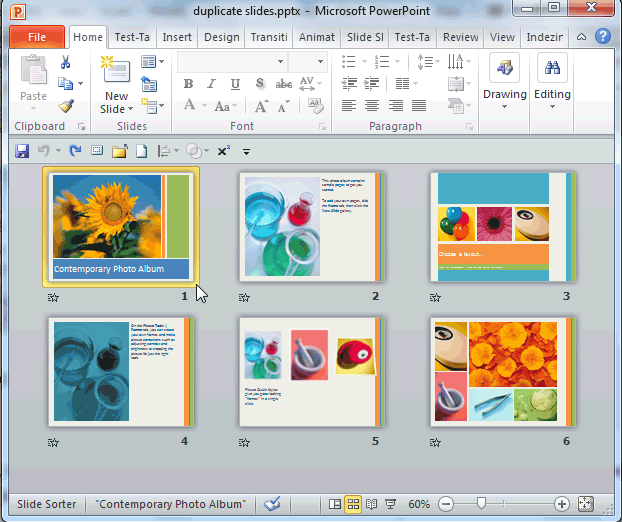
Slides to be duplicated selected within the Slide Sorter view
Figure 5: Slides to be duplicated selected within the Slide Sorter view

You can now duplicate selected slide(s) by following any of these three ways:
  1. Use the Ctrl + D keyboard shortcut. This action will duplicate the selected slide/slides and place them right next to the selection.
  2. With the slides selected, click the down-arrow within the New Slide button, as shown highlighted in red within Figure 6, below. Within the resultant drop-down menu, select the Duplicate Selected Slides option, as shown highlighted in blue within Figure 6.
  3. Duplicate Selected Slides option
    Figure 6: Duplicate Selected Slides option
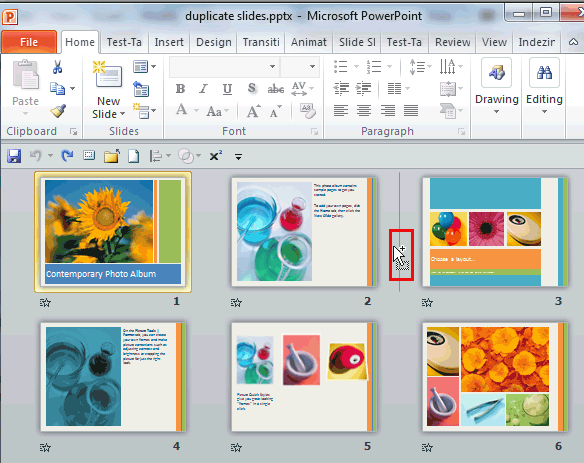
  4. Hold down the Ctrl key and drag the selected slide/slides to the new area within Slide Sorter view, where you want to place the duplicated slides, as shown in Figure 7, below. Notice that your cursor will show a plus sign while Ctrl + dragging, as shown highlighted in red within Figure 7.
  5. Ctrl+drag the slides to duplicate in Slide Sorter view
    Figure 7: Ctrl+drag the slides to duplicate in Slide Sorter view
  6. Change the view of your presentation to Normal and also save your presentation.

See Also:

01 09 05 - Working with Slides: Duplicate Slides in PowerPoint (Glossary Page)

Duplicate Slides in PowerPoint 365 for Windows
Duplicate Slides in PowerPoint 2016 for Windows
Duplicate Slides in PowerPoint 2016 for Mac
Duplicate Slides in PowerPoint 2013 for Windows
Duplicate Slides in PowerPoint for the Web

You May Also Like: Presentations Cost Salespeople 50+ Hours Every Month | PowerPoint versus Excel: by Kurt Dupont


Popular Posts

Snow Effect in PowerPoint
Create a snow fall effect inside PowerPoint using animation techniques.

PowerPoint Transitions: Curtains
Explore the Curtains transition effect in PowerPoint.

Pivot Tables in PowerPoint: by Kasper Langmann
One of the most commonly used features in Microsoft Excel is the Pivot Table. A Pivot Table simply allows you to make better sense of data by giving you different options of how to view that data.

Get More SmartArt Graphics
Learn how you can get more SmartArt graphic variants.


Jeopardy-Like PowerPoint Template (25 Questions)

Want to play a Jeopardy-like game using PowerPoint slides? Yes, this is absolutely doable but making PowerPoint slides with all the interactivity and layouts takes too much work. Fortunately, we have done the work for you. just download our Jeopardy-like 25 (5x5) question PowerPoint template, replace the placeholders provided for questions, answers, and categories, and you’re done! You'll still need a real human being to track scores and you could soon be playing this amazing game as part of a fun exercise, a training program, or even a quiz show.

Download and play your own Jeopardy-like game


Microsoft and the Office logo are trademarks or registered trademarks of Microsoft Corporation in the United States and/or other countries.

Home | PowerPoint | Photoshop | PowerPoint Templates | PowerPoint Tutorials | Blog | Notes | Ezine | Media Kit | Feedback | Site Map | About Us | Contact Us

Link to Us | Privacy | Testimonials

PowerPoint Backgrounds | Christian PowerPoint Backgrounds | Business PowerPoint Presentation Templates

Plagiarism will be detected by Copyscape

©2000-2026, . All rights reserved.