Have you seen a running stitch effect around an object -- especially an embroidered one? Look at Figure 1 below to understand what we are referring to. It's possible to replicate this effect for most shapes within PowerPoint, as you will learn in this tutorial.
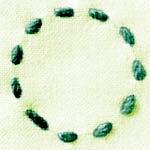
Figure 1: Embroidered dashed line
- Add a new slide to any existing presentation, or just create a new presentation. Make sure that it uses either the Title Only or Blank slide layout (learn how to change slide layouts).
- Insert a shape on your slide. We placed a Teardrop shape, as shown in Figure 2.
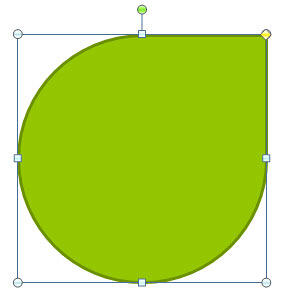
Figure 2: Teardrop shape inserted on slide- Now, select the Teardrop, and press the Ctrl + D (Command + D on Mac) key combination twice to create two duplicate copies of the shape -- for more information, see Duplicate Shapes on our glossary pages. PowerPoint places the duplicated shapes over the original Teardrop shape -- nudge or move the duplicated shapes rightward and place them one after the other, next to the original Teardrop shape, as shown in Figure 3, below.
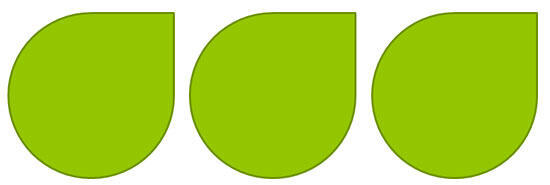
Figure 3: Duplicated Teardrops moved towards the right of the original Teardrop- Now, resize the duplicated Teardrop shapes to make them proportionately smaller than the original Teardrop. Our original Teardop was 3 inches tall and 3 inches wide. We resized the second Teardrop to 2.5 inches by 2.5 inches -- and the third Teardrop was similarly resized to 2 inches by 2 inches, as shown in Figure 4, below. Let's call these Teardrop shapes A, B, and C, as shown in Figure 4 below.
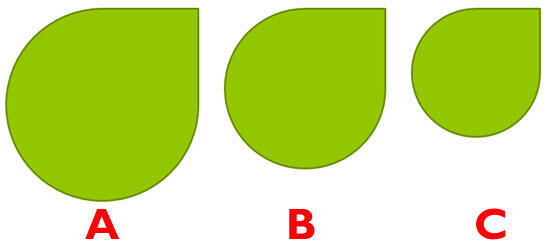
Figure 4: Resized Teardrop shapes- Once the shapes are resized, make these changes to the fills and outlines:
- Apply a solid fill color. We chose a red fill and removed the outline of the shape.
- Opt for a no fill option. We also changed the outline color to a lighter green, and added a dash style.
- Apply a picture fill and remove the outline.
- Figure 5 shows the three Teardrops, with the changes applied.
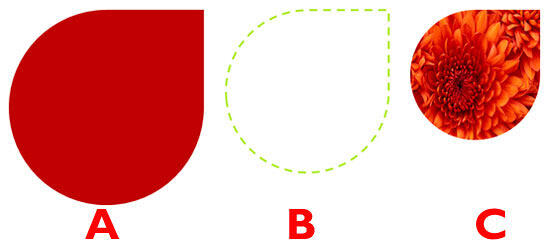
Figure 5: Teardrop shapes with different fill and outline attributes applied - Select all the three Teardrop shapes, and align them to middle and center. Possibly, the smaller shapes could be hidden behind the larger shape, as shown in Figure 6, below.
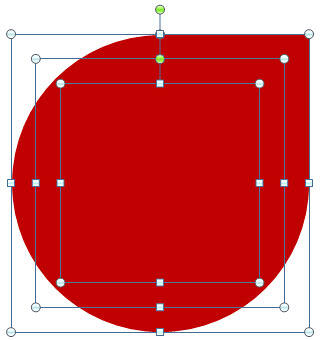
Figure 6: Teardrop shapes aligned to the middle and center- To get the shapes in the back to front order, starting with the largest shape behind all other shapes, and the smallest shape in the topmost position, re-order them, as shown in in Figure 7, below
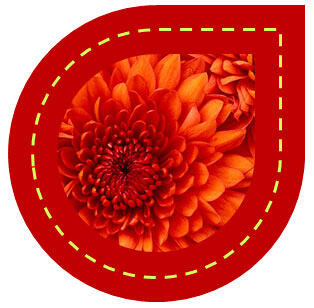
Figure 7: Teardrop shapes re-ordered - You have now created a graphic with an embroidered dashed line border. Select all the shapes, and group them. Save your presentation.
Tip:
Try using different shapes other than the Teardrop. You can use any of the Ovals, Rectangles and other shapes to create graphics. You can also combine multiple shapes -- use different PowerPoint shapes to create your own graphics!
Below, you can see some graphics created using the procedures explained in this tutorial:
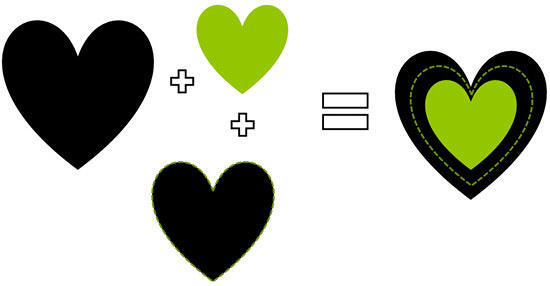
Hearts combined to create a grouped object
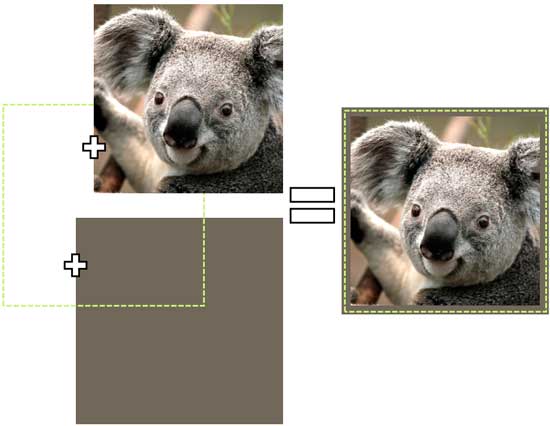
A picture within a dashed border, that's placed again within another shape
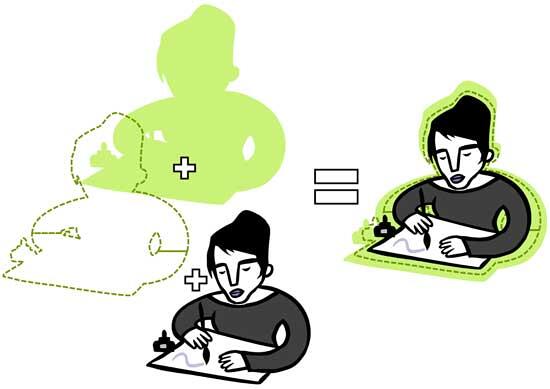
You can also use the dashed border trick with vector objects





