
This is the print version of this page. All content is copyright Indezine.com 2000-2026.
Add Headers and Footers to Notes and Handout pages in PowerPoint 2010 for Windows. These options allow you to create distinctive, branded Notes and Handout pages.
Author: Geetesh Bajaj
Product/Version: PowerPoint 2010 for Windows
OS: Microsoft Windows XP and higher
We have already explored how you can add Headers and Footers to your slides, additionally, you can also add Headers and Footers to your Notes and Handout pages. Unlike slides which are primarily presented through a display device such as a monitor, TV screen, webinar, or a projector, Notes and Handout pages in PowerPoint are essentially intended for printing. These printed pages often accompany a delivered presentation, or in some cases, they comprise the presentation. In this tutorial, we will explore how you can add Headers and Footers to make your printed Notes and Handout pages more professional-looking, relevant, and useful.
The terms Header and Footer typically come from word processing programs, these denote repeated elements that show at the top and bottom of every page. Headers and Footers work similarly on PowerPoint Notes and Handout pages. Explore Figure 1, below, where all Header and Footer elements that you can place in Notes (left side) and Handouts (right side) are shown.
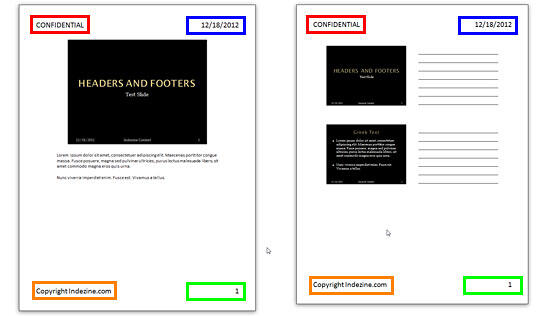
Figure 1: Header and Footer elements in Notes and Handouts
Typically, the Header and Footer denotes four placeholders:
Date, marked in blue within Figure 1, above.
Footer, marked in orange within Figure 1. You can add a message, a company name, or anything you want to be visible on all slides here.
Page number, marked in green within Figure 1.
Header, marked in red within Figure 1. You can add a message, a company name, or anything you want to be visible on all slides here.
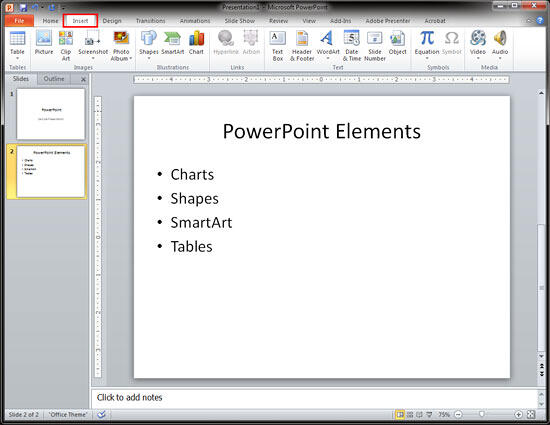
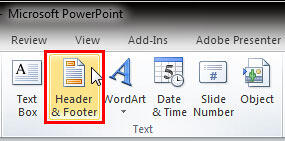
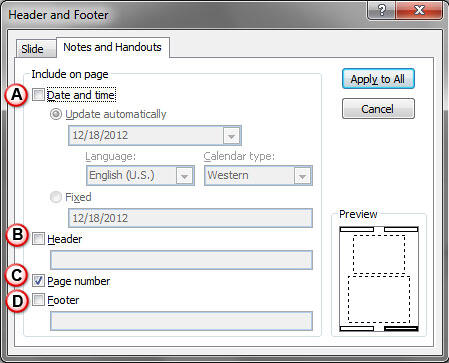
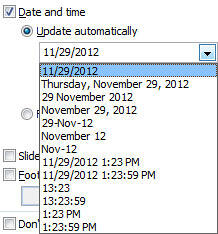
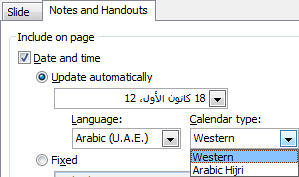
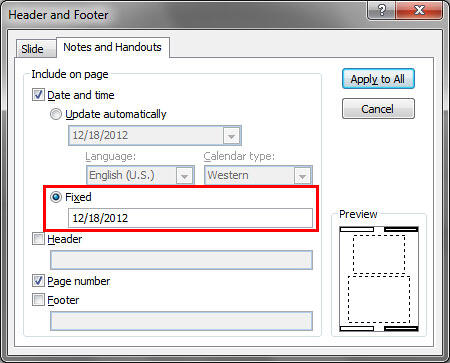
In this tutorial, we'll learn how to make these Header and Footer elements visible on your slides in PowerPoint 2010 for Windows:


01 10 02 - Headers and Footers: Add Headers and Footers to Notes and Handout Pages in PowerPoint (Glossary Page)
Add Headers and Footers to Notes and Handout Pages in PowerPoint 365 for Mac
Add Headers and Footers to Notes and Handout Pages in PowerPoint 2016 for Windows
Add Headers and Footers to Notes and Handout Pages in PowerPoint 2016 for Mac
Add Headers and Footers to Notes and Handout Pages in PowerPoint 2013 for Windows
Add Headers and Footers to Notes and Handout Pages in PowerPoint 2011 for Mac
You May Also Like: Build A Better Mousetrap And Presentation | Belts PowerPoint Templates


Microsoft and the Office logo are trademarks or registered trademarks of Microsoft Corporation in the United States and/or other countries.
