
This is the print version of this page. All content is copyright Indezine.com 2000-2026.
Learn about the various frame shapes for Photo Album presentations within PowerPoint 2010 for Windows. These frames can make your pictures stand apart.
Author: Geetesh Bajaj
Product/Version: PowerPoint 2010 for Windows
OS: Microsoft Windows XP and higher
PowerPoint's Photo Album feature is very powerful, allowing you to insert hundreds of pictures with two or three clicks. The best part is all these pictures are editable, right down to their picture layouts, captions, etc. In fact, you can ask PowerPoint to show all pictures as black and white too. Moreover, you can also change the frame shapes of the pictures. Doing so provides pictures the effect of drop shadows, or a black border, or even a picture that's contained in a frame with rounded corners. What frame you choose depends entirely upon you. This tutorial will make you aware of the different frame choices, some of these can be seen in Figures 1, 2 and 3 below.
Figure 1 shows you the Rectangle and Rounded Rectangle frames from left to right. Rectangle shows your picture in a rectangle shape. Rounded Rectangle shows the picture in a rounded rectangle shape.


Figure 1: Rectangle and Rounded Rectangle frames
Figure 2 shows you the Simple Frame - White and the Simple Frame - Black from left to right. Simple Frame, White adds a white border around your picture. Simple Frame, Black adds a black border around your picture.


Figure 2: Simple Frame - White and Simple Frame - Black
Figure 3 shows you the Compound Frame, Black, Center Shadow Rectangle, and Soft Edge Rectangle frames from left to right. Compound Frame, Black adds a compound black border around your picture. Center Shadow Rectangle adds a shadow to the picture. Soft Edge Rectangle makes your picture edges soft.



Figure 3: Compound Frame - Black, Center Shadow Rectangle and Soft Edge Rectangle frames
Follow these steps to change the frame shape for your Photo Album presentation in PowerPoint 2010 for Windows:

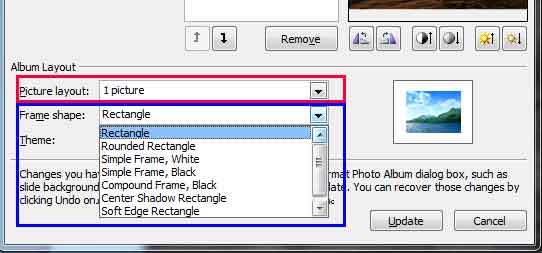

You must change the frame shape for all pictures in your Photo Album presentation from within the Edit Photo Album dialog box as you cannot have pictures that have different frame shapes within the Edit Photo Album dialog box.
See Also:
Photo Album: Frame Shapes for Photo Album (Glossary Page)
Frame Shapes for Photo Album in PowerPoint 2013 for Windows
You May Also Like: Ice-Breakers for Your Presentation: 5 Proven Suggestions | African Union PowerPoint Templates


Microsoft and the Office logo are trademarks or registered trademarks of Microsoft Corporation in the United States and/or other countries.
