Indezine Logo


Flip and Rotate Picture Fills for Shapes in PowerPoint 2010 for Windows

Learn how to flip and rotate picture fills for shapes in PowerPoint 2010 for Windows. This technique is super useful if you want to flip the picture fill without flipping the container shape.


Author:

Product/Version: PowerPoint 2010 for Windows

OS: Microsoft Windows XP and higher


Learn PowerPoint

Explore guidelines about the smallest font size for PowerPoint Slides.


In PowerPoint 2010 for Windows, it is easy to flip and rotate a picture on your slide, as shown in Figure 1, below.

Picture flipping is easy and quick in PowerPoint
Figure 1: Picture flipping is easy and quick in PowerPoint

However, this same flipping process can be a little tricky when it comes to using a Picture fill within a shape. Look at the examples, shown in Figure 2, below. The shape on the left is the original Teardrop shape with a picture fill. In our attempt to flip the picture, we tried flipping the container shape. The result is that the picture does get flipped, but so does the shape, as shown on the right.

Original and flipped versions of shape with a picture fill
Figure 2: Original and flipped versions of shape with a picture fill

However, what if we wanted to just flip the picture within the shape to end up with a result, as shown towards the right in Figure 3, below? How do you achieve this result?

Original and flipped versions of just the picture fill
Figure 3: Original and flipped versions of just the picture fill

Flip or Rotate Fills?

Although the following steps only explain how to flip a picture fill for a shape, you can use the techniques explained hereafter when you want to rotate picture fills as well. Just substitute flipping with rotation.

Follow these steps to learn how to flip and rotate picture fills for shapes in PowerPoint 2010 for Windows:

  1. We assume that you already have a shape with a picture fill, as shown towards the left within Figure 3 above. Select the entire shape and copy it to the Clipboard by pressing the Ctrl + C keyboard shortcut.
  2. Keyboard Shortcuts for PowerPoint

    PowerPoint Keyboard Shortcuts

    Do you want more keyboard shortcuts?

    Explore our PowerPoint Keyboard Shortcuts and Sequences Ebook that is updated for all PowerPoint versions.

  3. Now, paste the copied shape. You can press Ctrl + V anywhere within the slide or even on a new slide. Then change the copied shape (in our case, that's a Teardrop) to a Rectangle by applying the Crop to Shape option. You'll end up with something like what's shown in Figure 4.
  4. Copy of the shape changed to a rectangle
    Figure 4: Copy of the shape changed to a rectangle
  5. Flip the rectangle horizontally to end up with what you see in Figure 5, below. Compare with Figure 4, above.
  6. Rectangle flipped horizontally
    Figure 5: Rectangle flipped horizontally
  7. Copy the flipped rectangle (press Ctrl+C) so that it is now available on your Clipboard.
  8. Now, right-click the Teardrop shape, within which you want to use the flipped picture fill. From the contextual menu that appears, choose the Format Picture option, as shown in Figure 6, below.
  9. Format Picture option
    Figure 6: Format Picture option
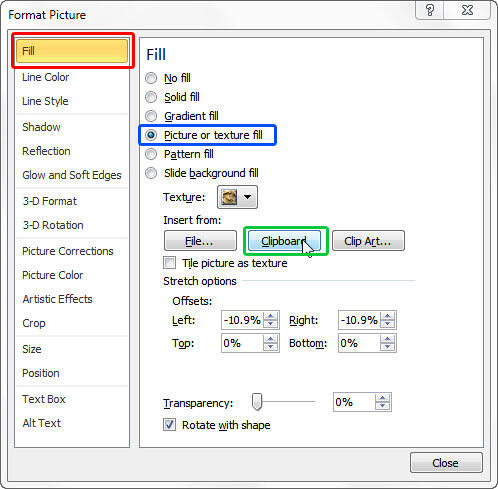
  10. Doing so brings up the Format Picture dialog box, as shown in Figure 7, below. Here, select the Fill option, as shown highlighted in red within Figure 7, in the sidebar, and click the Picture or texture fill radio button, as shown highlighted in blue within Figure 7. Now, click the Clipboard button, as shown highlighted in green within Figure 7.
  11. Format Picture dialog box
    Figure 7: Format Picture dialog box
  12. This action fills the Teardrop shape with the content on the Clipboard, i.e. the flipped picture, as shown in Figure 8, below.
  13. Shape filled with flipped picture
    Figure 8: Shape filled with flipped picture
  14. Use the Crop to Fill option so that the picture sets properly within the shape, as shown in Figure 9, below.
  15. Picture fill flipped within the shape
    Figure 9: Picture fill flipped within the shape
  16. Compare the picture shown in Figure 9, with the before and after states of the same picture shown within Figure 3, previously on this page.
  17. Save your presentation often.

See Also:

06 02 06 - Advanced Shape Techniques: Flip and Rotate Picture Fills for Shapes in PowerPoint (Glossary Page)

Flip and Rotate Picture Fills for Shapes in PowerPoint 365 for Windows
Flip and Rotate Picture Fills for Shapes in PowerPoint 365 for Mac
Flip and Rotate Picture Fills for Shapes in PowerPoint 2013 for Windows
Flip and Rotate Picture Fills for Shapes in PowerPoint 2011 for Mac

You May Also Like: Creating Slides on SlideShare | Social Media PowerPoint Templates


Popular Posts

Types of Animation in PowerPoint 2010 for Windows
Learn about different animation types in PowerPoint 2010 for Windows.

Restoring Earlier Versions of Presentations in PowerPoint 2010 for Windows
Learn how to restore earlier versions of your current presentation in PowerPoint 2010.

What is Animation in PowerPoint?
Learn what animations is and how to effectively plan animation for PowerPoint.

Apply Bevel Effects to Shapes in PowerPoint 2016 for Windows
Learn how to apply bevel effects to shapes in PowerPoint 2016 for Windows.


Pictures in Presentations

Is a picture is worth a thousand words? You probably have heard this adage so often that we decided not to repeat this phrase throughout this book! Now here’s some more info: the human brain uses a larger part of its area to store visual information rather than textual content. And that’s possibly because a picture describes so much more than text.

Go and get a copy of our Pictures in Presentations ebook.


Microsoft and the Office logo are trademarks or registered trademarks of Microsoft Corporation in the United States and/or other countries.

Home | PowerPoint | Photoshop | PowerPoint Templates | PowerPoint Tutorials | Blog | Notes | Ezine | Media Kit | Feedback | Site Map | About Us | Contact Us

Link to Us | Privacy | Testimonials

PowerPoint Backgrounds | Christian PowerPoint Backgrounds | Business PowerPoint Presentation Templates

Plagiarism will be detected by Copyscape

©2000-2025, . All rights reserved.