Many PowerPoint designers, especially template designers need some dummy text to quickly add to their slides so that they can ascertain how some body of text looks or fits within a certain text box or placeholder.
Microsoft introduced an undocumented feature in PowerPoint 2010 for Windows that lets you achieve this with just a few keystrokes, and once you are used to these shortcuts, you'll learn to appreciate them so much!
Follow these steps to add dummy text within PowerPoint 2010:
- Click anywhere on your text container, as shown in Figure 1, below. Your container can be:
- A text placeholder such as the title, the subtitle, or a content placeholder.
- A text box such as one you place by accessing the Insert tab of the Ribbon, and choosing the Text Box option.
- A shape you insert from the Shapes gallery. The Shapes gallery is available from several Ribbon tabs including the Home and Insert tabs.
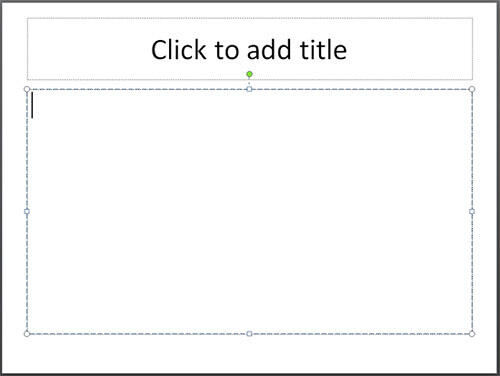
Figure 1: A text placeholder with an insertion point- Thereafter, type "=rand()" without the quotes, as shown in Figure 2, below, and press the Enter key.
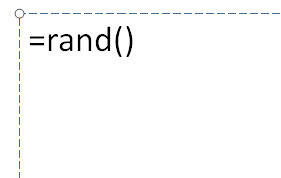
Figure 2: Enter your secret keystroke- As soon as you press the Enter key, you will see 3 paragraphs containing the text "The quick brown fox jumps over the lazy dog" repeated 5 times, as shown in Figure 3, below.
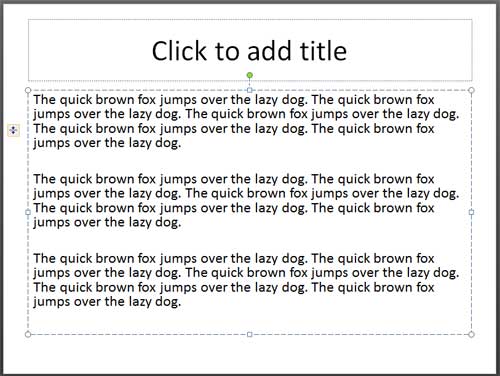
Figure 3: "The quick brown fox jumps over the lazy dog" dummy text inserted in the selected text placeholder- Whether you see paragraphs or bulleted text depends upon where you type in the keystroke:
- Typing in a simple text placeholder or text box, or even the title or sub-title placeholders results in paragraphs. These may be left or center aligned (or even right-aligned) based on the attributes of the text container within which you type the keystroke.
- Typing in a content placeholder or bulleted text placeholder (or text box) results in bulleted paragraphs.
- Typing in a shape results in center aligned paragraphs
- You can control the numbers of lines and paragraphs that show up by adding an argument to your keystroke as explained below:
- =rand(4,2) will provide you with 4 paragraphs of 2 lines each of "The quick brown fox jumps over the lazy dog" text.
- =rand(2,1) will provide you with 2 paragraphs of 1 line each of "The quick brown fox jumps over the lazy dog" text.
- You can also add dummy Latin text by typing the "=lorem()" keystroke without the quotes, and pressing the Enter key. This provides 3 paragraphs of fake Latin text (Lorem ipsum dolor...), as shown in Figure 4, below.
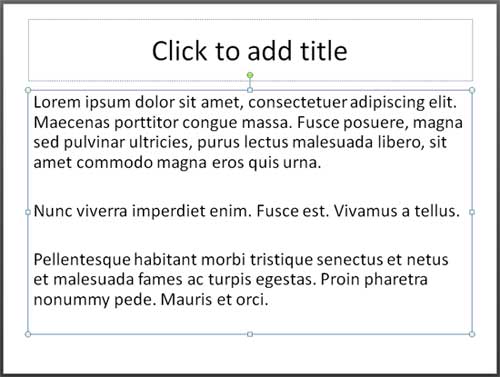
Figure 4: Lorem ipsum text inserted in the selected text placeholder- The =lorem() keystroke does allow arguments to choose from, but there are fewer options:
- =lorem(1) gets you one paragraph/line of fake Latin text.
- =lorem(2) gets you two paragraphs/lines of fake Latin text.
- =lorem(3) gets you three paragraphs/lines of fake Latin text.
- Any other value such as =lorem(), =lorem(0), or even =lorem(8000) gets you three paragraphs/lines of fake Latin text.
Note:
Typing "=rand()" without quotes works with both PowerPoint 2007 and 2010 for Windows, and also PowerPoint 2008 and 2011 for Mac. However, typing "=lorem()" without the quotes works only with PowerPoint 2010 for Windows and with PowerPoint 2011 for Mac.


