
This is the print version of this page. All content is copyright Indezine.com 2000-2026.
Learn how to save the Themes in PowerPoint 2010 for Windows.
Author: Geetesh Bajaj
Product/Version: PowerPoint 2010 for Windows
OS: Microsoft Windows XP and higher
Why Save a Theme?
How to Save Themes In PowerPoint
Saving the Themes file in Microsoft Word and Excel
Similar to PowerPoint 2007 (also Word and Excel), PowerPoint 2010 for Windows uses a variety of built-in Themes that are installed by default. In PowerPoint, you can find these in the Design tab of the Ribbon, as shown in Figure 1, below .
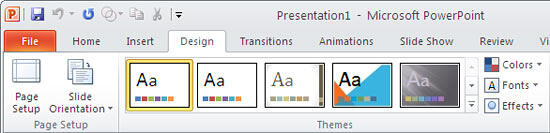
Figure 1: Themes in PowerPoint 2010
It's a good idea to learn how you can save individual Theme files for several reasons:
You might want to customize the Theme in PowerPoint 2010 by changing the Theme Colors, Theme Fonts, etc., or you may want to add new Slide Layouts. By the time you are done customizing any Theme, it may no longer look like its original state! That's one good reason to save your Theme file before you play with it.
Or you may have customized the Theme file to perfection, and it's so nice now that you want to save it as a file that you can share with others.
You can just save your favorite Theme as a backup, so that it is safe.
You might want to open a THMX file in Theme Builder to edit and fine-tune it to your requirements.
The Theme files are saved as (.THMX) files. While saving the file you can provide a new name and choose a different destination folder. The saved Themes can be easily applied on any presentation.
Follow these steps to save an active Theme as a THMX file:
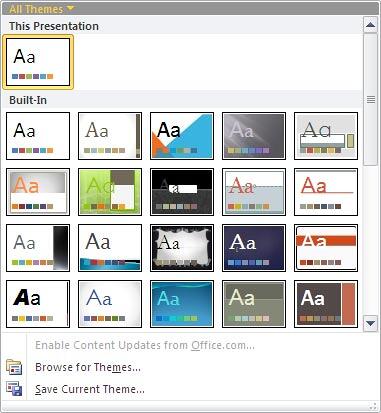
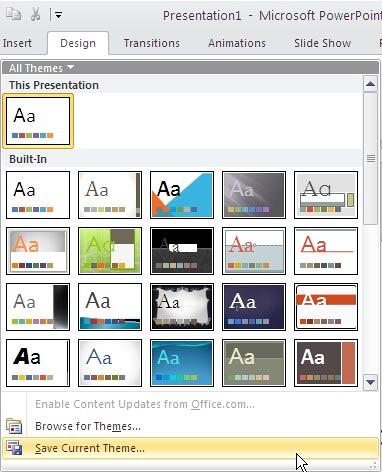
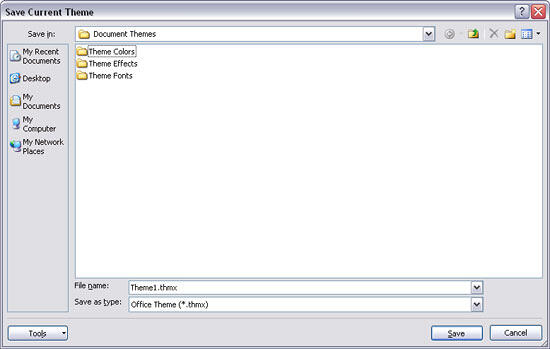
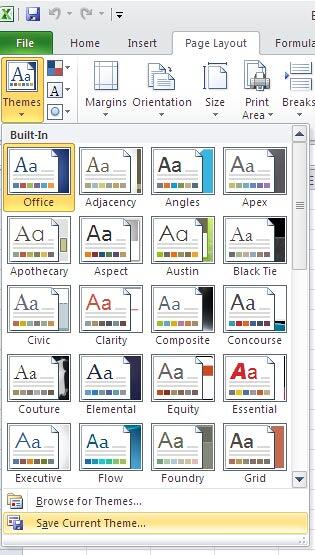
Themes can also be saved from within Microsoft Word and Excel (version 2010) in the same way it is done in PowerPoint. In both of these programs, Themes are found in a tab location different from that of PowerPoint. Follow these steps to save the current Theme in Microsoft Word or Excel 2010:
Related Links: Applying Theme Colors and Theme Fonts in PowerPoint 2010 for Windows | Theme Builder
See Also:
Saving Themes: Saving Themes in Word, Excel, and PowerPoint (Index Page)
Saving Themes in Word, Excel, and PowerPoint 2011 for MacYou May Also Like: Add Humor to Your Presentation | Currency PowerPoint Templates



Microsoft and the Office logo are trademarks or registered trademarks of Microsoft Corporation in the United States and/or other countries.
