Indezine Logo


Embed Fonts in PowerPoint 2010 for Windows

Learn how to embed fonts in PowerPoint 2010 for Windows. Embedding fonts may allow recipients of your presentation to see fonts, even if they don't exist on their systems.


Author:

Product/Version: PowerPoint 2010 for Windows

OS: Microsoft Windows XP and higher


Learn PowerPoint

How to manage multiple versions of PowerPoint on the same machine?


Have you ever been in a situation where your presentation looked so awesome with some amazing typography, but when you opened the same presentation on another computer, the text looked positively terrible! This behavior may happen if the font you used is not available on the other computer. The best solution to this problem is to use safe fonts that are available on most computers, or you may also explore the option to embed fonts in your PowerPoint presentation.

Note: Do note that all fonts cannot be embedded, and also you may not know which fonts support embedding or not! To learn which fonts can be embedded or not, look at our Can this font be embedded? page.

Follow these steps to embed fonts in your presentation in PowerPoint 2010:

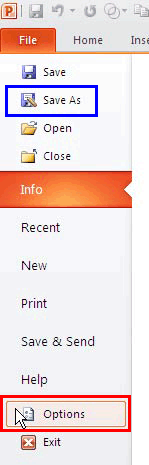
  1. Within PowerPoint 2010, click the File menu to bring up Backstage View. Select Options, as shown highlighted in red within Figure 1, below.
  2. Backstage view
    Figure 1: Backstage view
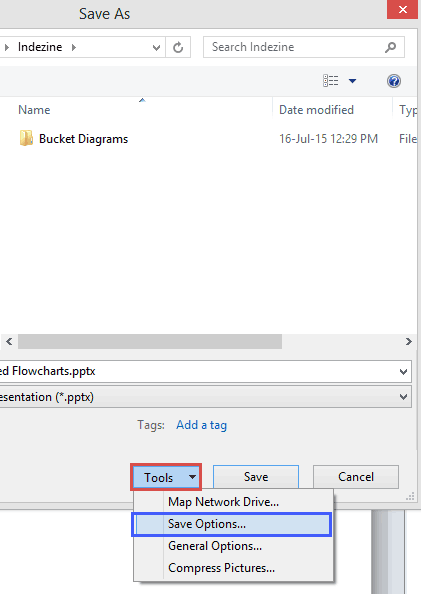
  3. Alternatively, select the Save As option (keyboard shortcut: F12) as shown highlighted in blue within Figure 1, above. This action brings up the Save As dialog box as shown in Figure 2, below. Click the Tools button as shown highlighted in red within Figure 2 to open a drop down menu. Within this drop-down menu, select Save Options as shown highlighted in blue.
  4. Save As dialog box
    Figure 2: Save As dialog box
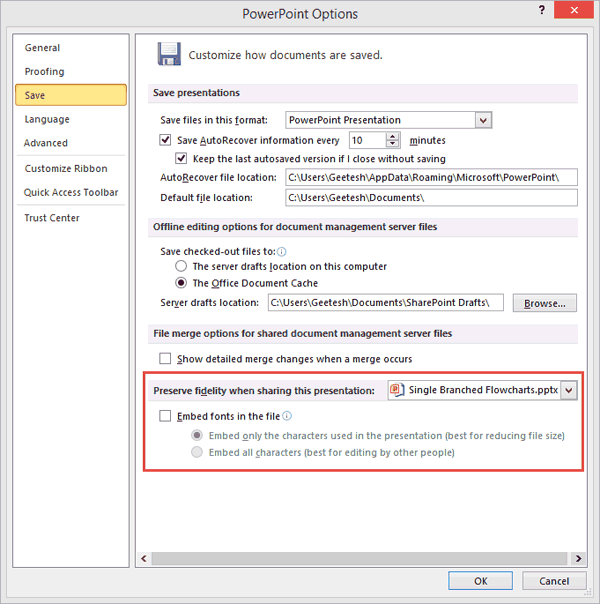
  5. Either way, you summon the Save tab of the PowerPoint Options dialog box. Note that the area related to embedding fonts is highlighted in red within Figure 3, below.
  6. The Save tab provides font embedding options
    Figure 3: The Save tab provides font embedding options
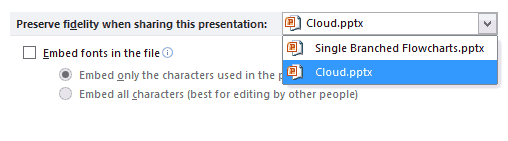
  7. First of all, if you did not get here via the Save As dialog box, you will need to select the presentation within which you want to embed fonts. This action is especially important if you have more than one presentation open. To do so, click the drop-down list next to the text that reads Preserve fidelity when sharing this presentation, as shown in Figure 4, below. Now select the presentation you want.
  8. Choose the presentation for font embedding
    Figure 4: Choose the presentation for font embedding


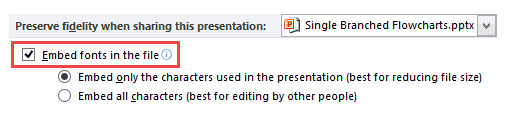
  9. Next, check the Embed fonts in the file option, as shown highlighted in red within Figure 5, below.
  10. Chose the Embed option
    Figure 5: Chose the Embed option
  11. Finally, you need to select from one of two radio buttons, as explained below:
  12. Embed only the characters used in the presentation

  13. This option will only embed characters you have used in your presentation. For example, if you create a single slide presentation with just one text box that contains the word, AFTER - then only capital-case characters of five alphabets will be embedded. If you want to edit the text later, and do not have the embedded font on your system, then you will not see the original font used!
  14. Embed all characters

  15. This options gets over the limitation explained in the preceding paragraph!
  16. Click the OK button to accept these changes, or press Cancel to return without making changes.

Test Embedded Fonts Before You Present in PowerPoint

Remember to open your presentation on a computer that does not have your embedded font installed to make sure that the font has indeed been embedded. If you find that the font was not embedded, it could be that you are looking at the presentation on PowerPoint for Mac, or other PowerPoint versions for tablets and phones. Font embedding is only supported on PowerPoint for Windows.

Also, only True Type fonts support embedding, and even then they must have embedding options enabled. Confused? Look at our Can this font be embedded? page for a more detailed description.


See Also:

Fonts: Embed Fonts in PowerPoint (Index Page)

Embed Fonts in PowerPoint 2016 for Windows
Embed Fonts in PowerPoint 2016 for Mac
Embed Fonts in PowerPoint 2013 for Windows

You May Also Like: Tango for Leaders: Conversation with Pablo Pugliese and Nancy Ancowitz | Garments PowerPoint Templates



Popular Posts

PowerPoint Tutorials, Articles and Reviews
Tutorials, reviews, articles and templates for Microsoft PowerPoint and other presentation software.

PowerPoint Templates
Find over 6000 PowerPoint templates in thousands of categories and all colors—from a trusted PowerPoint template resource for 20 years.

Create Animated GIFs from PowerPoint Slides
Explore ways to create animated GIFs from PowerPoint slides.

PowerPoint Tutorials
These PowerPoint tutorials have many screen shots that show you exactly what you see in your computer!


Organic Shapes with Brush Edges

You get 8 shape types plus lines as part of this Organic Shapes collection. Each of these 8 shape types have 10 variants. So you end up with 80 hand-drawn shape options! Again each of these 80 shapes have 12 brush stroke styles! Plus you get the lines and arrows in 12 brush stroke styles too. Combine all variations to end up with more than 3000 possibilities.

Buy and Download for $99+ (83 MB)


Microsoft and the Office logo are trademarks or registered trademarks of Microsoft Corporation in the United States and/or other countries.

Home | PowerPoint | Photoshop | PowerPoint Templates | PowerPoint Tutorials | Blog | Notes | Ezine | Media Kit | Feedback | Site Map | About Us | Contact Us

Link to Us | Privacy | Testimonials

PowerPoint Backgrounds | Christian PowerPoint Backgrounds | Business PowerPoint Presentation Templates

Plagiarism will be detected by Copyscape

©2000-2025, . All rights reserved.