Indezine Logo


Drawing Scribble Lines in PowerPoint 2010 for Windows

Learn how to draw with the Scribble line tool in PowerPoint 2010 for Windows. You almost draw as if you were using a pencil or pen on paper.


Author:

Product/Version: PowerPoint 2010 for Windows

OS: Microsoft Windows XP and higher


Learn PowerPoint

Save a Custom Theme in PowerPoint


You have already learned how to use three of the four line drawing tools in PowerPoint 2010 for Windows: Line, Curve, and Freeform. In this tutorial, we show you how you can use the last of these line tools: the Scribble Line tool. Drawing with the Scribble line is almost the same as drawing with the Freeform line, but there is one difference. You don't need to double click to create an end point for your line. Just like you draw with a pencil on a piece of paper, your line stops the minute you stop drawing it. Having said that, you still need to practice to make your scribble lines perfect. Let us get started and explore how the Scribble line option works.

Follow these steps to draw with the Scribble line tool in PowerPoint 2010 for Windows:
  1. Launch PowerPoint 2010. Most of the time, PowerPoint will open with a new slide in a presentation. PowerPoint 2010 users can change the slide layout to Blank by selecting the Home tab | Layout | Blank option.
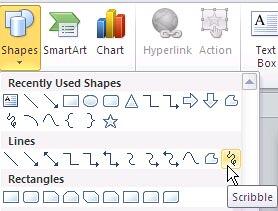
  2. Within the Home or Insert tab of the Ribbon, click the Shapes button to view the Shapes gallery that you can see in Figure 1. Select the Scribble line tool.
  3. Scribble line selected
    Figure 1: Scribble line selected
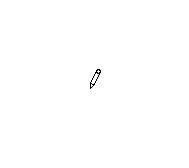
  4. As soon as the Scribble line tool is selected the cursor changes to a pencil (see Figure 2).
  5. Pencil cursor
    Figure 2: Pencil cursor
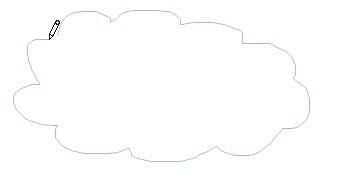
  6. Click anywhere on the slide to establish the starting point, without releasing the mouse button draw the shape, as you can see in Figure 3.
  7. Drawing with scribble line
    Figure 3: Drawing with scribble line
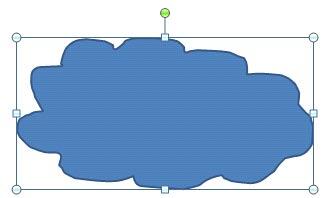
  8. Now move the cursor to the starting point and release to thereby close the shape. The shape now gets filled by a solid color (default fill) to denote that it has indeed been closed. You'll also see the shape is surrounded by eight selection handles, as shown in Figure 4.
  9. Shape created using scribble line
    Figure 4: Shape created using scribble line
  10. Tip: If you want just an open shape, don't release the mouse button on the starting point of the drawing.
  11. Click anywhere on the slide to deselect the drawing.

See Also:

Drawing Lines:Drawing Scribble Lines in PowerPoint (Index Page)

Drawing Scribble Lines in PowerPoint 2016 for Windows
Drawing Scribble Lines in PowerPoint 2013 for Windows
Drawing Scribble Lines in PowerPoint 2011 for Mac
Drawing Scribble Lines in PowerPoint 2007 for Windows

You May Also Like: First Impressions Last, by Jerry Weissman | Emotions PowerPoint Templates


Popular Posts

Restoring Earlier Versions of Presentations in PowerPoint 2010 for Windows
Learn how to restore earlier versions of your current presentation in PowerPoint 2010.

What is Animation in PowerPoint?
Learn what animations is and how to effectively plan animation for PowerPoint.

Apply Bevel Effects to Shapes in PowerPoint 2016 for Windows
Learn how to apply bevel effects to shapes in PowerPoint 2016 for Windows.

Creating Curved Shapes in PowerPoint 2010 for Windows
Learn how to create curved shapes in PowerPoint 2010.s


Feature List 01 (Layout with Tabs)

The Feature List Layout comprises three sample PowerPoint presentations: one each to create a visual list for 4 features, 5 features, and 6 features. These work great when you have too much information to fit within one slide. This solution lets you use multiple slides, but the visual result is still that of one single slide!

Buy and Download Feature List 01 (Layout with Tabs) for $4.99+ (671 kb)


Microsoft and the Office logo are trademarks or registered trademarks of Microsoft Corporation in the United States and/or other countries.

Home | PowerPoint | Photoshop | PowerPoint Templates | PowerPoint Tutorials | Blog | Notes | Ezine | Media Kit | Feedback | Site Map | About Us | Contact Us

Link to Us | Privacy | Testimonials

PowerPoint Backgrounds | Christian PowerPoint Backgrounds | Business PowerPoint Presentation Templates

Plagiarism will be detected by Copyscape

©2000-2025, . All rights reserved.