
This is the print version of this page. All content is copyright Indezine.com 2000-2026.
Explore Backstage view in PowerPoint 2016 for Windows. This view contains many tabs, and each tab is a gateway to more options, changing settings, and sharing features.
Author: Geetesh Bajaj
Product/Version: PowerPoint 2016 for Windows
OS: Microsoft Windows 7 and higher
If you explore how people use PowerPoint, you will discover that people are successful in finding options that are intuitive and easy to discover. They fail when options are hidden in drop-down menus or dialog boxes. Fortunately, Backstage view is from the former category of options. Let us explore existing features within Backstage view in PowerPoint 2016 for Windows.
You access Backstage view from the File tab, which is placed towards the extreme left of the Ribbon, as shown highlighted in red within Figure 1, below.
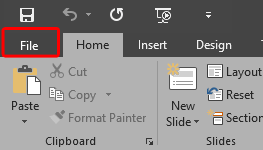
Figure 1: File tab in PowerPoint 2016
Although it looks like a tab, clicking the File tab header brings up a menu on the left side of Backstage view, as shown in Figure 2, below. Notice that there are no other menus in the PowerPoint 2016 interface.
Within Backstage view, you'll find frequently used features for managing your PowerPoint presentation files. This view is also used to manage files and the data about the files, such as creating and saving files, looking for hidden metadata or personal information, printing slides, and setting file options.
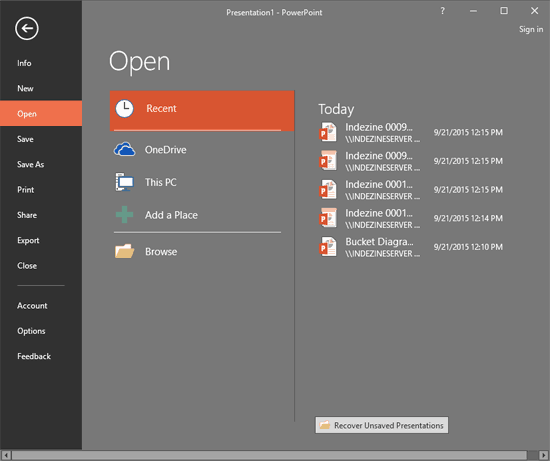
Figure 2: PowerPoint 2016 Backstage view
When Backstage view is open, you can find at least thirteen options on the left side. Each of these options open individual tabs. When you launch PowerPoint, or when PowerPoint has been launched but there are no presentations open, you'll see the Open tab visible within Backstage view, as shown in Figure 2, above. If you access Backstage view with a presentation already open, you will see the Info tab instead of the Open tab. Here is a list of all eleven tabs:
To go back from Backstage view to Normal view, you click the Back arrow button placed on the top left of the interface, as shown highlighted in red within Figure 3, below.
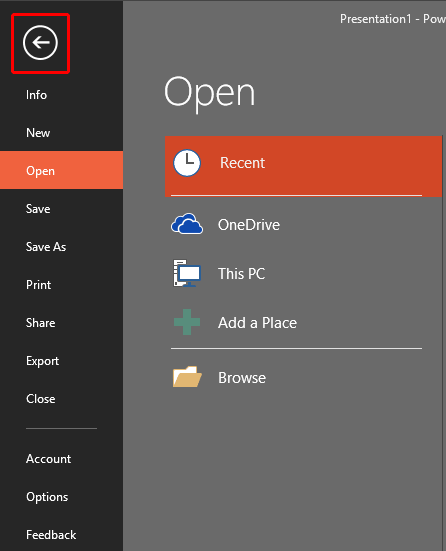
Figure 3: Back arrow within Backstage view
01 08 03 - File Types, File Menu, and Backstage View: File Menu and Backstage View in PowerPoint (Glossary Page)
File Menu and Backstage View in PowerPoint 365 for Windows
File Menu and Backstage View in PowerPoint 365 for Mac
File Menu and Backstage View in PowerPoint 2019 for Windows
File Menu and Backstage View in PowerPoint 2019 for Mac
File Menu and Backstage View in PowerPoint 2016 for Mac
File Menu and Backstage View in PowerPoint 2013 for Windows
File Menu and Backstage View in PowerPoint 2010 for Windows
File Menu and Backstage View in PowerPoint for iOS – iPad
File Menu and Backstage View in PowerPoint for the Web
You May Also Like: The Message-Centric Slide: by Lior Student | Plaid Patterns PowerPoint Templates


Microsoft and the Office logo are trademarks or registered trademarks of Microsoft Corporation in the United States and/or other countries.
