
This is the print version of this page. All content is copyright Indezine.com 2000-2026.
Explore Backstage view in PowerPoint 365 for Mac. This view contains many tabs, and each tab is a gateway to more options, changing settings, and sharing features.
Author: Geetesh Bajaj
Product/Version: PowerPoint 365 for Mac
OS: Mac OS X
Backstage view is not akin to other PowerPoint views, such as Slide Sorter view or Normal view that relate to working with slides. In fact, Backstage view is not a view in those terms, because you can be using Normal view (to work with slides) and Backstage view (to work with options) at the same time. Consider Backstage view as an over-sized menu that gives you access to many options.
In PowerPoint 365 for Mac, Backstage view and Presentation Gallery are one and the same for most purposes, except the way they are accessed. Let us explore existing features within Backstage view.
To access Backstage view, click the Home icon, which is placed towards the extreme left of the Quick Access Toolbar, as shown highlighted in red within Figure 1, below.
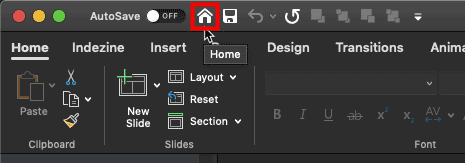
Figure 1: Home icon in QAT
By default, the Home icon is the first icon on the Quick Access Toolbar. However, if your Quick Access Toolbar is customized, you may not see the Home icon in the leftmost position, or it may have been removed.
Alternatively, select the File | New from Template menu option, as shown in Figure 2, below.
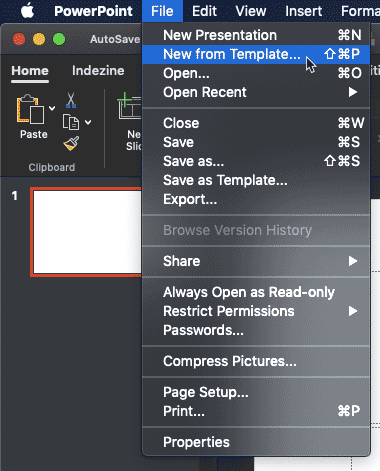
Figure 2: New from Template option
Either of the above options brings up Backstage view, as shown in Figure 3, below. Backstage view is mainly used for creating, opening, and saving files, and connecting and removing services.
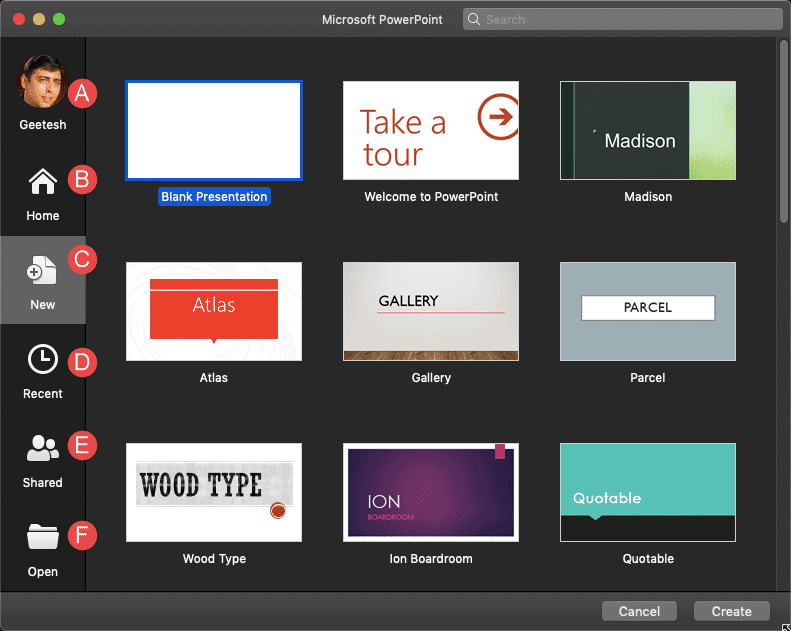
Figure 3: PowerPoint 365 for Mac Backstage view
Options within the Backstage view are explained below, as marked in Figure 3, above:
Launches a window that provides your User Information and details of services connected to PowerPoint. These services show up as Places to open and save files, as explained in our Add Places in PowerPoint tutorial. You can learn more about options in the Account tab in our Account Options in Backstage View in PowerPoint tutorial.
In this section, you can quickly access the Themes and recently opened PowerPoint files. You can learn more about options in the New tab in our New Tab of Backstage View in PowerPoint 365 for Mac tutorial.
This section provides quick access to the templates, as shown in Figure 3, above. You can learn more about options in the New tab in our New Tab of Backstage View in PowerPoint 365 for Mac tutorial.
Here, you will see the list of recent presentations.
Here, you will see the list of files others have shared with you. When someone shares a PowerPoint file with you, that file automatically appears in this section. Double-click to download and open the file.
This option, when selected brings up the Open pane. Here, you have to select a location from where you can open files. You can learn more about options in the Open tab in our Open and Close Tabs of Backstage View in PowerPoint 365 for Mac tutorial.
01 08 03 - File Types, File Menu, and Backstage View: File Menu and Backstage View in PowerPoint (Glossary Page)
File Menu and Backstage View in PowerPoint 365 for Windows
File Menu and Backstage View in PowerPoint 2019 for Windows
File Menu and Backstage View in PowerPoint 2019 for Mac
File Menu and Backstage View in PowerPoint 2016 for Windows
File Menu and Backstage View in PowerPoint 2016 for Mac
File Menu and Backstage View in PowerPoint 2013 for Windows
File Menu and Backstage View in PowerPoint 2010 for Windows
File Menu and Backstage View in PowerPoint for iOS – iPad
File Menu and Backstage View in PowerPoint for the Web
You May Also Like: Are You a Pusher or a Puller? | Burundi Flags and Maps PowerPoint Templates




Microsoft and the Office logo are trademarks or registered trademarks of Microsoft Corporation in the United States and/or other countries.
