
This is the print version of this page. All content is copyright Indezine.com 2000-2026.
Learn about the Print option in PowerPoint 2016 for Windows.
Author: Geetesh Bajaj
Product/Version: PowerPoint 2016 for Windows
OS: Microsoft Windows 7 and higher
Among the tabs within Backstage view, we have already explored some such as Open, New, Save, etc. In this tutorial, we will explore options within the Print tab, used to print the current presentation in the form of selected slides, notes pages, handouts, etc.
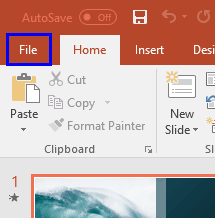
Follow these steps to learn more about Print options within Backstage view in PowerPoint 2016 for Windows:

Do you want more keyboard shortcuts?
Explore our PowerPoint Keyboard Shortcuts and Sequences Ebook that is updated for all PowerPoint versions.
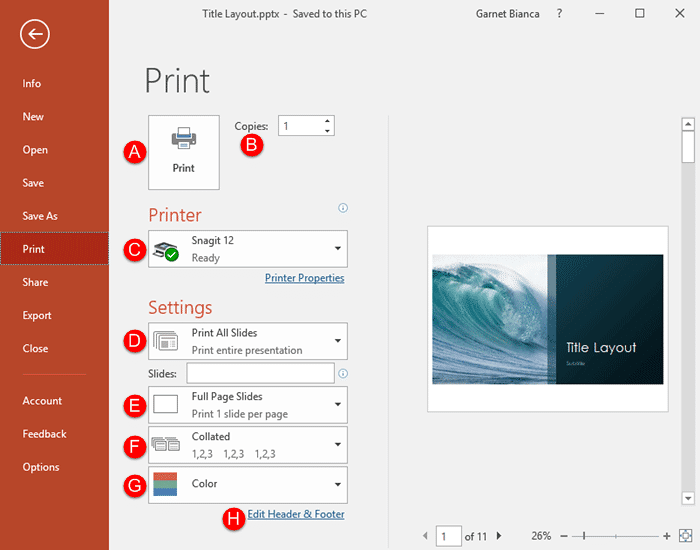
Click on this large Print button after you have selected all other options.
Specify the number of copies that you want to print.
Select the printer from the drop-down list that you want to send this print job to, as shown in Figure 3, below. Do note that this can be a physical printer or even a virtual printer driver that creates PDF files.
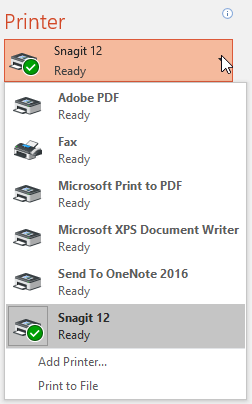
Figure 3: Printer drop-down list
You can click on the drop-down list to see more options, as shown in Figure 4, below. You can select whether you want to print all slides, sections, a selection of slides, just the current slide, or a custom range of slides.
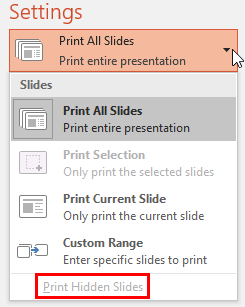
Figure 4: What do you want to print?
If you choose to print a custom range of slides, you will be able to type in individual slide numbers, as well as slide ranges, as shown highlighted in red within Figure 5, below.
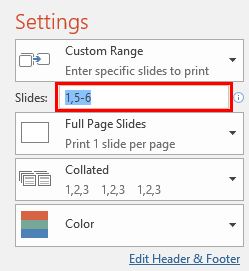
Figure 5: Slide numbers and slide ranges to print
You can also choose the Print Hidden Slides option, as shown highlighted in red within Figure 4, previously on this page. If the hidden slides option is greyed out, it means you have no hidden slides in the currently open presentation.
Click to reveal a drop-down list, as shown in Figure 6, below. You can opt to print regular slides or slides within Notes pages. You can also opt to print the text outline of your presentation. Additionally, you are also provided options to print various Handout layouts including slide thumbnails.
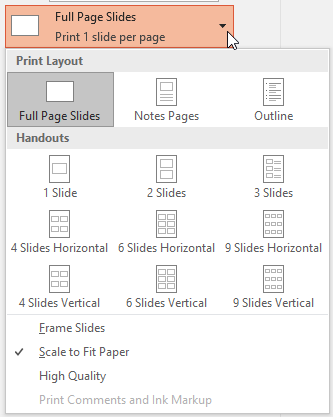
Figure 6: Slide and Handout layouts
We now explain other options, as shown in Figure 6, above. Do note that the preview shown on the right slide will auto-update as you change and choose these options:
Frame Slides adds a dark (black) frame around slides. This option is very useful if you are printing white or light-colored slides on white paper.
Scale to Fit Paper adjusts the size of the printed slides to match the size of the paper.
High Quality creates a better-quality print output. Do note that if you have too many slides, this option may increase printing time.
Print Comments and Ink Markup is available as an option, if your presentation has comments or any ink annotations.
This option opens up a drop-down list, as shown in Figure 7, below. Collated lets you print in sequence, even if you are printing multiple copies. For example, if you need four copies of your ten-slide presentation, choosing the Collated option will print all the ten slides first, and then print the extra copies of those ten slides. If you do choose Uncollated, then four copies of the first slide will print, followed by four copies of the second slide, and so forth.
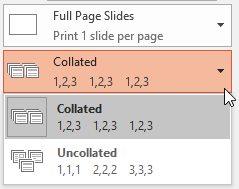
Figure 7: Collated drop-down list
Clicking this option opens up the drop-down list, as shown in Figure 8, below, with three options:
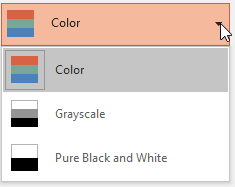
Figure 8: Color drop-down list
This is the default option and will print your slides in color, provided you selected a printer that is capable of printing in color within the Printer drop-down list (see point C). Figure 9, below, shows you how a preview of a slide printed in Color looks like.
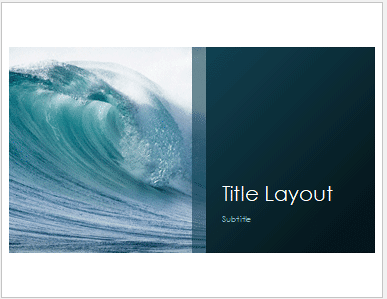
Figure 9: Color preview
Prints in greyscale, as shown in Figure 10, below.
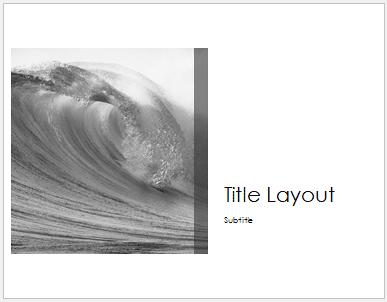
Figure 10: Greyscale preview
Prints in just black and white and removes fills of all objects such as charts, shapes, SmartArt, etc., as shown within the preview in Figure 11, below.
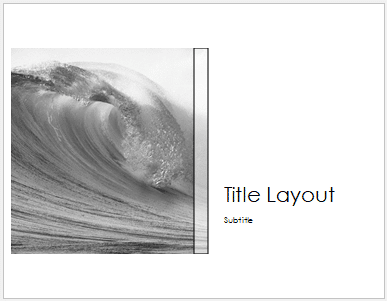
Figure 11: Pure Black and White preview
Opens up the Header and Footer dialog box, as shown in Figure 12, below. To learn about options within this dialog box, see our Add Headers and Footers to Slides in PowerPoint 2016 for Windows tutorial.
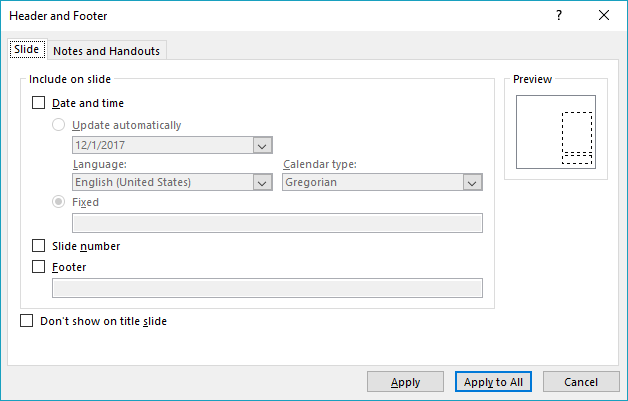
Figure 12: Header and Footer dialog box
As you make choices, you will continue seeing updated previews towards the right side. When you are ready to print, click the prominent Print button, marked as A in Figure 2, shown previously on this page.
01 08 10 - File Types, File Menu, and Backstage View: Print Tab of Backstage View in PowerPoint (Glossary Page)
Print Tab of Backstage View in PowerPoint 365 for Windows
Print Tab of Backstage View in PowerPoint 365 for Mac
Print Tab of Backstage View in PowerPoint 2019 for Windows
Print Tab of Backstage View in PowerPoint 2019 for Mac
Print Tab of Backstage View in PowerPoint 2013 for Windows
Print Tab of Backstage View in PowerPoint 2010 for Windows
Print Tab of Backstage View in PowerPoint for the Web
You May Also Like: If You Can Hold a Conversation, You Can Ace a Job Interview | Spirograph PowerPoint Templates




Microsoft and the Office logo are trademarks or registered trademarks of Microsoft Corporation in the United States and/or other countries.
