
This is the print version of this page. All content is copyright Indezine.com 2000-2026.
Page 226 of PowerPoint tutorials, presentation essentials, personality interviews, and PowerPoint news.
Previous Archive Page | Next Archive Page
Author: Geetesh Bajaj
Product/Version: PowerPoint
February 29, 2016

When you bring up the Themes gallery within PowerPoint 2013, do you find that several Themes are missing? Alternatively, do you find that your friends and colleagues have more Themes than you do? Whatever be the reason for your missing Themes, it is possible to get them back.
Explore how to find missing Themes in PowerPoint 2013 for Windows.
February 26, 2016

You know that Action Buttons are helpful because they at least look like buttons! But choices are limited to what PowerPoint provides—and let’s face it, choices for Action Buttons have remained unchanged since the last many years. What has changed in those 20 years? There was no Facebook, almost no social media, and the internet was in its infancy. Given this scenario, it is no surprise that the Action Buttons are limited to VCR style buttons, those were probably in vogue years ago! Now times have changed, and fortunately, you can tweak Action Buttons to create your own variants, as we will show you in this tutorial.
February 25, 2016

Here's the most comprehensive list of PowerPoint 2016 for Mac keyboard shortcuts that we know about. How many of these do you presently use? If you discover a shortcut key not listed here, please get in touch with us through our feedback form.
Explore keyboard shortcuts in PowerPoint 2016 for Mac.
February 25, 2016

Once you have added an Author to an existing Sway, you will find that more than one Author can work on the same Sway, even if they are editing at the same time! In this tutorial, we will explore how this Co-Authoring option works.
Learn how you can use the Co-Authoring option in Microsoft Sway.
February 24, 2021

Ajay Mohan is the Founder and CEO of SlideTeam. Before starting SlideTeam, Ajay Mohan held senior positions in Fortune 500 companies in the US, including tech companies in Silicon Valley. He has done his Master of Business Administration (MBA), Finance from Indiana University Bloomington, and Master of Science (MS), Engineering from Rutgers University-New Brunswick. His goal for SlideTeam is to bring a scientific approach to presenting complex ideas using well-researched visual aids. SlideTeam.net and partner site SlideGeeks.com host a comprehensive and easily searchable collection with over 500,000 slides. In this conversation, Ajay talks about the new SlideTeam Presentation App.
February 24, 2016
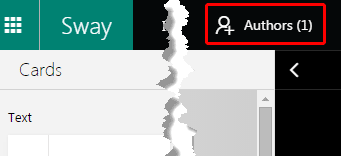
Once you create a Sway, you can share it with others who can view your Sway. However, did you know that you can also share your Sway with others and also allow them to edit your Sway! Imagine that you could create a Sway that you share with several others and provide them with edit access. They could then add more content, such as text, pictures, or anything else. This approach makes Sway a very powerful media sharing and editing platform. In this tutorial, we will explore how you can share and invite others to edit your Sway.
Explore how to add Authors to your presentation in Microsoft Sway.
February 23, 2016

Nancy Duarte has written a new book, Illuminate, and she speaks exclusively in this interview with Indezine. We then explore ten sites that provide free icons. Robert Kawalsky then discusses the amazing new features on Zeetings, his presentation sharing and viewing platform. We updated our Evolution of Office Themes article to include content relevant to the new PowerPoint 2016. And then Georg Kremer talks about Slideflight. PowerPoint 2016 for Windows users can learn about reusing and inserting slides; and about changing backgrounds in the Slide Master. PowerPoint 2013 for Windows users can learn about creating new files with a hyperlink! PowerPoint 2016 for Mac can better understand why there is no Developer tab in their version. Finally, do not miss the new discussions and templates of this week!
Read Indezine's PowerPoint and Presenting News.
February 23, 2016
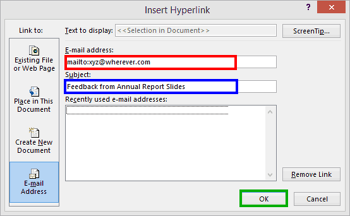
We have learned about gazillion ways to work with hyperlinks in PowerPoint 2013—but why would anyone want to create a new email with a hyperlink in PowerPoint? First of all, it is quite acceptable that you do not wish to create an email via a hyperlink. However, you sure must be curious about why this feature exists. This works best in presentations that are sent to others via email or via a download. Once the recipients view your slides, you might want some feedback from them. And that’s precisely why you can add an email hyperlink on your slides (typically your last slide) so that recipients of your presentation can click a link to open a new email!
Learn how you can create a new email message with a hyperlink in PowerPoint 2013 for Windows.
February 22, 2016

Patti Sanchez is a communicator with nearly 25 years of experience leading transformative marketing initiatives for brands and causes, and the co-author of Illuminate: Ignite Change Through Speeches, Stories, Ceremonies, and Symbols. As Chief Strategy Officer for Duarte, Inc., Patti facilitates workshops and counsels clients on how to create authentic connections with their audiences through persuasive presentations. In this conversation, Patti talks about Illuminate.
February 22, 2016

While changing the Slide Layout of any given slide(s) in PowerPoint 2016, you typically access the Home tab of the Ribbon and click the Layout button. This brings forth the Layout drop-down gallery. The number of Slide Layouts that you see within this gallery may differ depending upon the Theme of your active presentation. However, with PowerPoint's default Office Theme applied, you may see 9 layouts.
Explore Slide Layouts within Slide Master view in PowerPoint 2016 for Windows.
February 19, 2016

Nancy Duarte is CEO of Duarte, Inc. and the author of Resonate, Slide:ology, and the HBR Guide to Persuasive Presentations. Her latest book, Illuminate: Ignite Change Through Speeches, Stories, Ceremonies, and Symbols, co-authored with Patti Sanchez, shows how the world's greatest leaders use powerful communication to move people and ideas forward. She has a passion for teaching others about the power of persuasive presentations to drive change in the world. In this conversation, Nancy talks about Illuminate.
February 19, 2016
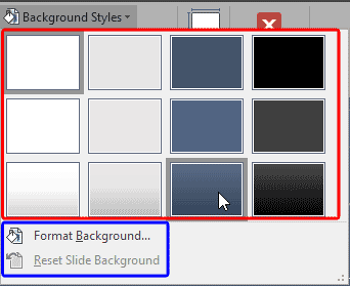
In PowerPoint 2016, the Slide Master influences the layout and look of all slides in your presentation. Make changes to the Slide Master, and those changes reflect on your presentation slides. For example, you can apply another Background Style so that all Slide Layouts and slides in your presentation use this changed slide background. In this tutorial, we will explore how you can choose from any of the 12 available Background Styles to apply to the Slide Master.
Learn how to change Background Styles within the Slide Master in PowerPoint 2016 for Windows.
February 18, 2016
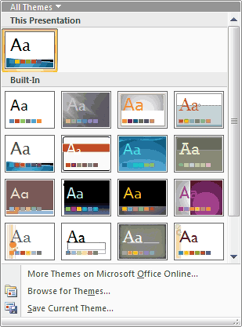
Evolution is an interesting concept because it's the change that's natural, logical, and involved. And, although Themes (Office Themes) did not exist in their present form before Office 2007 for Windows, they did evolve from the humble PowerPoint template. And as you get deeper into how Themes work, you'll find that PowerPoint uses these Themes in amazing ways, and shares them with Word and Excel. That's the reason they are called Office Themes rather than PowerPoint Themes.
Learn about Office Themes, and how they work, specifically in PowerPoint.
February 18, 2016

We’ve learnt about how hyperlinks let you do excellent stuff, such as linking between slides or even linking to files outside PowerPoint. However, did you know that you can create a hyperlink that links to a file that does not even exist! Click that hyperlink, and a new file gets instantly created. If you are intrigued by how something so strange can happen, read further.
Learn how you can create a new file using a hyperlink in PowerPoint 2013 for Windows.
February 17, 2016

Icons are the new "in" thing for visuals. In a world where you need to be neutral all the time, icons are a Godsend since they are neutral by nature. Another reason to use icons is because they look great in small sizes, and they also use fewer resources to display. The fact that they go well with contemporary flat and minimal design trends: that just gets you extra brownie points!
Explore sites that provide free icons you can use in your slides.
February 17, 2016

Unlike in previous versions of PowerPoint on Mac, such as PowerPoint 2011, the new PowerPoint 2016 on Mac has no option to enable the Developer tab on the Ribbon. So what about all the options within that tab? And why did Microsoft take it away? Let us learn more.
Learn about the Developer tab of the Ribbon in PowerPoint 2016 for Mac.
You May Also Like: Rice PowerPoint Templates | 5 Slide Design Tips to Take Home From a Successful IPO Presentation Project


Microsoft and the Office logo are trademarks or registered trademarks of Microsoft Corporation in the United States and/or other countries.
