This is the print version of this page. All content is copyright Indezine.com 2000-2026.
Learn how to change Background Styles within the Slide Master in PowerPoint 2016 for Windows.
Author: Geetesh Bajaj
Product/Version: PowerPoint 2016 for Windows
OS: Microsoft Windows 7 and higher
In PowerPoint 2016 for Windows, the Slide Master influences the layout and look of all slides in your presentation. Make changes to the Slide Master and those changes reflect on your presentation slides. For example, you can apply another Background Style so that all Slide Layouts and slides in your presentation use this changed slide background. In this tutorial, we will explore how you can choose from any of the 12 available Background Styles to apply to the Slide Master.
You can also have more than one Slide Master in your presentation, and any of those multiple Slide Masters can influence the actual slides following that master in your presentation.
Follow these steps to learn more:
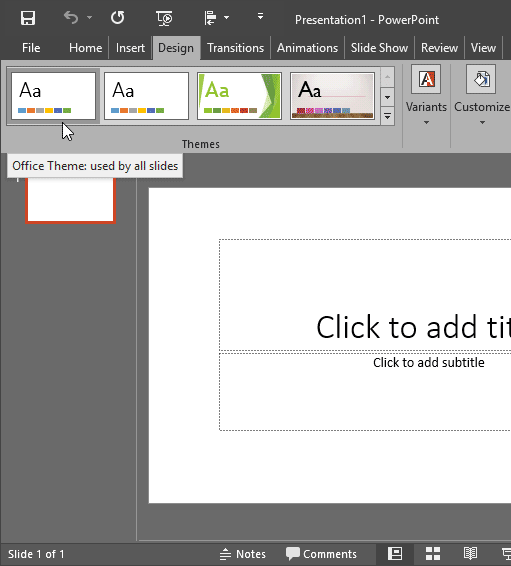
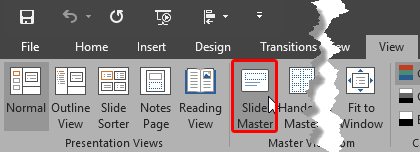
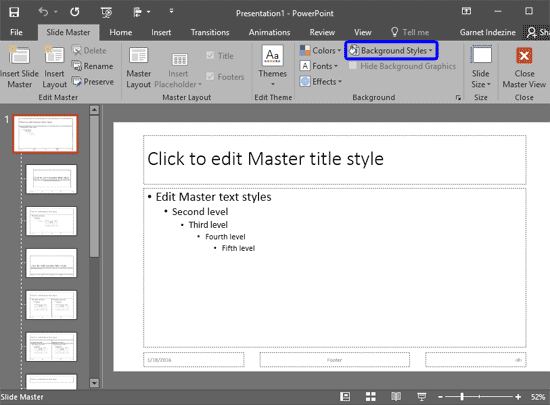
In hierarchy terms, Slide Layouts are dependent for their appearance on the Slide Master although you can individually override these dependencies.
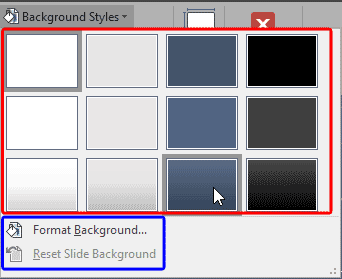
These 12 default styles change when you apply a different Theme to your presentation. Also, do you see the Format Background and Reset Slide Background options, as shown highlighted in blue within Figure 4, below, the Background Style thumbnails? These options are explained in our Custom Backgrounds in the Slide Master in PowerPoint 2016 tutorial. The Reset Slide Background option is meant for individual Slide Layouts. It is used to reset the slide background to its original status, on a particular slide layout.
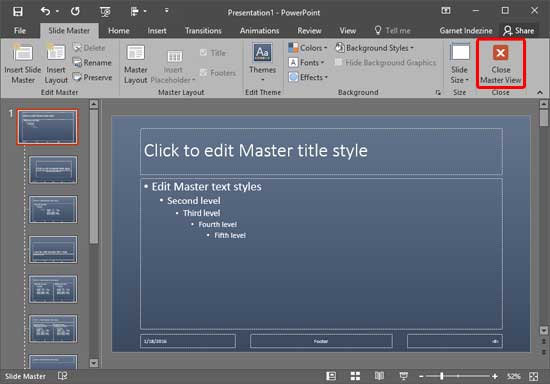
Do you want to use a background for your Slide Master that's not part of Background Styles—maybe something you created or even a picture? You can learn how to do that in our Custom Backgrounds in the Slide Master in PowerPoint 2016 tutorial.
See Also:
Slide Master and Slide Layouts: Change Background Styles in the Slide Master in PowerPoint (Index Page)
Change Background Styles in the Slide Master in PowerPoint 2016 for MacYou May Also Like: Explore Fonts: Bell MT | Food PowerPoint Templates




Microsoft and the Office logo are trademarks or registered trademarks of Microsoft Corporation in the United States and/or other countries.