Indezine Logo


Page 398 of PowerPoint and Presentation Articles

Page 398 of PowerPoint tutorials, presentation essentials, personality interviews, and PowerPoint news.


Previous Archive Page |

Author:

Product/Version: PowerPoint


PowerPoint: Tutorials, Articles, and Conversations with Presentation Experts

Creating Waterfall Charts in PowerPoint Using Ampler

October 19, 2026

Creating Waterfall Charts in PowerPoint Using Ampler

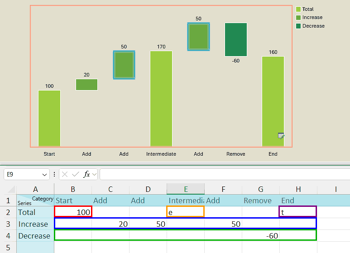
Here is a question worth sitting with: why does one of the most widely used chart types in consulting still require a workaround in PowerPoint? This tutorial walks you through a better way to create waterfall charts, using Ampler or Ampler Charts. Yes, native PowerPoint includes a basic waterfall chart option, but it falls short where it matters most: customization and waterfall chart variations. Ampler addresses all of that, and by the end of this tutorial, you will see exactly how.

Create professional waterfall charts in PowerPoint with Ampler, featuring Excel-linked data, build-up/down views, and expert formatting.


Archives: 398 | 397 | 396 | 395 | 394 | 393

You May Also Like: Creating Multilingual Presentations: Conversation with Jude Barak | Possibilities 01: Static PowerPoint vs. Dynamic PowerPoint


Popular Posts

Changing Location of Slide Numbers in PowerPoint 2010
Learn how to change location of slide numbers in PowerPoint 2010.

Text Alignment within Table Cells in PowerPoint 2013 for Windows
Learn about the options for text alignment within Table cells in PowerPoint 2013 for Windows.

Keyboard Shortcuts for PowerPoint 2011 for Mac
Explore keyboard shortcuts in PowerPoint 2011 for Mac.

Insert Video from Facebook in PowerPoint 2016 for Windows
Learn how to insert video from your Facebook account in PowerPoint 2016 for Windows.


Feature List 01 (Layout with Tabs)

The Feature List Layout comprises three sample PowerPoint presentations: one each to create a visual list for 4 features, 5 features, and 6 features. These work great when you have too much information to fit within one slide. This solution lets you use multiple slides, but the visual result is still that of one single slide!

Buy and Download Feature List 01 (Layout with Tabs) for $4.99+ (671 kb)


Microsoft and the Office logo are trademarks or registered trademarks of Microsoft Corporation in the United States and/or other countries.

Home | PowerPoint | Photoshop | PowerPoint Templates | PowerPoint Tutorials | Blog | Notes | Ezine | Media Kit | Feedback | Site Map | About Us | Contact Us

Link to Us | Privacy | Testimonials

PowerPoint Backgrounds | Christian PowerPoint Backgrounds | Business PowerPoint Presentation Templates

Plagiarism will be detected by Copyscape

©2000-2026, . All rights reserved.