
This is the print version of this page. All content is copyright Indezine.com 2000-2026.
Page 102 of PowerPoint tutorials, presentation essentials, personality interviews, and PowerPoint news.
Previous Archive Page | Next Archive Page
Author: Geetesh Bajaj
Product/Version: PowerPoint
May 24, 2012
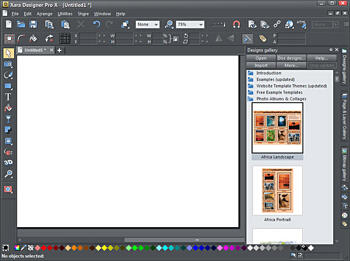
Xara Designer Pro X is the newer version of Xara Designer Pro 7, a product we have reviewed in the past. This new version has many enhancements and features added since the last version. There are new Photo features, Design & Usability enhancements, Web features, etc. Xara Designer Pro X is ideal for both print and web-related designing. The application has the ability to work with both vector and bitmap graphics. You can design simple buttons or logos, posters, multi-page brochures, photo compositions, web pages, sites, and online presentations. Additionally, you can also produce animation, including animated GIFs and Flash movies.
Read the Indezine review here.
May 24, 2012
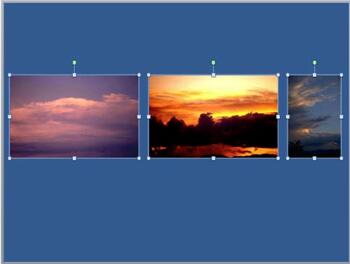
Many times, you may place several pictures on your slide. These may be just inserted in a haphazard manner and pictures of different sizes may be scattered within the slide area. In addition, you may also have some shapes or other slide objects placed on the slide. To arrange them all properly would result in a more aesthetic slide. We have already explored some techniques that will help you arrange your pictures and other content. Look at our Resize, Rotate, and Flip Pictures and Align and Distribute Pictures tutorials. Moving ahead, we will explore how you can group pictures on your slide in this tutorial.
Learn how to group and ungroup pictures in PowerPoint 2011 for Mac.
May 23, 2012

These businessman silhouettes are ready to use within your PowerPoint presentation slides, and have been provided in both black and white colors. Both variations are contained within two separate slides in one presentation that you can download. In addition, you can use PowerPoint's fills, lines, and effects to make these silhouettes appear coordinated with your slides. Copy the silhouette graphics (clip art) of your choice from the downloaded presentation, and paste them into your PowerPoint presentation slides. All these silhouette graphics can be used and customized with Shape Styles just like any other PowerPoint shape. You can also paste them into a Word document, an Excel worksheet, or any other program.
Download and use this presentation.
May 23, 2012
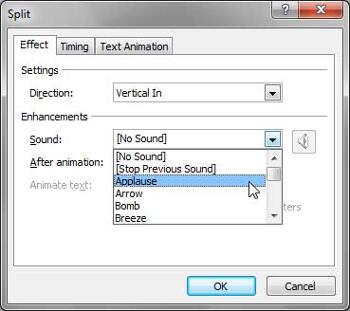
Adding an animation to any slide object imparts movement of some sort to that object, and draws the attention of the audience. Of course, you can tweak the animation event, the speed of the animation, and also the delay time before the animation happens. In this tutorial, we'll explore how you can add sound to an animation. The combination of movement and sound makes it compelling for your audience to focus on the object that is being animated. However, this sort of pizzazz only works if you use it sparingly to highlight the most important part of your presentation. Animation sounds play along with the animation. It is important that you use the perfect sound type for any animation, as using clapping or blasting sounds is very cliché. Now, that we have made you aware about the benefits and caveats of using sounds within animations in PowerPoint, let us go ahead and learn how to do so.
Learn how to add sound effects to animations in PowerPoint 2010 for Windows.
May 22, 2012

There was no issue with the newsletter last week, and that explains why we have a jumbo issue for you this week. What can be better than giving you all a chance to win a free product as part of our giveaway. We also have a great, new tutorial on how you can create an embroidered, running stitch border around your PowerPoint slide objects. You can create this in almost any version of PowerPoint. There are some more silhouettes for you. This time we have Businesswoman graphics for you. Also, do download our first series of PowerPoint text effects. Many of you may not believe that these were created using just PowerPoint and nothing else.
May 22, 2012
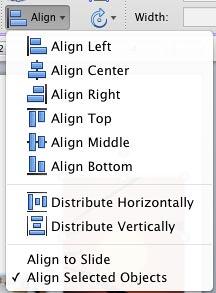
In PowerPoint, when there are multiple pictures inserted on a slide, their position and alignment matter a lot. Most of the time, pictures may be placed just randomly placed on the slide. In some cases, such a haphazard arrangement may work, but most of the time you will have to align objects properly on your slide. Even before you align the pictures, you should explore whether all the pictures are the same size or not? We have already explained how you can resize pictures in our Resize, Rotate, and Flip Pictures tutorial.
Learn to align and distribute pictures in PowerPoint 2011 for Mac.
May 21, 2012

Spencer Lambert has run a presentation design consultancy, Slideclinic, since 1997 and has worked on hundreds, if not thousands of presentations for companies such as Microsoft, Glaxo SmithKline, KPMG, and Barclays. Spencer is responsible for driving the growth of Present.me.
In this conversation, Spencer discusses the released version of Present.me.
May 21, 2012
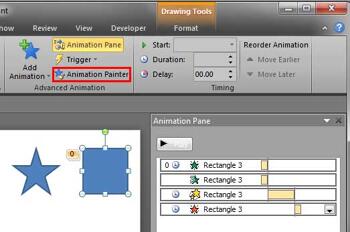
Let's imagine you got your animation just right. You tweaked the speed, set the animation events, etc. You also added a series of simultaneous and sequential animations to the same slide object. So, it fades and wipes at the same time. Then it grows in size, stays on screen without animation for a requisite amount of time (delay), and finally the object exits using a simple fade animation. Now, you need to apply the same animation to 50 other slide objects within the presentation! Typically, you may have to spend an enormous amount of time for such a repetitive task, manually applying the animations so many times! That was before the introduction of the new Animation Painter feature, introduced in PowerPoint 2010, which works with animations exactly in the same way as the Format Painter option works with slide objects.
Learn how to use the Animation Painter command effectively in PowerPoint 2010 for Windows.
May 18, 2012

David Halpin is a seasoned executive with over 15 years of core product development experience at manager, senior manager, and executive staff levels. He has managed geographically distributed, multi-faceted teams, which delivered world-class software solutions to F1000 customers. Halpin joined Quickoffice in 2006 to help lead and grow Quickoffice's development operations, globally. In this conversation, David discusses the new QuickOffice Pro HD release that adds new features for working with PowerPoint files on the iPad.
May 18, 2012
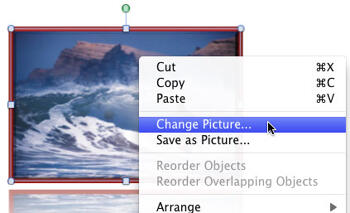
Imagine this scenario: you chose what you thought was a perfect picture. So, you insert the picture and then enhance it using the cool picture editing options available in PowerPoint 2011 for Mac. You may have gone further. For example, you could have applied some of the Adjust Picture options, added a border, applied some Picture Effects, etc. You went ahead and added a perfect combination of both the Fade and Zoom animations, and also timed it to happen at the speed you want. And then you discover a better picture, or your boss asks you to change to another picture. You also need to retain all the effects and animations! You could delete the original picture and start all over again, and yes, that is a long process! Or you can change any existing picture into another with just a couple of clicks.
Learn how to change one picture into another in PowerPoint 2011 for Mac.
May 17, 2012
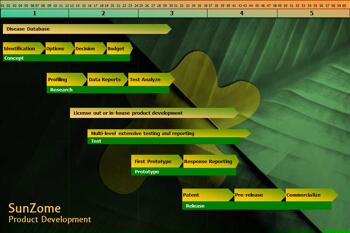
Animation is movement and fine art at the same time. Using animation's powerful capabilities of attracting attention, you can effectively illustrate a concept, a process, or anything else. However there's a thin dividing line between mere movement and utter confusion. Imagine a training session where the presenter moves around the room explaining a concept. As he or she moves, the eye of the audience members follows him or her. There is a clear focus in the room, and the subject of that focus is the presenter. Now imagine another situation where the presenter and all the audience members in the room start moving in disparate directions just for the sake of movement. At this point in time, the movement has given way to chaos. The distinction between movement and chaos works similarly on PowerPoint slides. At any point in time, the movement needs to have focus and direction, and more importantly, a reason to move!
Learn to build and sequence animations in PowerPoint 2010 for Windows.
May 16, 2012

This sample presentation contains 12 different text effects that you can use with any text in PowerPoint 2007, 2010, or higher on Windows (and also PowerPoint 2008, 2011, or higher on Mac). Text effects range all the way from subtle to edgy, and from clean to grunge style. Some text effects may work better with larger text. Play around to see which one works for you although none of these effects are suitable for body text. To use these effects, click on any of the sample text containers with the Format Painter button, and then click on the text where you want to copy these effects.
Download and use this slide for your own presentations.
May 16, 2012

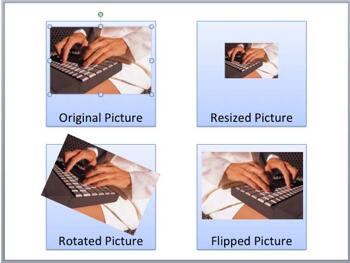
In this series of tutorials on working with pictures in PowerPoint 2011, you have already learned about adjusting picture options and applying Picture Styles, Picture Effects, and Picture Borders that can help you enhance the look of your inserted pictures. These skills will make your pictures look better and will provide you with ideas to make your pictures stand apart. Yet, there are some basic picture editing skills that are very significant. These include learning how you can resize, rotate, and flip pictures.
Learn how to resize, rotate, and flip pictures in PowerPoint 2011 for Mac.
May 15, 2012
Once you add animation to any slide object, you can set its animation speed and change its animation event. Other than speed and event, you can also alter the delay caused before the animation actually starts. So, why would you add a delay? There are several reasons and primarily a delay can be beneficial if you want to maintain a time limit between two animations. For instance, having the second animation occur 10 seconds after the first one has concluded. Of course, that was just a simple example and animation delay can be helpful in many other scenarios. This delay is calculated in seconds.
Learn about Animation Delay, a new option introduced in PowerPoint 2010 for Windows.
May 14, 2012
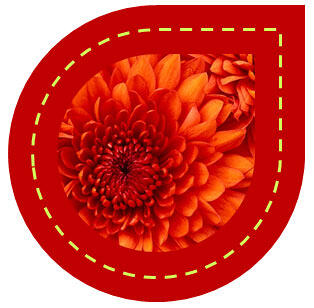
Have you seen a running stitch effect around an object. Especially an embroidered one? It's possible to create all sorts of such fancy effects, right inside PowerPoint, without using any other program. In this tutorial, you will learn how to create this effect step-by-step, and this should work in almost any version of PowerPoint released in the last 10 years.
Explore creating a dashed line border around a shape to create almost an embroidered edge effect.
You May Also Like: Going Green PowerPoint Templates | How to Make Your Voice a Pleasure to Listen to – So You Grab Your Audience’s Attention


Microsoft and the Office logo are trademarks or registered trademarks of Microsoft Corporation in the United States and/or other countries.
