
This is the print version of this page. All content is copyright Indezine.com 2000-2026.
Page 062 of PowerPoint tutorials, presentation essentials, personality interviews, and PowerPoint news.
Previous Archive Page | Next Archive Page
Author: Geetesh Bajaj
Product/Version: PowerPoint
February 7, 2011

We have already explained the basics of outlines in PowerPoint 2010 for Windows and how you can change their weight and dash types. In this tutorial, we'll learn about adding arrowheads to some of these outlines. So, why do we use the term "some" rather than "all" outlines? That is because arrowheads can only be added to outlines within open shapes.
Learn how to format arrowheads in PowerPoint 2010 for Windows.
February 7, 2011

PowerPoint's fill, line, and effect attributes enable users to customize the look of the presentation, but sometimes it may take ages to get that perfect color coordination, and even after spending time the final look may not match the Theme of the presentation. To end up with a coordinated color combination for the slide objects in your presentation, you can use the Shape Styles gallery which contains a collection of prebuilt styles. These styles are all Theme-specific, so if the presentation Theme is changed, you'll end up with new Shape Styles.
February 7, 2011
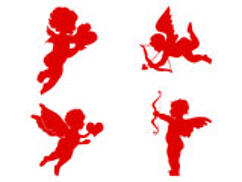
These Valentine’s Day cupid symbols are already colored using typical Valentine Day colors. For instance, the cupids that you download from this site are red, pink, violet, and lilac in color. Do remember though that they can be recolored using PowerPoint's native options for fills, lines, and effects. These cupids are contained within a sample presentation you can download. Copy the cupid clip art you like and paste it into another PowerPoint slide or even a Word document or Excel worksheet. All these cupid symbols are vector shapes, so you can easily edit them within your Microsoft Office program, and resize them without losing sharpness or clarity.
Download, view, and use the cupid symbols contained in these presentations.
February 4, 2011

This is a guest article by Mike Parkinson of Billion Dollar Graphics. Previously, Mike shared one of two key steps to making powerful presentation graphics—create audience-focused visuals by knowing your primary objective. In this article, he explores the use of another key step to make successful presentation graphics: organization and order.
February 4, 2011
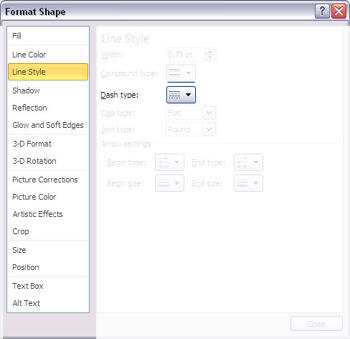
In previous tutorials, we have explained the formatting of shape outlines in PowerPoint 2010 and changing the weight of shape outlines. In this tutorial, we'll show how you can apply a dash style to the shape outline. A dashed line in PowerPoint 2010 can have plenty of variations: from a line with fewer dashes to ones with longer or smaller dashes, or even alternating small and long dashes.
Learn how to apply the dash attribute to the shape outlines in PowerPoint 2010 for Windows.
February 4, 2011

Although PowerPoint enables you to edit the fill, lines, and effects attributes of a shape, this is a time-consuming task that may involve trying out different combinations of each attribute. Even then, the final look may not match the Theme of the presentation. That's the reason why Shape Styles is such a special feature since all you need to do is choose any of these prebuilt styles, and you get an instant makeover! These styles are all Theme-specific, so if the presentation Theme is changed, you'll end up with new Shape Styles.
February 3, 2011

These Valentine's Day heart symbols are already colored using typical Valentine Day colors. For instance, the hearts that you download from this site are red, pink, violet, and lilac in color. Do remember though that they can be recolored using PowerPoint's native options for fills, lines, and effects. These hearts are contained within a sample presentation you can download. Copy the heart clip art you like and paste it into another PowerPoint slide or even a Word document or Excel worksheet. All these heart symbols are vector shapes, so you can easily edit them within your Microsoft Office program, and resize them without losing sharpness or clarity.
Download, view, and use the heart symbols contained in these presentations.
February 2, 2011
This is a guest article by Mike Parkinson of Billion Dollar Graphics. Presentations that use good visual communication are far more successful. However, most presentation software users make text-heavy slides with canned clip art and irrelevant graphics. This two-part article uncovers the top solutions to guarantee you have powerful presentation graphics that increase your success rate.
February 2, 2011

We have explained the basics of formatting shape outlines in PowerPoint 2010 for Windows. Now, we take you further ahead to explore more advanced options for all line formatting characteristics like weight, dash style, arrow style, gradient lines, etc. We cover each of these aspects in individual tutorials. This particular page explores how you can change line weight to make the outlines thinner and thicker. We also cover compound lines such as those that encompass double or triple lines. Weight is the thickness attribute of the shape outline. You can change the weight all the way from a hairline thin line to a chunky thick line.
Learn how to change the weight attribute of shape outlines in PowerPoint 2010 for Windows.
February 2, 2011
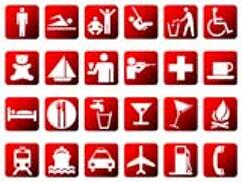
Symbols for PowerPoint are ready-to-use clip-art style icons that you can use within your presentation slides. Although the icons you download from this page are red in color (find more icons for PowerPoint here), they can be recolored using PowerPoint's native options for fills, lines, and effects. These symbols are contained within a sample presentation you can download. Copy the icon you like and paste it into another PowerPoint slide or even a Word document or Excel worksheet. Choose symbol icons from themes such as business, travel, music, etc. All these symbol icons are vector shapes, so you can easily edit them within your Microsoft Office program.
Download, view, and use the symbols in this presentation.
February 1, 2011

This is a guest blog post by Sandra Schrift, president/owner of CoachSchrift and Associates, a San Diego-based consulting, training, and coaching firm. In this post, Sandra provides tips to retain your composure while speaking in front of an audience. Do you feel at ease when you are speaking with your friends or your colleagues but freak out when you have to present to a group of strangers in a small or large audience?
February 1, 2011

We have already shown you how to use fills for shapes in PowerPoint 2010 and earlier versions. In this next installment of tutorials, we will show how you can work with shape outlines in PowerPoint 2010. For all practical purposes, shape outline attributes in PowerPoint 2010 include outline color, outline weight, outline dash type, and outline arrows. In this tutorial, we'll explore the basics and thereafter provide links to specific, individual tutorials so that you can get acquainted with more advanced stuff.
Learn how to make changes to the appearance of shape outlines in PowerPoint 2010 for Windows.
February 1, 2011

You have already learned how to add different fills for shapes in PowerPoint 2007. As you have seen in those shape fill tutorials, the Shape Fill gallery displays only 4 fill options: solid fill, picture fill, gradient fill, and texture fill. There is one more shape fill option, the Slide background fill which you can't access from Shape Fill gallery. The Slide Background fill option is different from other shape fill options because instead of filling something into the selected shape, it makes the slide background area behind the shape visible into the selected shape.
Learn how to add slide background fill to a selected shape in PowerPoint 2007 for Windows.
February 1, 2011

Symbols for PowerPoint are ready-to-use clip-art style icons that you can use within your presentation slides. Although the icons you download from this page are orange in color (find more icons for PowerPoint here), they can be recolored using PowerPoint's native options for fills, lines, and effects. These symbols are contained within a sample presentation you can download. Copy the icon you like and paste it into another PowerPoint slide or even a Word document or Excel worksheet. Choose symbol icons from themes such as business, travel, music, etc. All these symbol icons are vector shapes, so you can easily edit them within your Microsoft Office program.
Download, view, and use the symbols in this presentation.
January 28, 2011

A client asked us recently "Can I use the PowerPoint content you’ve developed for us on an iPad?" The answer we gave was "What a great question. Can we get back to you?" We like our gadgets at ActivePresentation. So, this gave us a great opportunity to learn about a new one, even if at the core it should be familiar to any designer due to its Apple heritage. So, we eagerly set out to test the experience of using PowerPoint presentations on the iPad.
Read this guest article by Jamie Garroch.
January 28, 2011
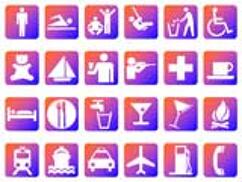
Symbols for PowerPoint are ready-to-use clip-art style icons that you can use within your presentation slides. All icons can be recolored using PowerPoint's native options for fills, lines, and effects. These symbols are contained within a sample presentation you can download. Copy the icon you like and paste it into another PowerPoint slide or even a Word document or Excel worksheet. Choose symbol icons from themes such as business, travel, music, etc. All these symbol icons are vector shapes, so you can easily edit them within your Microsoft Office program.
Download, view, and use the symbols in this presentation.
You May Also Like: Western Plaids PowerPoint Templates | Pecha Kucha Questions




Microsoft and the Office logo are trademarks or registered trademarks of Microsoft Corporation in the United States and/or other countries.
