
This is the print version of this page. All content is copyright Indezine.com 2000-2026.
Page 224 of PowerPoint tutorials, presentation essentials, personality interviews, and PowerPoint news.
Previous Archive Page | Next Archive Page
Author: Geetesh Bajaj
Product/Version: PowerPoint
February 5, 2016
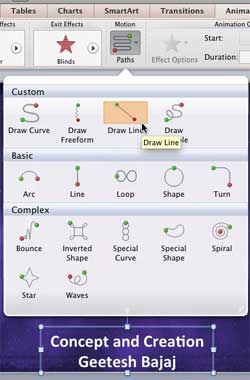
The Star Wars credits style is a kind of Crawl animation. In this style, the text crawls from the bottom to the top, as it also does with Crawl. Additionally, the text diminishes in size all the time until it fades into oblivion. It is a real neat effect, and it is possible to accomplish it in PowerPoint 2011 if you combine multiple animations.
Learn to create Star Wars-style credits animation in PowerPoint 2011 for Mac.
February 4, 2016
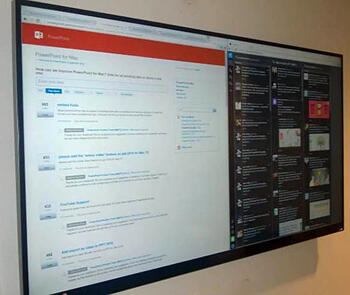
Do you see the dashboard-like screen in the display shown in the picture above? There's a story behind that display! Feedback from end users is always important for any product. However, what do you do when the product in question is PowerPoint? Yes, the same PowerPoint presentation program that millions of people have been using for more than 25 years. Predictably, feedback just needs to raise itself to a whole new level.
February 4, 2016
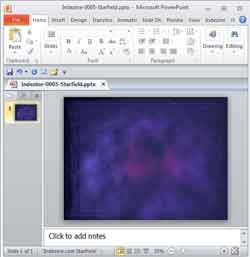
The Star Wars credits style is a variant of the Crawl animation. In this style, the text crawls from the bottom to the top, as it also does with Crawl. Additionally, the text diminishes in size all the time until it fades into oblivion. It is a real neat effect, and it is possible to accomplish it in PowerPoint 2010 if you combine multiple animations.
Learn to create Star Wars-style credits animation in PowerPoint 2010 for Windows.
February 3, 2016
Several websites allow one to download free images for non-commercial usage, although many even allow unrestricted commercial usage as long as any content is not redistributed or resold. Whatever be the case, make sure you read every disclaimer or agreement on a site before you download from to make sure that no copyrights are being infringed.
Explore sites that provide free images (pictures) and textures.
February 3, 2016
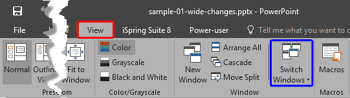
Let's imagine you have four presentations open and you can only see the one that is active. What about the other three presentations? How do you navigate to those presentations without having to close, or minimize the active presentation? In this tutorial, you will learn how to switch between multiple open presentations in PowerPoint. With this option, you can easily switch between different presentation windows, without reducing the window size.
Learn how to switch views between multiple presentations in PowerPoint 2016 for Windows.
February 2, 2016

We begin with a special kind of world map. Why is it special? Because it is all created with circles of all sizes! We then show you how the differences between Text Placeholders and Text Boxes in PowerPoint 2016 for Windows. Sway users can discover apply Design Styles and customize them. For PowerPoint 2013 users, we have tutorials about Action Buttons and their Default Behaviors. Finally, you will not want to miss the new discussions and templates of this week!
Read Indezine's PowerPoint and Presenting News.
February 2, 2016
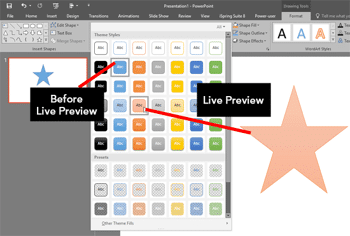
Editing slide objects works almost the same way, irrespective of what you are actually editing. You select the object you want to edit and change some attributes. You then get to see what your changes have caused. And, then you either undo your changes (if you are not too happy with them) or just accept them and start working with another object. What if you could see/preview how an actual change will look on the slide object before you decide to accept or decline that change? PowerPoint 2016's Live Preview allows you to do just that. This feature was first introduced in PowerPoint 2007 and continues being available in newer versions.
Learn about Live Preview in PowerPoint 2016 for Windows.
February 1, 2016
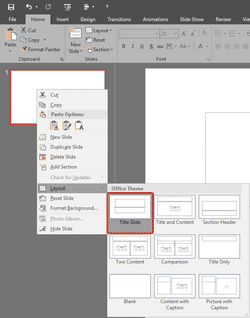
Each PowerPoint presentation contains several slides which many users believe are akin to a blank canvas or an empty sheet of paper! You can thereafter add content to the slides in much the same way as you use brushes to create strokes of paint to color a canvas. For example, do you want some text? You add a text box. Want a picture? Just insert a picture and place it anywhere on your slide! But wait, this is not really the way that you work with PowerPoint!
Learn how to change slide layouts in PowerPoint 2016 for Windows.
February 1, 2016

Just inserting Action Buttons on your slide is not sufficient—you need to apply hyperlinks to them so that they have some function. You have already learnt how to insert Action Buttons. In this tutorial, we'll learn more detailed techniques on working with Action Buttons. Each Action Button has a default action associated; this typically is a hyperlink to some other slide in your presentation. You can change this link, or even add another link, such as a link to your website, another document, and more.
Explore options to add and edit hyperlinks for Action Buttons in PowerPoint 2013 for Windows.
January 29, 2016
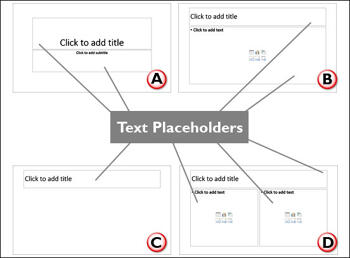
PowerPoint has three types of text container: text placeholders, text boxes, and shapes. We explain Shapes in our comprehensive section on Shape tutorials. Let us now look at the other two text container types. Aren't text placeholders and text boxes the same? Are they different? Moreover, why should we bother even if they are different? All these are valid questions, and the answers to them form one of the most important foundations in learning to create more structured presentations.
Learn about the differences between text placeholders and text boxes in PowerPoint 2016 for Windows.
January 29, 2016
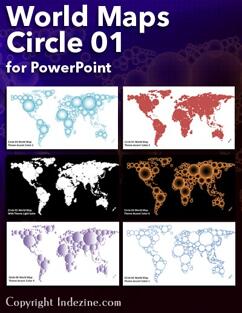
This collection of world maps is all circled! Each continent is a collection of circles that overlap each other or stay adjacent. Circle-style maps make your slides look different and simpler. You get six styles of fills in both Standard and Widescreen aspect ratios. All colors used are Theme aware, and each land area is a separate group—easily accessed via the Selection Pane in PowerPoint.
Download and use these maps in your slides.
January 29, 2016

Once you place Action Buttons on your slide in PowerPoint 2013, you can make them do all sorts of actions when clicked. What sets Action Buttons apart from other shape types in PowerPoint is the iconography they contain. For most users, an icon such as a leftwards arrow indicates moving to the previous slide and a rightwards arrow does indicate progressing to the next slide. Another advantage of these icon-equipped Action Buttons is that they are language independent and can work very well in multi-language and international presentations. In this tutorial, you are going to explore the different types of Action Buttons and their default behaviors.
Explore different types of Action buttons and their default behaviors in PowerPoint 2013 for Windows.
January 28, 2016

Shapes may look basic or even primitive, but they are the building blocks of almost anything you create on your PowerPoint slides. Fortunately, you are not deprived of choices because PowerPoint provides plenty of shapes, neatly categorized into nine types. Among all the shape types, Action Buttons behave differently. These are essentially rectangular shapes that are used as navigation aids to navigate between slides, or even another presentation, document, or a web URL.
Learn how to insert an Action button on a slide in PowerPoint 2013 for Windows.
January 27, 2016

We explored Design Styles in Sway. There are several Design Styles that you can apply. Even better, you are not restricted to the Styles available because Sway allows you to customize any existing Style so that you can make the end results more personalized.
Learn how you can customize Design Styles in Microsoft Sway.
January 25, 2016
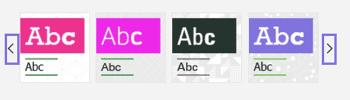
Once you access the Design pane in Sway, you will be presented with a bewildering array of Design Styles that can change the appearance of your Sway. So, how do you navigate and choose from these many options?
Learn how to change Design Styles in Microsoft Sway.
January 26, 2016

Do you want to hear presenting questions from everyday people, and also someone who can answer them? Then you will love TJ Walker's special Indezine podcast. We then show you how you can add a Design Style in Sway. PowerPoint 2013 users can then explore hyperlinking text, transparent hyperlinks, automatic text hyperlinks, and also editing hyperlinks. Finally, you will not want to miss the new discussions and templates of this week!
Read Indezine's PowerPoint and Presenting News.
You May Also Like: Raspberry PowerPoint Templates | How to Pitch and Win People Round



Microsoft and the Office logo are trademarks or registered trademarks of Microsoft Corporation in the United States and/or other countries.
