Indezine Logo


Switch Views Between Multiple Presentations in PowerPoint 2016 for Windows

Learn how to switch views between multiple presentations in PowerPoint 2016 for Windows. Switching can sometimes be easier than tiling or arranging slide decks.


Author:

Product/Version: PowerPoint 2016 for Windows

OS: Microsoft Windows 7 and higher


When you are working with one or two presentations in PowerPoint, you can easily access slides within any of them, compare presentations and edit content. And it is also easy to copy or move slides from one presentation to another. However, the situation may not always be the same. Let's imagine you have four presentations open, and presently you can only see the one that is active. What about the other three presentations? How do you navigate to those presentations without having to close or minimize the active presentation?

In this tutorial, you will learn how to switch between multiple open presentations in PowerPoint, which is different from how you do so in PowerPoint for Windows.

Follow these steps to switch views between multiple presentations in PowerPoint 2016 for Mac:
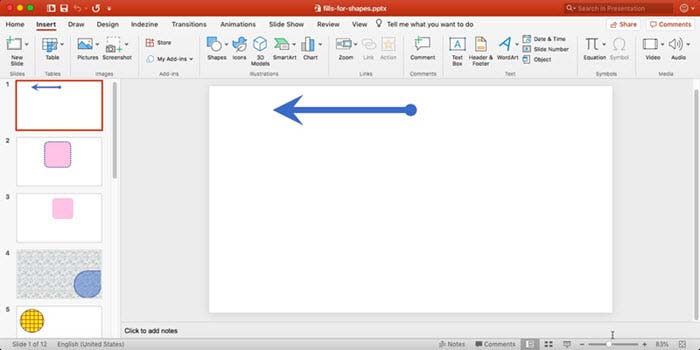
  1. Open multiple presentations in PowerPoint. Do note that only the last opened presentation will be visible, as shown in Figure 1, below.
  2. Only one of the multiple open presentations is visible
    Figure 1: Only one of the multiple open presentations is visible

    See All Presentations?

    You cannot see how many presentations you have open within PowerPoint, as only active presentation can be seen up front, as shown in Figure 1, above.
  3. There are two ways to access other open presentations. The first way uses the Menu option, and the second option uses the Dock:
  4. Way 1

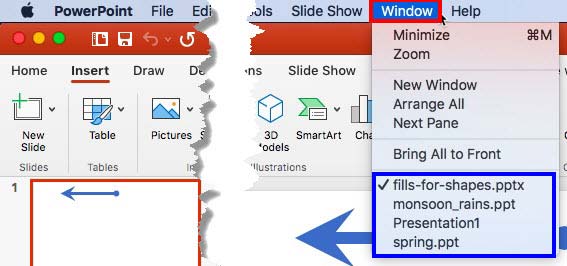
    1. Click on the Window menu option, as shown highlighted in red within Figure 2, below. Doing so opens the Window menu, as shown in Figure 2. At the bottom of the Window menu, you can see a list showing the names of all open presentations, as shown highlighted in blue within Figure 2. Note that the presentation name that has a check mark in front of it is the active presentation.
    2. Window menu
      Figure 2: Window menu
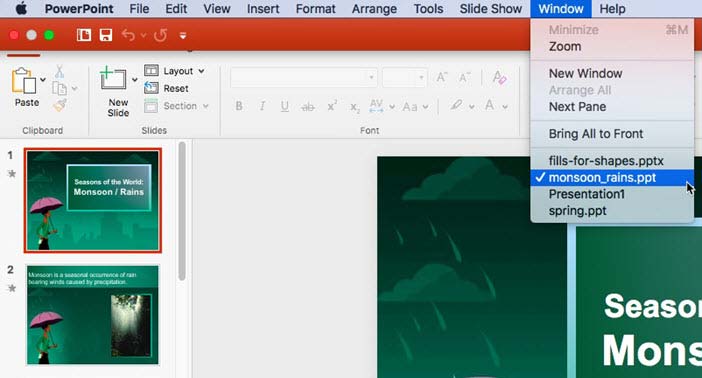
    3. To open a particular presentation, click on the name of that presentation within the Window menu, as shown in Figure 3, below.
    4. Select a presentation name to make it active
      Figure 3: Select a presentation name to make it active
    5. This instantly makes the selected presentation active, as shown in Figure 3, above.

    Way 2

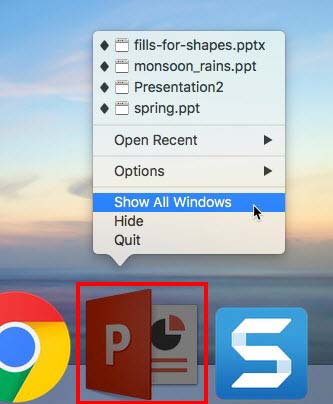
    1. You will find the PowerPoint icon on the Dock in Mac OS X, as shown highlighted in red within Figure 4, below. Right-click (or Ctrl + click) this icon to open a pop-up menu, as shown in Figure 4. Within this menu, select the Show All Windows option, as shown in Figure 4.
    2. PowerPoint icon on the Dock
      Figure 4: PowerPoint icon on the Dock
    3. This will reveal the thumbnail previews of all open presentations, as shown in Figure 5, below. Then, take your cursor over the preview of the presentation you want to access and click.
    4. Preview of all open presentations
      Figure 5: Preview of all open presentations
    5. This will make the clicked presentation active.
  5. Use any of the ways explained above to make your required presentation active.
  6. Save your presentation often.

People Also Ask:

Can I switch between presentations on multiple monitors?

Yes. Each presentation can be displayed on separate screens.

What happens if I close one presentation while switching?

It disappears from the list of open presentations.

Why can’t I see all open presentations?

They may be minimized or hidden behind other windows.

See Also:

01 09 22 - Working with Slides: Switch Views Between Multiple Presentations in PowerPoint (Glossary Page)

Switch Views Between Multiple Presentations in PowerPoint 2016 for Mac
Switch Views Between Multiple Presentations in PowerPoint 2013 for Windows
Switch Views Between Multiple Presentations in PowerPoint 2011 for Mac
Switch Views Between Multiple Presentations in PowerPoint 2010 for Windows

You May Also Like: Convert a PowerPoint Line to a Motion Path Animation: Conversation with Jamie Garroch | Bolivia Flags and Maps PowerPoint Templates


Popular Posts

Ten Easy Topics for Pecha Kucha
But what are simple topics, that excite you, and are interesting to your audiences? Of course, if you already have a topic, you need not read further, but if you are still looking for ideas, here are ten easy topics that you can use for your Pecha Kucha presentations.

Drawing Arcs in PowerPoint
Explore how you can draw an Arc shape in PowerPoint.

Set Minimum and Maximum Values on Value Axis in PowerPoint 2013 for Windows
Learn how to set the Minimum and Maximum values on Value Axis of Charts in PowerPoint 2013 for Windows.

Crop Pictures (Mask to Shape) in PowerPoint 2011 for Mac
Learn how to crop pictures using Mask to Shape option in PowerPoint 2011 for Mac.


Jigsaw Graphics for PowerPoint

Here are 10 jigsaw graphics containing different shapes. These graphics are available in both black and white and are contained within separate sample presentations that you download. Additionally, these jigsaw graphics are vector shapes, so you can easily edit them within your Microsoft Office program by changing fills, lines, and effects or even applying Shape Styles.

Download and use these Jigsaw Graphics in your slides for just $4.99+


Microsoft and the Office logo are trademarks or registered trademarks of Microsoft Corporation in the United States and/or other countries.

Home | PowerPoint | Photoshop | PowerPoint Templates | PowerPoint Tutorials | Blog | Notes | Ezine | Media Kit | Feedback | Site Map | About Us | Contact Us

Link to Us | Privacy | Testimonials

PowerPoint Backgrounds | Christian PowerPoint Backgrounds | Business PowerPoint Presentation Templates

Plagiarism will be detected by Copyscape

©2000-2026, . All rights reserved.