
This is the print version of this page. All content is copyright Indezine.com 2000-2026.
Learn how to hide and unhide slides in PowerPoint 2016 for Windows. Hiding slides lets you do so much more.
Author: Geetesh Bajaj
Product/Version: PowerPoint 2016 for Windows
OS: Microsoft Windows 7 and higher
Ever had a slide packed with useful nuggets that you just can’t bring yourself to delete? Think of it like that drawer at home where you keep important stuff. You don’t need it every day, but you definitely don’t want to throw it away! Now imagine accidentally opening that drawer in front of your audience mid-presentation. Awkward, right?
Here’s the neat trick: hide the slide. It’s like putting that drawer behind a secret panel. Your audience never sees it during Slide Show view, but it’s still right there for you whenever you need it. You can edit it, tweak it, and—when the moment is just right, bring it back into the spotlight with a quick unhide.
Hidden slides are a favorite among seasoned presenters. They often stash backup data, extra charts, or “just-in-case” answers there. It’s like having a safety net… only your audience never knows they exist!
Follow these steps to hide and unhide your slides in PowerPoint 2016 for Windows:
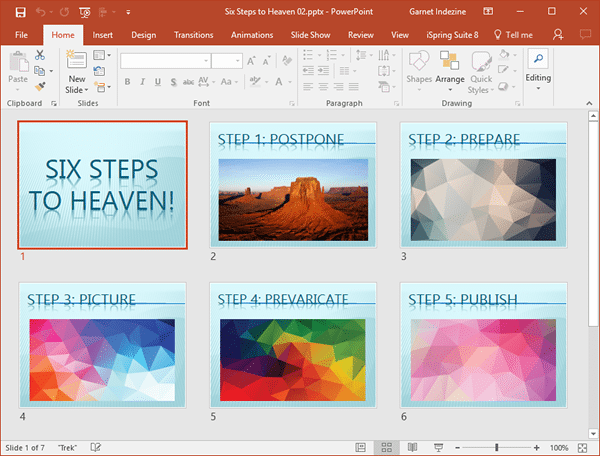
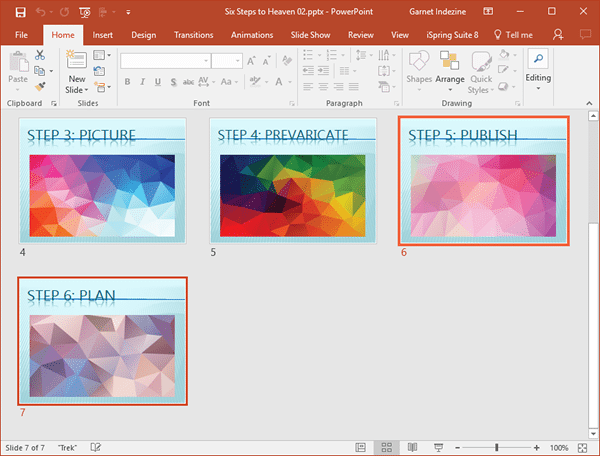
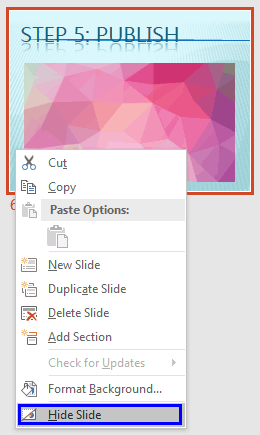
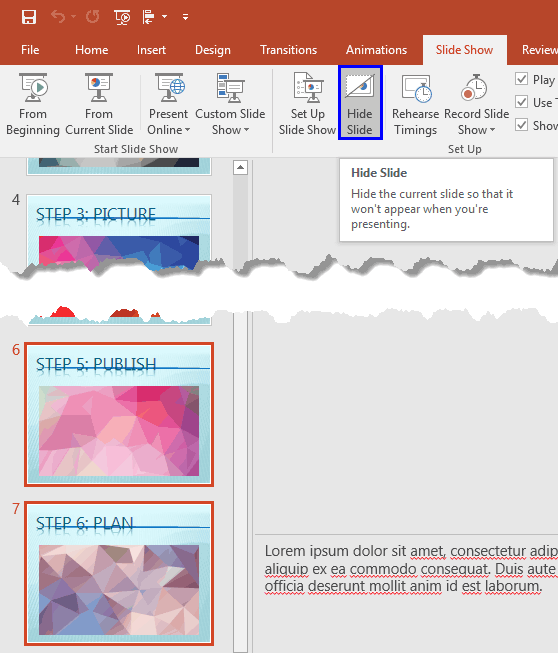
You are not necessarily restricted to Slide Sorter view to hide or unhide slides. You can also select slides within the Slides Pane, and access the same right-click options, as shown in Figure 5, below, or even use the Hide Slide button on the Slide Show tab of the Ribbon.
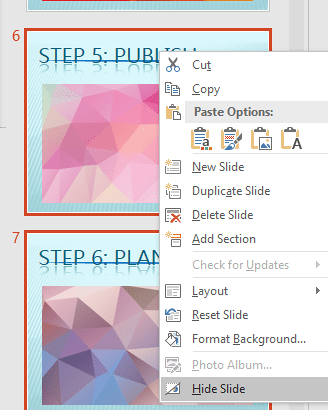
Figure 5: Hide slides from the Slides Pane
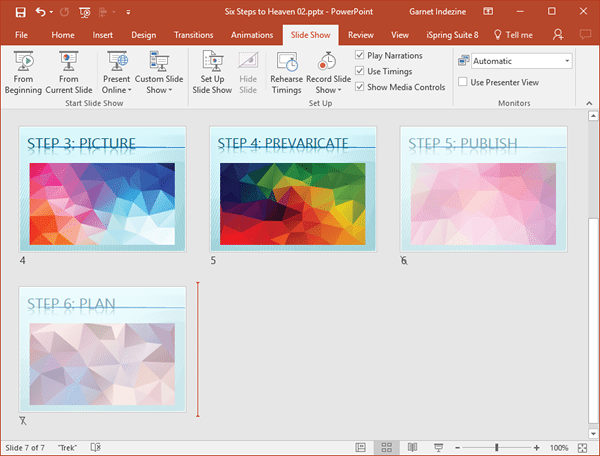
All options used to hide slides work as toggles. You choose these options to hide slides and then choose the same options to unhide slides.
Want to show a hidden slide in Slide Show view? It’s easy if you know the slide number. For example, if the slide number of this slide is 16, you just press 1, 6, and Enter keys in rapid succession, and your slide will change to slide number 16. This trick works with all slides, including hidden slides.
01 09 06 - Working with Slides: Hide and Unhide Slides in PowerPoint (Glossary Page)
Hide and Unhide Slides in PowerPoint 365 for Windows
Hide and Unhide Slides in PowerPoint 2016 for Mac
Hide and Unhide Slides in PowerPoint 2013 for Windows
Hide and Unhide Slides in PowerPoint 2010 for Windows
Hide and Unhide Slides in PowerPoint for the Web
You May Also Like: How to Create Custom PowerPoint Themes to Fit Your Brand | Dynamic Text to Speech in PowerPoint




Microsoft and the Office logo are trademarks or registered trademarks of Microsoft Corporation in the United States and/or other countries.
