This is the print version of this page. All content is copyright Indezine.com 2000-2026.
Learn how to apply Theme Colors and Theme Fonts in PowerPoint 365 for Windows.
Author: Geetesh Bajaj
Product/Version: PowerPoint 365 for Windows
OS: Microsoft Windows 10 and higher
Applying Theme Colors and Theme Fonts in PowerPoint gives you a quick, precise way to refresh your presentation’s look without committing to a full theme or template overhaul. Whether you want a subtle visual update or need to match brand guidelines, PowerPoint lets you mix and match coordinated color palettes and font pairs with ease. This tutorial walks you through where to find these options, how to preview them, and the best ways to apply them across your slides. With a few thoughtful choices, you can elevate clarity, consistency, and visual impact in minutes.
Theme Colors and Theme Fonts in PowerPoint
Why Just Colors and Fonts?
Applying Theme Colors
Applying Theme Fonts
Applying a Theme in Microsoft PowerPoint typically introduces a comprehensive set of changes, including Theme Fonts, Theme Effects, Theme Backdrops, and other visual attributes. However, in many scenarios, such a full transformation may be unnecessary or even undesirable. In these cases, a more targeted approach can be adopted—applying only Theme Colors and Theme Fonts while preserving all other existing Theme attributes. This enables visual alignment without altering the overall design structure.
We showed you how you can apply a Theme in PowerPoint, Word, or Excel files. In this tutorial, we'll look at how you can apply Theme Colors and Theme Fonts only in PowerPoint 365 for Windows.
Note that the galleries for applying Theme Colors and Theme Fonts are not as prominently accessible as in earlier versions of Microsoft PowerPoint. To access them, you go to the Design tab of the Ribbon. There, within the Variants group, click the More button, as highlighted in red within Figure 1, below.

Figure 1: More button
If you use the Theme Colors and Theme Fonts options often, consider customizing your Ribbon to add them in a more accessible location. Alternatively, you could even add them to your Quick Access Toolbar (QAT).
Doing so will bring up the Variants drop-down gallery, as shown in Figure 2, below. Within the Variants drop-down gallery, you can find both Colors and Fonts options, as shown highlighted in red within Figure 2.

Figure 2: Colors and Fonts options
Selecting any of these options will reveal a corresponding sub-gallery, which is explored in detail in the sections that follow.
BackEach presentation in Microsoft PowerPoint includes at least one built-in Theme Color set. In addition, several predefined Theme Color sets are available by default. A Theme Color set consists of 12 coordinated colors, systematically selected based on established principles of color theory to ensure visual harmony and consistency.
Although the Colors sub-gallery in Microsoft PowerPoint displays only eight colors, each Theme Color set actually comprises twelve colors. The first two are typically black and white, and used for background and text options. These are not shown. Additionally, the final two colors, which define hyperlink and followed hyperlink states, are also excluded from the Colors sub-gallery, as shown later in Figure 3.
Follow these steps to select and apply a Theme Color set in Microsoft PowerPoint:
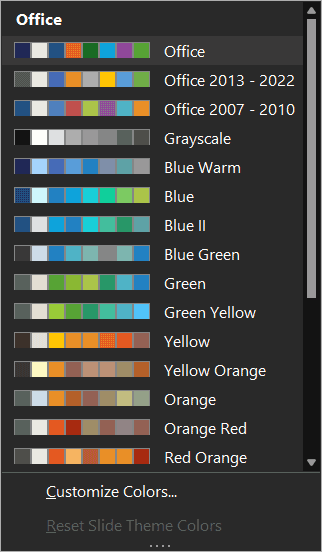
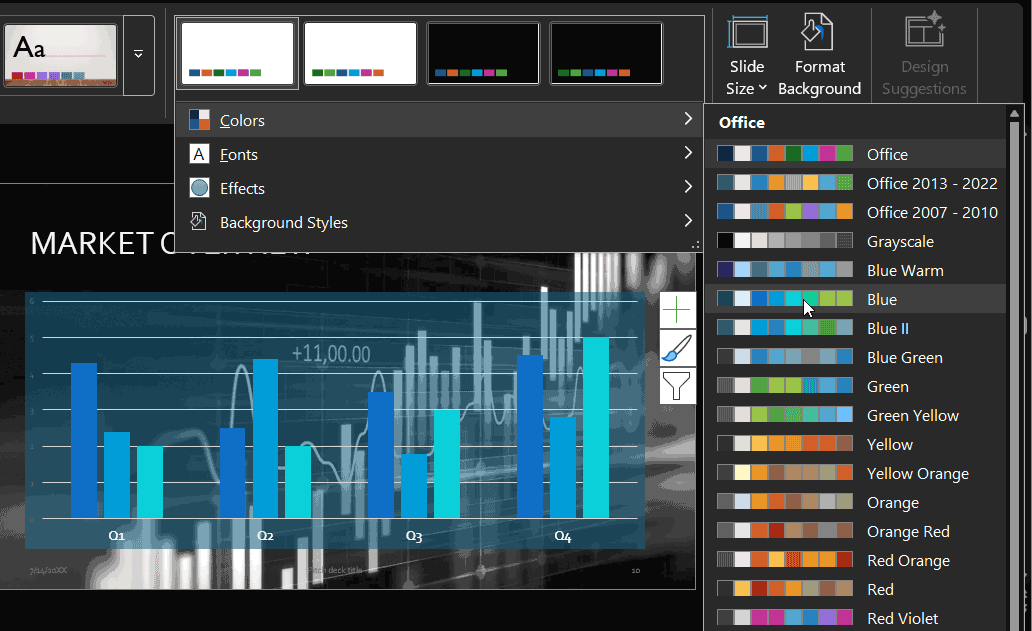
Modifying Theme Colors across predominantly text-based slides may result in only subtle visual changes. The impact is more pronounced in presentations that incorporate a rich mix of visual elements, such as shapes, charts, and SmartArt, where the Theme Colors play a more significant role in overall design.
You can also apply a Theme Color set to specific slides rather than the entire presentation. To do so, select the desired slides in Slide Sorter view or within the Slides pane in Microsoft PowerPoint. Then, right-click the preferred color set and choose Apply to Selected Slides, as highlighted in red within Figure 5, below.
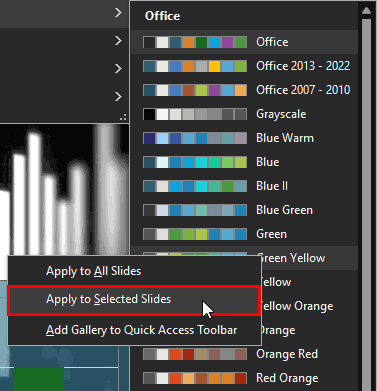
Figure 5: Apply to Selected Slides option
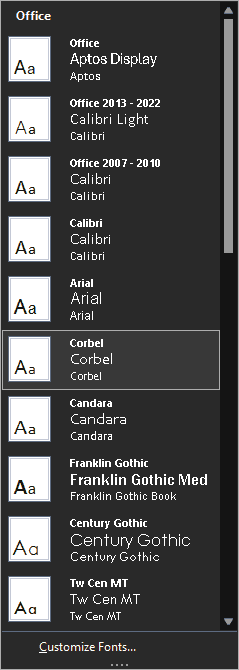
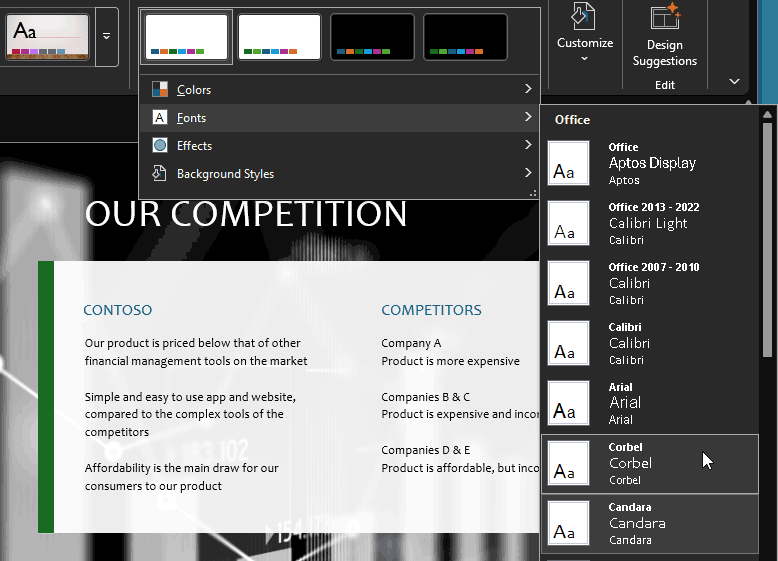
A Theme Font set in Microsoft PowerPoint comprises two fonts: one designated for slide titles and headings, and another for body text and other content. In some built-in Theme Font sets, the same font family is used for both roles—an approach that can be entirely appropriate, depending on the design requirements.
Follow these steps to select and apply a new Theme Font set in Microsoft PowerPoint 365 for Windows:
04 01 11 - Themes Basics: Applying Theme Colors and Theme Fonts in (Glossary Page)
Applying Theme Colors and Theme Fonts in PowerPoint 2016 for Mac
Applying Theme Colors and Theme Fonts in PowerPoint 2013 for Windows
Applying Theme Colors and Theme Fonts in PowerPoint 2011 for Mac
Applying Theme Colors and Theme Fonts in PowerPoint 2010 for Windows
Applying Theme Colors and Theme Fonts in PowerPoint 2008 for Mac
Applying Theme Colors and Theme Fonts in PowerPoint 2007 for Windows
You May Also Like: Viral Video In Two Steps: Presentation And Perseverance | Here’s How President Obama Gave Stellar Inspirational Speeches



Microsoft and the Office logo are trademarks or registered trademarks of Microsoft Corporation in the United States and/or other countries.