
This is the print version of this page. All content is copyright Indezine.com 2000-2026.
Learn to add and rename Ribbon tabs in PowerPoint 365 for Windows. Using these techniques, you can create a Ribbon that's personalized and works for you.
Author: Geetesh Bajaj
Product/Version: PowerPoint 365 for Windows
OS: Microsoft Windows 10 and higher
The Ribbon that you see within the PowerPoint 365 for Windows user interface was designed to make all options easily accessible. To make more options available on the Ribbon, you can add more tabs, rename them, and populate them with even more commands, as we will explore within this tutorial.
All buttons on the Ribbon are placed within separate Tabs, and each Tab has groups with a few commands. We explained these basics in our Ribbon and Tabs tutorial. Customization of the Ribbon involves four areas:
Follow these steps to learn more:
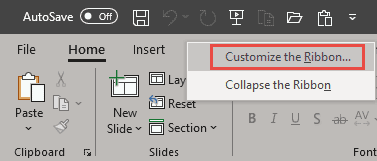
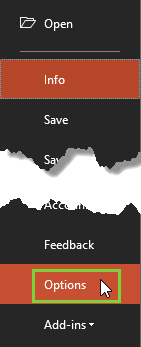
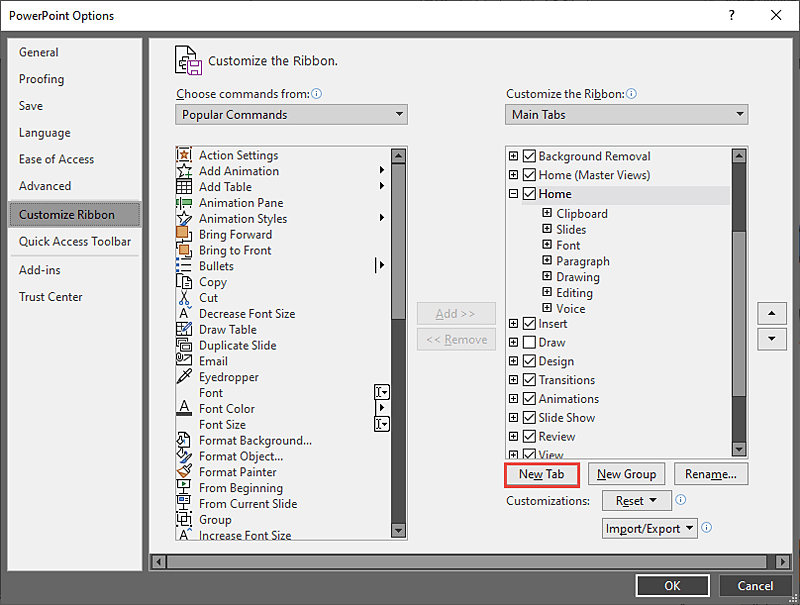
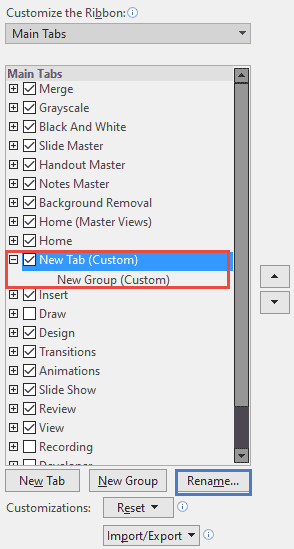
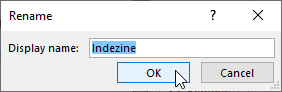


No, PowerPoint does not allow renaming of default (built-in) Ribbon tabs. Only custom tabs can be renamed.
Yes, to hide a tab:, right-click on the Ribbon and select "Customize the Ribbon..." In the PowerPoint Options dialog, uncheck the box next to the tab you wish to hide.
To remove a custom tab, select the custom tab in the list and click the "Remove" button. Note that default tabs can be hidden but not removed.
01 06 02 - Working with QAT and Ribbon: Add and Rename Ribbon Tabs in PowerPoint (Glossary Page)
Add and Rename Ribbon Tabs in PowerPoint 365 for Mac
Add and Rename Ribbon Tabs in PowerPoint 2019 for Windows
Add and Rename Ribbon Tabs in PowerPoint 2016 for Windows
Add and Rename Ribbon Tabs in PowerPoint 2016 for Mac
Add and Rename Ribbon Tabs in PowerPoint 2013 for Windows
Add and Rename Ribbon Tabs in PowerPoint 2010 for Windows
You May Also Like: The Elephant | Aircraft PowerPoint Templates




Microsoft and the Office logo are trademarks or registered trademarks of Microsoft Corporation in the United States and/or other countries.
