
This is the print version of this page. All content is copyright Indezine.com 2000-2026.
Learn about Live Preview in PowerPoint 365 for Windows. Using Live Preview, you can find out how a particular choice will change the appearance, without committing any change.
Author: Geetesh Bajaj
Product/Version: PowerPoint 365 for Windows
OS: Microsoft Windows 10 and higher
Editing any slide object works the same way, irrespective of whether you are editing a picture, a chart, some SmartArt, or even text. You select the object you want to edit and change some attributes. You then get to see your changes, and then you either undo your changes if you are not too happy with them or just accept them. You can then start working with another object! What if you could see/preview how an actual change will look on the slide object before you decide to accept or decline that change? PowerPoint 365's Live Preview allows you to do just that.
Follow these steps to use Live Preview:
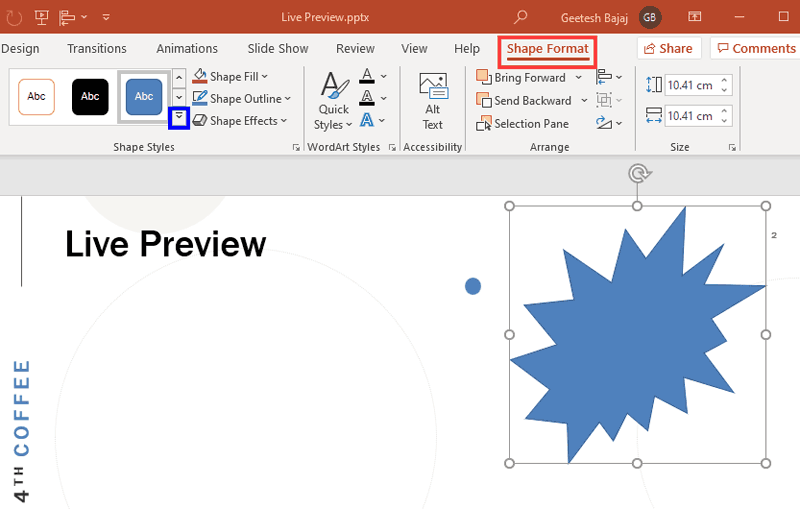
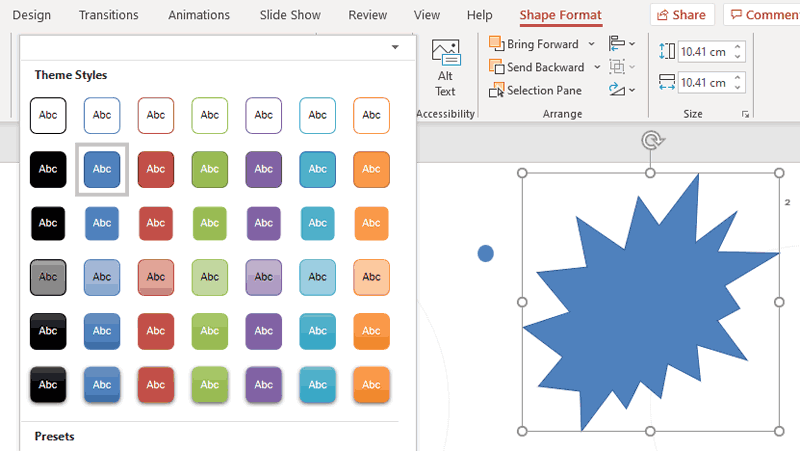

While the Live Preview feature works great most of the time, some older computers may not have the processing power required to show live previews in real time, and this might lead to sluggish performance. Fortunately, you can easily disable Live Preview by following these steps:
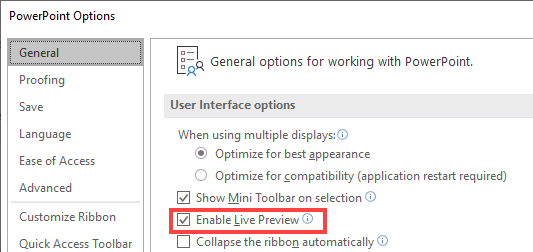
If the Enable Live Preview option is greyed out, it could be due to system settings or policies. For instance, certain configurations, like Terminal Server settings or specific animation settings, might disable Live Preview. Additionally, organizational policies managed through Group Policy can restrict this feature. In such cases, consulting your IT administrator or checking your system's configuration may help resolve the issue.
Disabling Live Preview can enhance performance, especially on older or less powerful computers. Live Preview requires processing power to render real-time previews, and turning it off can reduce the load on your system, leading to smoother operation when working with large presentations or complex graphics.
Live Preview was introduced in Microsoft Office 2007 and is available in subsequent versions, including PowerPoint 2010, 2013, 2016, 2019, and Microsoft 365. However, the availability of certain features may vary depending on the specific version and configuration of your Office installation.
01 05 12 - Interface Overview: Live Preview in PowerPoint (Glossary Page)
Live Preview in PowerPoint 365 for Mac
Live Preview in PowerPoint 2019 for Windows
Live Preview in PowerPoint 2016 for Windows
Live Preview in PowerPoint 2013 for Windows
Live Preview in PowerPoint 2010 for Windows
Live Preview in PowerPoint 2007 for Windows
You May Also Like: Three Simple Rules for Slideshow Animation | Chinese Checkers PowerPoint Templates


Microsoft and the Office logo are trademarks or registered trademarks of Microsoft Corporation in the United States and/or other countries.
