Indezine Logo


Customize Quick Access Toolbar in PowerPoint 365 for Windows

Learn how to customize the Quick Access Toolbar in PowerPoint 365 for Windows. You can quickly populate the QAT with your favorite commands.


Author:

Product/Version: PowerPoint 365 for Windows

OS: Microsoft Windows 10 and higher


Learn PowerPoint

Explore keyboard shortcuts for PowerPoint views.


The Quick Access Toolbar or QAT is the only toolbar available in PowerPoint. This toolbar can be customized so that it contains your most-used commands, accessible to you with just a single click. We already explored how you can change the location of the QAT in our Quick Access Toolbar in PowerPoint 365 for Windows tutorial.

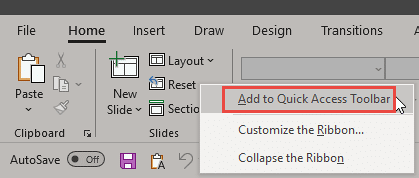
There are two ways in which you can add your favorite commands to the QAT. The easier way is to right-click any button on the Ribbon tabs, and choose the Add to Quick Access Toolbar option, as shown highlighted in red within Figure 1, below.
Add any command to the QAT with a right-click
Figure 1: Add any command to the QAT with a right-click

Alternatively, follow these steps to customize the QAT in PowerPoint 365 for Windows by adding your frequently used commands. This process is longer, but shows you all commands available in PowerPoint, including some that are not available on Ribbon tabs:
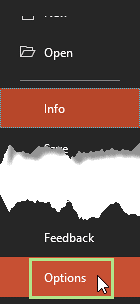
  1. Choose the File menu to bring up Backstage view, as shown in Figure 2, below. Now, select Options, as shown highlighted in green within Figure 2.
  2. Options within File menu
    Figure 2: Options within File menu
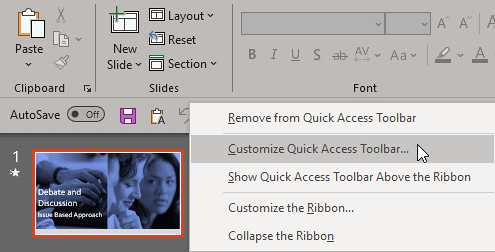
  3. Alternatively, right-click anywhere over your QAT, and from the resultant menu, select the Customize Quick Access Toolbar option, as shown in Figure 3, below.
  4. Customize Quick Access Toolbar option
    Figure 3: Customize Quick Access Toolbar option
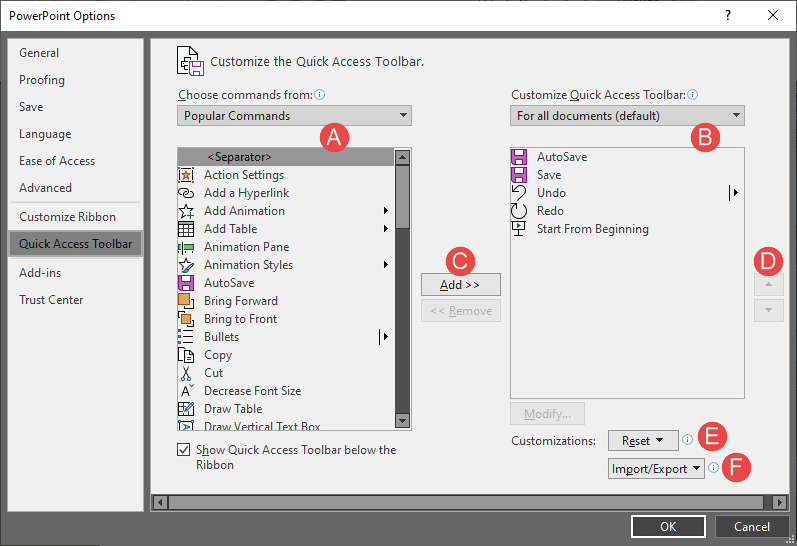
  5. Either way, this opens the PowerPoint Options dialog box, as shown in Figure 4, below. Make sure you choose the Quick Access Toolbar option within the sidebar. This shows the relevant options on the right side of the PowerPoint Options dialog box, as shown in Figure 4.
  6. PowerPoint Options dialog box
    Figure 4: PowerPoint Options dialog box
  7. All options for customizing the QAT are explained below, as marked in Figure 4, above:
  8. A. Choose commands from

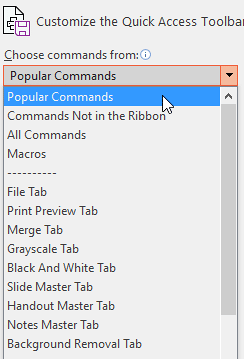
  9. Here you will select the commands which you want to add to the QAT. Click to open the drop-down list, as shown in Figure 5, below, and choose the category of commands that you want to work with. This will display a list of commands within that category in the section below. From this section, select the particular command which you want to add to QAT.
  10. Choose the category of commands
    Figure 5: Choose the category of commands
  11. B. Customize Quick Access Toolbar

  12. Here you will choose whether you want to customize the QAT for all documents, or only for the current presentation. As you can see in Figure 4, For all documents is the default option selected. Existing commands already added to the QAT will be displayed in the section below.
  13. C. Add and Remove buttons

  14. These buttons are used to add commands from the Choose commands from (see point A above) list or remove commands from the Customize Quick Access Toolbar (see point B above) list.
  15. D. Reorder Commands

  16. These Move Up and Move Down arrow buttons allow you to reorder the sequence of icons visible on the QAT.
  17. E. Reset

  18. Sets your QAT to its defaults, and removes all customizations made. We explain this more in our Reset, Import, and Export QAT Customizations tutorial.
  19. F. Import/Export

  20. Lets you export and import your customizations, learn more in our Reset, Import, and Export QAT Customizations tutorial.
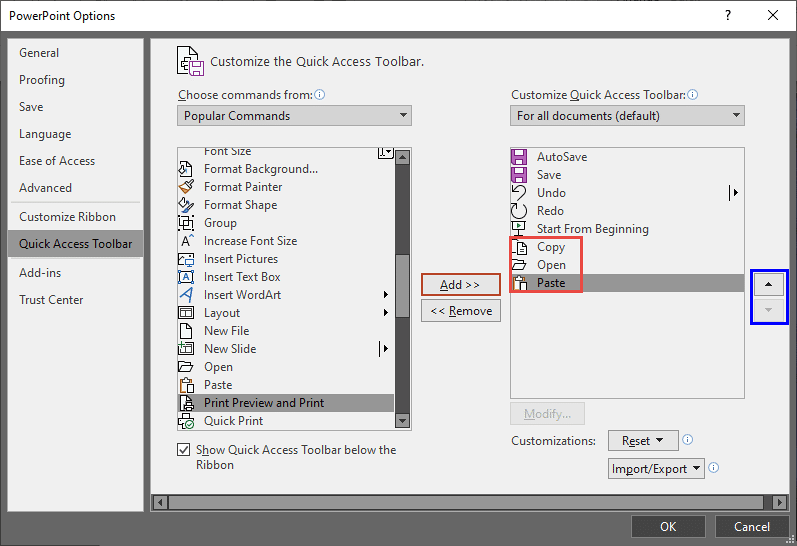
  21. Add commands you use often. For this tutorial, we added Copy, Open, and Paste commands within the Customize Quick Access Toolbar list, as shown highlighted in red within Figure 6, below.
  22. Commands added to the QAT
    Figure 6: Commands added to the QAT
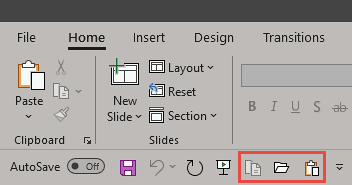
  23. Note that you can also change the order in which these commands show in the QAT. To reorder, select a command that you want to change the order for. Then, click either the Move Up or Move Down buttons, highlighted in blue within Figure 6, above. Once done adding, editing, reordering, or removing the commands, click the OK button to get back to the PowerPoint interface. You'll see the new or updated commands available on the QAT, as shown highlighted in red within Figure 7, below.
  24. New commands added to the QAT
    Figure 7: New commands added to the QAT

Keyboard Shortcuts for QAT Commands

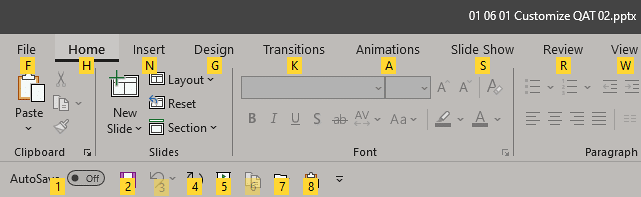
Each command you add to the QAT has its own keyboard shortcut. To view these shortcuts, just press the Alt key and each QAT command will show an overlaid tool tip with a number, as shown in Figure 8, below. If the number reads 6, then the keyboard shortcut for that command is Alt + 6. Similarly, if the number reads 9, further below, then the keyboard shortcut for that command is Alt + 9. You'll need to be quick with pressing your keys if you have a double-character shortcut key!
QAT shortcuts shown in tool tip
Figure 8: QAT shortcuts are shown in tool tip

Keyboard Shortcuts for PowerPoint

PowerPoint Keyboard Shortcuts

Do you want more keyboard shortcuts?

Explore our PowerPoint Keyboard Shortcuts and Sequences Ebook that is updated for all PowerPoint versions.

Relocate the QAT

If you want to relocate the QAT under the Ribbon tabs, right-click anywhere over the QAT and select the Show Quick Access Toolbars below the Ribbon option, as shown in Figure 3, previously on this page.


People Also Ask:

Why is my Quick Access Toolbar not displaying all added commands?

The QAT has a limited space, and if too many commands are added, some may not be visible. To resolve this issue, you can remove less frequently used commands to free up space.? Doing so ensures that your most important commands remain easily accessible.

How can I rearrange the order of commands in the Quick Access Toolbar?

To rearrange commands, open the PowerPoint Options dialog box and select Quick Access Toolbar.? In the list of commands on the right, select the command you wish to move.? Use the Up and Down arrows to adjust its position.?

Can I assign keyboard shortcuts to commands in the Quick Access Toolbar?

Yes, but shortcuts are assigned automatically based on the command position (e.g., Alt + 1 for the first command, Alt + 2 for the second, etc.).

See Also:

01 06 01 - Working with QAT and Ribbon: Customize Quick Access Toolbar in PowerPoint (Glossary Page)

Customize Quick Access Toolbar in PowerPoint 365 for Mac
Customize Quick Access Toolbar in PowerPoint 2019 for Windows
Customize Quick Access Toolbar in PowerPoint 2016 for Windows
Customize Quick Access Toolbar in PowerPoint 2016 for Mac
Customize Quick Access Toolbar in PowerPoint 2013 for Windows
Customize Quick Access Toolbar in PowerPoint 2010 for Windows

You May Also Like: So Many Slides: Conversation with Robert Befus | Percentage PowerPoint Templates


Popular Posts

Pivot Tables in PowerPoint: by Kasper Langmann
One of the most commonly used features in Microsoft Excel is the Pivot Table. A Pivot Table simply allows you to make better sense of data by giving you different options of how to view that data.

Get More SmartArt Graphics
Learn how you can get more SmartArt graphic variants.

Character Spacing in PowerPoint 2013
Explore Character Spacing options in PowerPoint 2013.

Add Secondary Value Axis to Charts in PowerPoint 2013 for Windows
Learn how to add a Secondary Value axis to charts in PowerPoint 2013 for Windows.


Jeopardy-Like PowerPoint Template (25 Questions)

Want to play a Jeopardy-like game using PowerPoint slides? Yes, this is absolutely doable but making PowerPoint slides with all the interactivity and layouts takes too much work. Fortunately, we have done the work for you. just download our Jeopardy-like 25 (5x5) question PowerPoint template, replace the placeholders provided for questions, answers, and categories, and you’re done! You'll still need a real human being to track scores and you could soon be playing this amazing game as part of a fun exercise, a training program, or even a quiz show.

Download and play your own Jeopardy-like game


Microsoft and the Office logo are trademarks or registered trademarks of Microsoft Corporation in the United States and/or other countries.

Home | PowerPoint | Photoshop | PowerPoint Templates | PowerPoint Tutorials | Blog | Notes | Ezine | Media Kit | Feedback | Site Map | About Us | Contact Us

Link to Us | Privacy | Testimonials

PowerPoint Backgrounds | Christian PowerPoint Backgrounds | Business PowerPoint Presentation Templates

Plagiarism will be detected by Copyscape

©2000-2026, . All rights reserved.