
This is the print version of this page. All content is copyright Indezine.com 2000-2026.
Learn how to apply Theme Colors and Theme Fonts in PowerPoint 2016 for Mac.
Author: Geetesh Bajaj
Product/Version: PowerPoint 2016 for Mac
OS: Mac OS X
Why Just Colors and Fonts?
Applying Theme Colors
Applying Theme Fonts
Applying a Theme in PowerPoint applies Theme Colors, Theme Fonts, Theme Effects, Theme Backdrops, and much more. However there are scenarios in which you really don't require such a complete makeover or metamorphosis. In that case, you can still apply Theme Colors and Theme Fonts and leave all other Theme attributes unchanged.
We showed you how you can apply a Theme in Office 2016 to a PowerPoint, Word, or Excel files. In this tutorial, we'll look at how you can apply Theme Colors and Theme Fonts only in PowerPoint 2016 for Mac.
Remember, the galleries for applying Theme Colors and Theme Fonts are no longer as accessible as they were in previous versions. They can now be found within the Variants group of Design tab of the Ribbon, as shown highlighted in blue within Figure 1, below.

Figure 1: More button
If you use the Theme Colors and Theme Fonts options often, consider customizing your Ribbon to add them in a more accessible location. Learn to add them to your Quick Access Toolbar (QAT).
Hover the cursor over the Variants group to bring up the More button, as shown highlighted in red within Figure 2, below. Click this More button to bring up the Variants drop-down gallery, as shown in Figure 2. Within the Variants drop-down gallery you can find both Colors and Fonts options, as shown highlighted in blue within Figure 2.
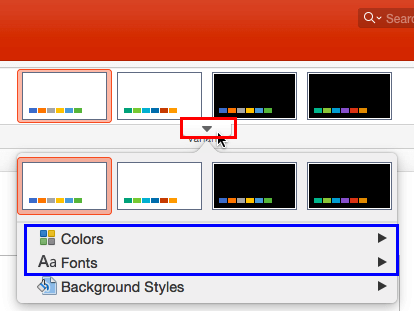
Figure 2: Colors and Fonts options
If you choose any of the these options it brings up a resultant sub-gallery that we explore in the following sections.
BackEach PowerPoint presentation includes at least one built-in Theme Color set. In addition, PowerPoint installs many Theme Color sets by default. A Theme Color set comprises 12 individual coordinated colors that are carefully chosen following certain color science principles.
Although the Colors sub-gallery only displays 8 colors, be assured that each Theme Color set in fact has 12 colors. The first two background/text colors are normally black and white, and they are not displayed. In addition, the last two colors representing the colors of hyperlinked text are also not displayed in the Colors sub-gallery, as shown in Figure 3 previously on this page.
Follow these steps to choose a set of Theme Colors:
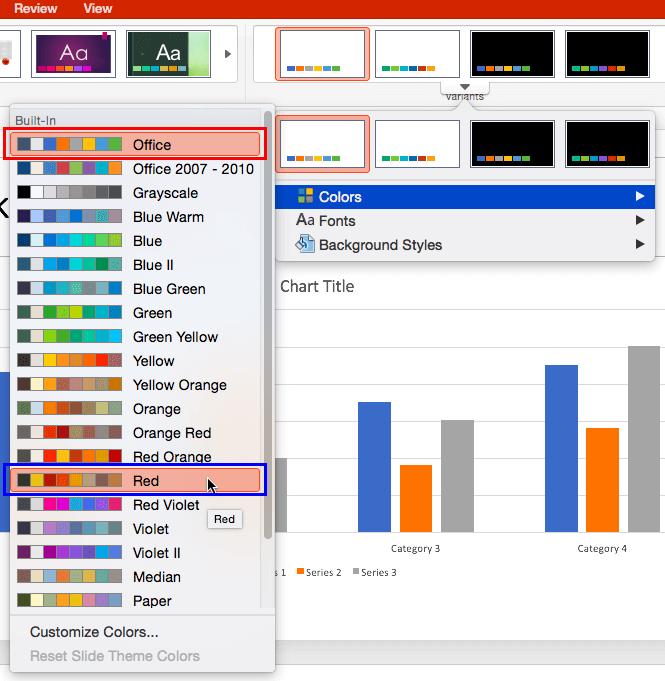
Changing Theme Colors on a set of text slides won't show too much of a difference. This works best when you have slides with plenty of shapes, charts, SmartArt, etc.
A Theme Fonts set comprises two fonts. The first font is used for the slide titles/heading and the second one is for everything else. Some built-in Theme Font sets use the same font family for both purposes, and that's perfectly fine!
Follow these steps to apply a new set of Fonts:
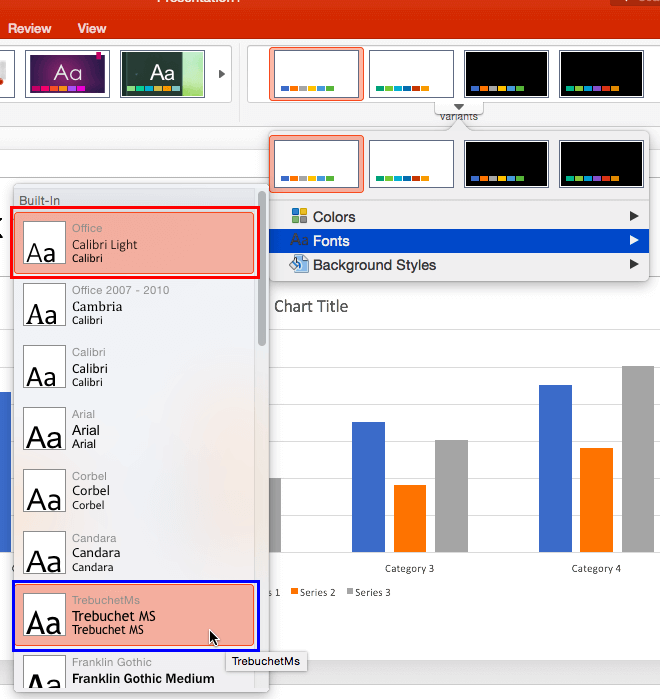
In Figure 5, below, you can see our sample chart after we changed the Color set and Font set. Compare the chart in Figure 5 with the the partially visible chart in Figure 4, above.
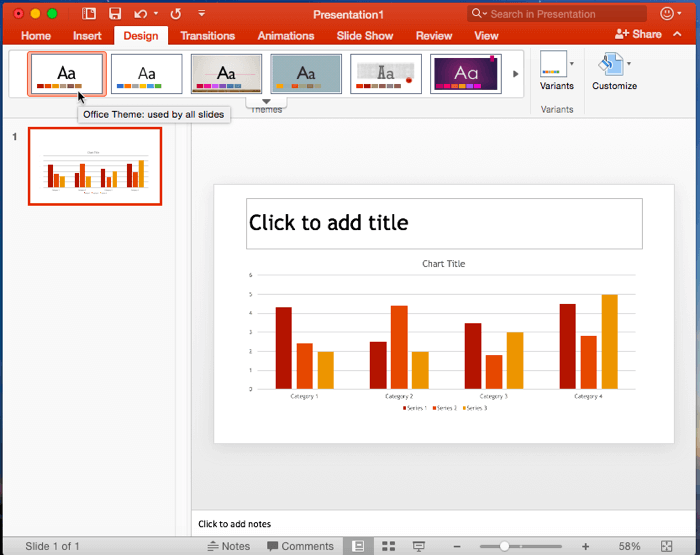
Figure 5: Color and Font sets changed
04 01 11 - Themes Basics: Applying Theme Colors and Theme Fonts in (Glossary Page)
Applying Theme Colors and Theme Fonts in PowerPoint 365 for Windows
Applying Theme Colors and Theme Fonts in PowerPoint 2013 for Windows
Applying Theme Colors and Theme Fonts in PowerPoint 2011 for Mac
Applying Theme Colors and Theme Fonts in PowerPoint 2010 for Windows
Applying Theme Colors and Theme Fonts in PowerPoint 2008 for Mac
Applying Theme Colors and Theme Fonts in PowerPoint 2007 for Windows
You May Also Like: Possibilities 02: Dashboards in PowerPoint | This Is How We Do It


Microsoft and the Office logo are trademarks or registered trademarks of Microsoft Corporation in the United States and/or other countries.
