Indezine Logo


Media Browser in PowerPoint 2011 for Mac

Learn about Media Browser in PowerPoint 2011 for Mac.


Author:

Product/Version: PowerPoint 2011 for Mac

OS: Mac OS X


Learn PowerPoint

Solve this problem: Return to first slide and audio no longer plays in PowerPoint.


There are two floating palettes available in PowerPoint 2011 for Mac, the Toolbox and the Media Browser. We have already explored the Toolbox and its various tabs. The Media Browser is new for PowerPoint 2011 and is a central repository of all sorts of media content that you can insert into your slides. Since the Media Browser works in the same way in Office 2011 versions of Excel and Word, the content in these set of tutorials is relevant for those applications too.

In this tutorial, you will explore the Media Browser, its various tabs are explained in separate tutorials. To launch the Media Browser in PowerPoint 2011

Follow these steps:
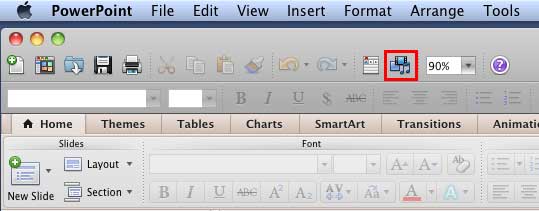
  1. Click the Media Browser button on the Standard toolbar, as shown highlighted in red within Figure 1, below, to bring up the Media Browser. You can click the same button to hide the Media Browser since this is a toggle button.
  2. Media Browser button on the Standard toolbar
    Figure 1: Media Browser button on the Standard toolbar
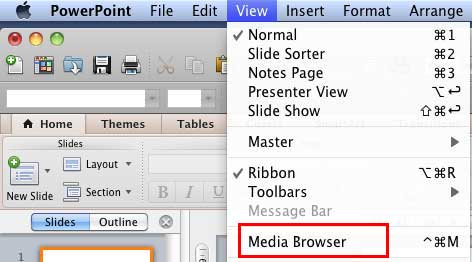
  3. Alternatively, choose the View | Media Browser menu option, as shown highlighted in red within Figure 2, below.
  4. View menu option to enable the Media Browser
    Figure 2: View menu option to enable the Media Browser
  5. Tip

  6. Learn more about PowerPoint 2011 for Mac interface.
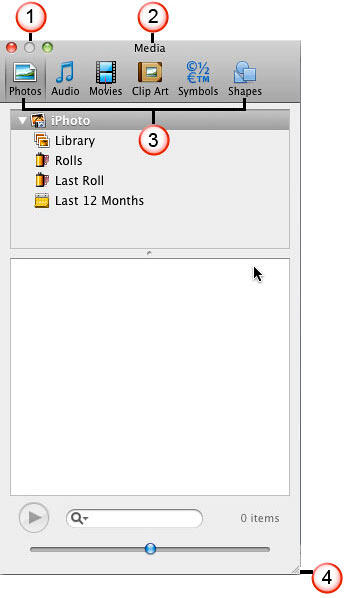
  7. Doing so brings up the Media Browser, as shown in Figure 3, below.
  8. Media Browser
    Figure 3: Media Browser
  9. The Media Browser has six tabs in PowerPoint, as shown in Figure 3, above.
  10. Photos
  11. Audio
  12. Movies
  13. Clip Art
  14. Symbols
  15. Shapes
  16. Each of these tabs is filled with options that let you perform important tasks within PowerPoint, and you can learn more about these individual tabs by clicking links to individual pages. Let us now explore those parts of the Media Browser that are visible within all tabs, as numbered in Figure 3, above:
  17. Interface buttons: These buttons are located at the upper-left corner of the Media Browser. There are three buttons, but only two buttons are enabled (the middle button is grayed). These are:
  18. The Close button (red button with a cross sign) closes the Media Browser altogether. You already learned how to access the Media Browser if it is not visible.
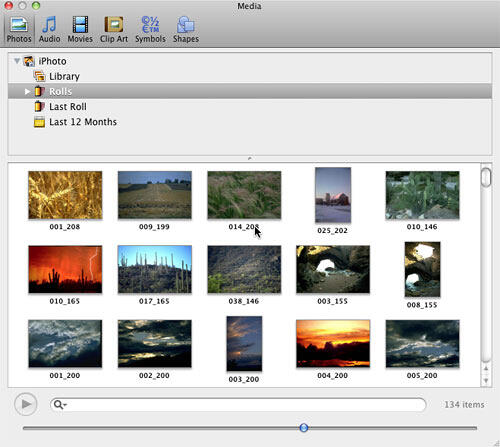
  19. The Expand button (green button with a plus sign) expands the Media Browser dialog box to full screen, as shown in Figure 4, below. Click the same green button to restore the actual size of the dialog box again.
  20. Expanded Media Browser
    Figure 4: Expanded Media Browser
  21. Title bar: This displays the name of the dialog box, in this case, it reads Media.
  22. Tabs: The six tabs from left to right are: Photos, Audio, Movies, Clip Art, Symbols, and Shapes.
  23. Resize handle: Just drag the lower-right corner of the Media Browser dialog box to resize.

People Also Ask:

What is the Media Browser in PowerPoint 2011 for Mac?

The Media Browser is a feature in PowerPoint 2011 for Mac that provides centralized access to various media types, such as photos, audio, and movies. It allows users to easily browse and insert content from their iPhoto library, iTunes, and other media sources directly into their presentations.

Why can't I see my Photos Library in the Media Browser?

PowerPoint 2011 for Mac was designed to integrate with iPhoto and may not recognize the newer Photos Library introduced in later macOS versions. As a result, the Media Browser might not display content from the Photos app. To access these files, consider exporting photos from the Photos app to a folder on your Mac and then inserting them into PowerPoint using the Insert > Photo > Picture from File option.

Is the Media Browser feature available in newer versions of PowerPoint for Mac?

While the Media Browser was a prominent feature in PowerPoint 2011 for Mac, newer versions of PowerPoint have shifted towards using the macOS system-wide Media Browser, which offers similar functionality. The integration and appearance may differ, but users can still access their media libraries when creating presentations.

01 05 26 - Interface Overview: Media Browser in PowerPoint (Glossary Page)

You May Also Like: Pecha Kucha Questions | Donkey PowerPoint Templates


Popular Posts

Creating Anchor Points for Connectors in PowerPoint 2010 for Windows
Learn how to create Anchor Points for connectors in PowerPoint 2010.

Working With Slide Numbers in PowerPoint 2016 for Windows
Learn how to add Slide Numbers on slides and Masters and more tricks on making them work to your will in PowerPoint 2016 for Windows.

Texture Fills for Slide Backgrounds in PowerPoint 2013 for Windows
Use texture fills for slide backgrounds in PowerPoint 2013 for Windows.

Adding More Guides in PowerPoint 2016 for Windows
Learn how to add more guides in PowerPoint 2016 for Windows.


Feature List 01 (Layout with Tabs)

The Feature List Layout comprises three sample PowerPoint presentations: one each to create a visual list for 4 features, 5 features, and 6 features. These work great when you have too much information to fit within one slide. This solution lets you use multiple slides, but the visual result is still that of one single slide!

Buy and Download Feature List 01 (Layout with Tabs) for $4.99+ (671 kb)


Microsoft and the Office logo are trademarks or registered trademarks of Microsoft Corporation in the United States and/or other countries.

Home | PowerPoint | Photoshop | PowerPoint Templates | PowerPoint Tutorials | Blog | Notes | Ezine | Media Kit | Feedback | Site Map | About Us | Contact Us

Link to Us | Privacy | Testimonials

PowerPoint Backgrounds | Christian PowerPoint Backgrounds | Business PowerPoint Presentation Templates

Plagiarism will be detected by Copyscape

©2000-2025, . All rights reserved.