
This is the print version of this page. All content is copyright Indezine.com 2000-2026.
Learn about the Audio tab within the Media Browser in PowerPoint 2011 for Mac.
Author: Geetesh Bajaj
Product/Version: PowerPoint 2011 for Mac
OS: Mac OS X
We have already explored the new Media Browser in PowerPoint 2011 for Mac, and its Photos tab. The second tab within the Media Browser is the Audio tab. This tab allows you to quickly add sounds to your PowerPoint slides. Since PowerPoint 2011 is so well integrated with Mac OS X, the Audio tab displays your iTunes and GarageBand music collections. Similar to the Photos tab, the Audio tab is also divided into upper and lower panes, as shown in Figure 1, below.
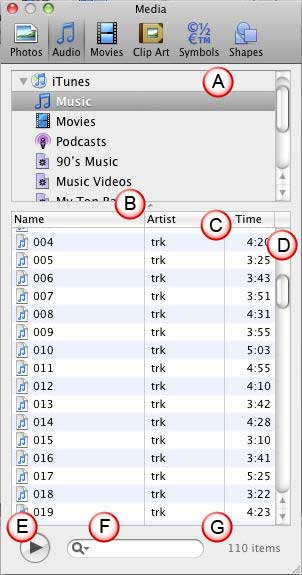
Figure 1: Audio tab within Media Browser
iTunes is the default music-playing application that is included as part of Mac OS X, and ships as part of new Macs. Garageband is a simple music creation program that also ships as part of new Macs, it is often updated, and you can buy the newest version of Garageband as part of the iLife suite of apps.
Let us now explore the options within the Audio tab of Media Browser, as marked in Figure 1, above:
Browse the contents of folders, sub-folders, podcasts, and music playlists.
Drag the dot to adjust the size of the upper and lower panes. Drag further up to change the Folder/Browser pane to a drop-down list.
Displays all the audio files within the chosen folder.
The vertical scroll bar is placed towards the right of the preview pane. This scroll bar can be used to scroll down if you have more sound clips. Click one of the double-headed arrows at the bottom of the vertical scroll bar to move up and down.
Select any sound clip within the preview pane and click this button to play. You can even double-click the sound file to play.
Just type in part of a filename, or some keywords in the search field to view search-narrowed, relevant sound files instantly.
Lists the number of sound clips in your preview pane, this value changes depending upon the folder you are browsing, and also dynamically changes when you enter a search term in the Search box.
Within the Audio tab's preview pane, you can select an audio file and right click to get a contextual menu, as shown in Figure 2, below.
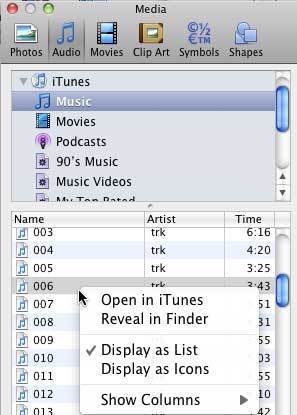
Figure 2: Choose display options for audio preview pane
There are four options in the contextual menu, and these are explained below:
Choose this option to open the selected sound clip in iTunes.
This option will open the folder where the selected sound clip is stored.
Choose this option to change the sound clips preview into a list view. If you are already within the list view, as shown in Figure 1, previously on this page, choose the Show Columns option to bring up a submenu, as shown in Figure 3, below to customize the columns visible, as shown in Figure 3.
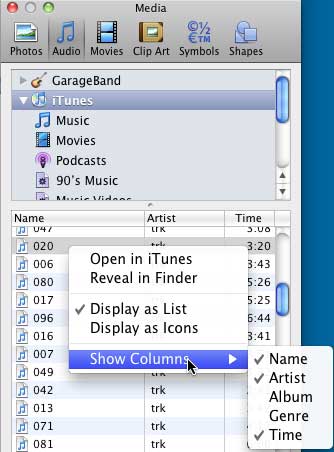
Figure 3: Show Columns submenu
This option displays the sound clips as icons.
To insert an audio, just drag it from the preview pane into your presentation, as shown in Figure 4, below.
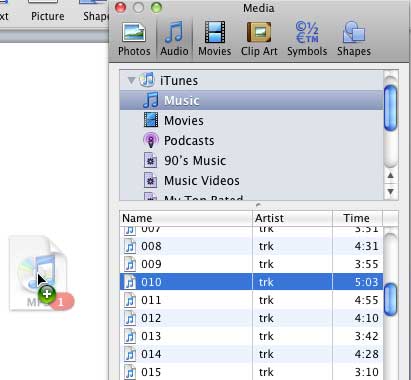
Figure 4: Audio being dragged on slide
When the audio is inserted on your slide, a sound icon appears, as shown in Figure 5, below. To play the sound, click the Play button on the sound control bar, as shown highlighted in red within Figure 5.
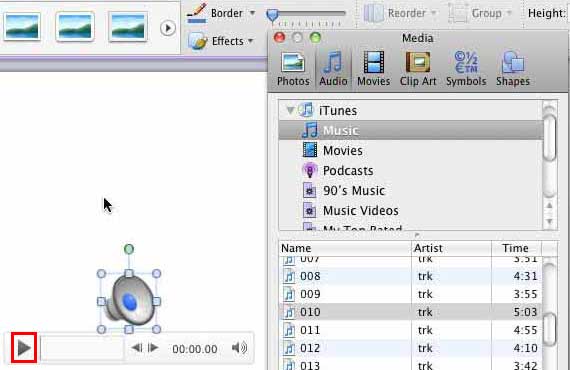
Figure 5: Audio inserted in presentation
The Audio Tab in the Media Browser allows users to easily access and insert audio files from their iTunes library or other audio sources directly into PowerPoint slides, enhancing presentations with sound.
PowerPoint 2011 for Mac supports several audio formats, including MP3, WAV, and M4A. Ensure your audio files are in a compatible format to guarantee smooth playback during your presentation.
To insert audio, open your PowerPoint presentation and navigate to the desired slide. Click on the Media Browser icon to open it. Select the Audio tab within the Media Browser. Browse through your audio files and drag the chosen file onto your slide. This process embeds the selected audio into your presentation.
01 05 28 - Interface Overview: Media Browser - Audio Tab in PowerPoint (Glossary Page)
You May Also Like: How to Remember What to Say | Starfish PowerPoint Templates


Microsoft and the Office logo are trademarks or registered trademarks of Microsoft Corporation in the United States and/or other countries.
