
This is the print version of this page. All content is copyright Indezine.com 2000-2026.
Learn about the Photos tab within the Media Browser in PowerPoint 2011 for Mac.
Author: Geetesh Bajaj
Product/Version: PowerPoint 2011 for Mac
OS: Mac OS X
The Media Browser is a new feature for PowerPoint 2011 for Mac, and is a central repository of all media content that you can insert into your slides. It contains six tabs. In this tutorial, we will explore Photos, the first of these tabs. This tab provides you quick access to visual content within your iPhoto and Photo Booth collections, as shown in Figure 1, below.
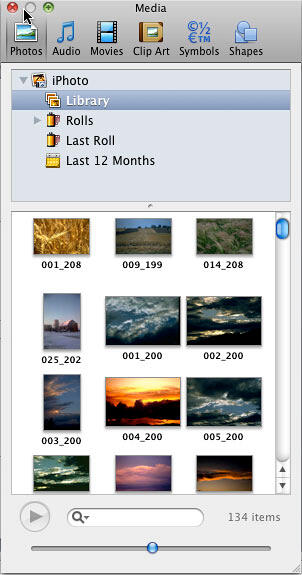
Figure 1: Photos tab within Media Browser
iPhoto is a photo viewing and cataloging application that is included as part of Mac OS X, and ships as part of new Macs. Alternatively, you can buy iPhoto as part of the iLife suite of apps. PhotoBooth is a small application bundled with Mac OS X that lets you take pictures and video clips with the webcams built in some Macs, it includes some pre-built effects.
The Photos tab is divided into two panes, as shown in Figure 1, above. The top pane is a scroll-equipped area which enables you to navigate your album, and the lower pane displays previews of your photos. Sometimes, the Photos tab may look like the one shown in Figure 2, below, without the top pane. Rather, it has a drop-down list from where you can choose a location for your media.
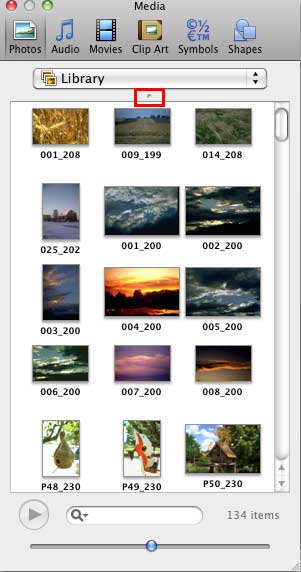
Figure 2: Photos tab without the top pane
To change between views, just click the View Splitter, a small dot above where your content, as shown highlighted in red within Figure 2, above, and drag it down so the drop-down list no longer shows. You can choose whichever view works best for you, but in this tutorial, we will explore the view without the drop-down list, as shown in Figure 3, below.
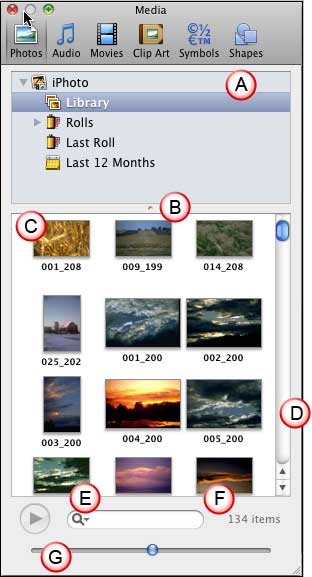
Figure 3: Photos tab
Let us now explore the options within the Photos tab of Media Browser, as marked in Figure 3, above:
Browse for folders from which you want to view and access photos.
Drag the dot to adjust the size of the upper and lower panes. Drag further up to change the Folder/Browser pane to a drop-down list.
Displays thumbnails of all photos within the chosen folder.
The vertical scroll bar, placed towards the right of the preview pane can be used to scroll down if you have more photos. Click one of the double-headed arrows at the bottom of the vertical scroll bar to move up and down.
Just type in part of a filename, or some keywords in the search field to view search-narrowed, relevant photos instantly.
Lists the number of photos in your preview pane. This value changes depending upon the folder you are browsing. It also dynamically changes when you enter a search term in the Search box.
Drag the slider left and right to adjust the size of the photo thumbnails in the Preview pane.
Within the Photo tab preview pane, you can select a photo and right-click (or Ctrl + click) to bring up the contextual menu, as shown in Figure 4, below.
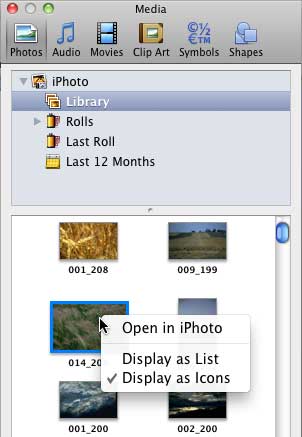
Figure 4: Choose display options for photo preview pane
There are three options in the contextual menu, which are explained below:
Choose this option to open the selected photo in iPhoto.
By default, the Preview pane chooses the Display as Icons view. A check mark denotes that you are in Display as Icons view, as shown in Figure 4, previously on this page. Click the Display as List option to change the thumbnail view to a column view, as shown in Figure 5, below. When the Display as List option is selected, you get a new option within the right-click menu called Show Columns. Click this option to bring up a submenu to customize the columns visible, as shown again in Figure 5.
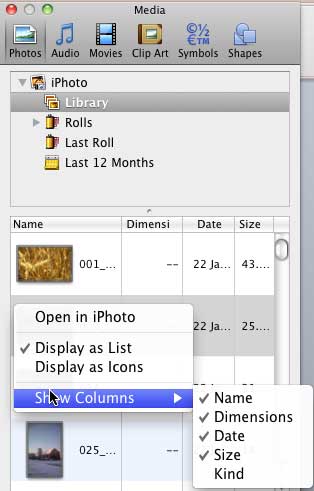
Figure 5: Show Columns submenu
Choosing this option displays the photos as icons (thumbnails), as shown in Figure 3, previously on this page.
In addition, you can double-click any photo to enlarge it in the preview pane, as shown in Figure 6, below. Click the photo again to restore the preview pane to its multiple photo previews.
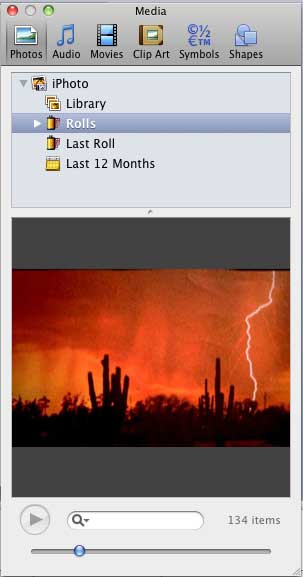
Figure 6: Enlarged Photo within preview pane
To insert a photo, just drag it from the preview pane into your presentation, as shown in Figure 7, below.
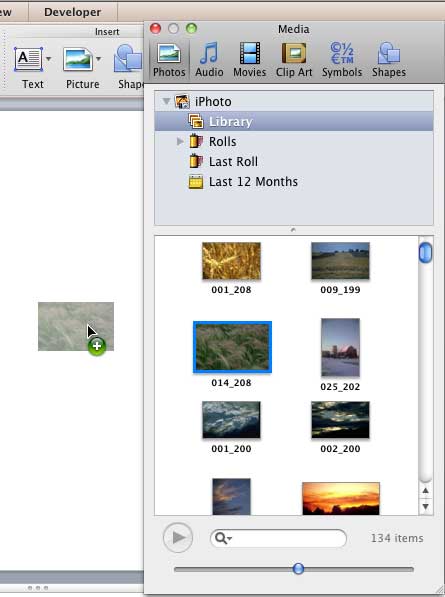
Figure 7: Photo being dragged onto a slide
The Photo Tab provides quick access to visual content within your iPhoto and Photo Booth collections, allowing you to easily browse and insert images directly into your PowerPoint slides.
Yes, to remove a folder, right-click (or Control-click) on the folder within the Media Browser. Select Remove from the context menu. This will delete the folder from the Media Browser without affecting the original folder on your system.
The Media Browser integrates with iPhoto and Photo Booth. If your images are stored elsewhere, such as in the newer Photos app or other directories, they won't appear by default. To access these images, add their containing folders to the Media Browser.
01 05 27 - Interface Overview: Media Browser - Photos Tab in PowerPoint (Glossary Page)
You May Also Like: Nine of the Best Props to Add Impact to Your Presentation | Wolf PowerPoint Templates




Microsoft and the Office logo are trademarks or registered trademarks of Microsoft Corporation in the United States and/or other countries.
