This is the print version of this page. All content is copyright Indezine.com 2000-2026.
Learn about the Movies tab within the Media Browser in PowerPoint 2011 for Mac.
Author: Geetesh Bajaj
Product/Version: PowerPoint 2011 for Mac
OS: Mac OS X
The Media Browser is a floating palette-like window in PowerPoint 2011 for Mac that contains several tabs for all types of media. Some of these tabs such as Photos and Audio have already been covered in separate tutorials. In this third part of the Media Browser series, we explore the Movies tab, as shown in Figure 1, below.
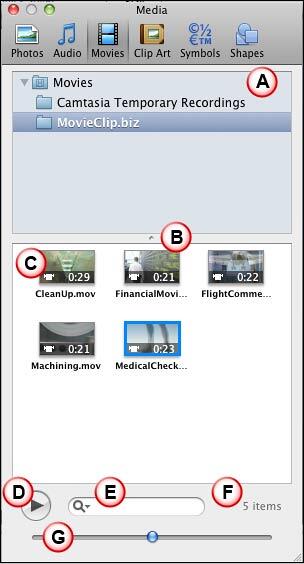
Figure 1: Movies tab within Media Browser
The Movies tab of the Media Browser provides quick access to movie clips (videos) that are already in your iMovie or Mac OS X Movies folders. In addition, it also shows any videos you create or store in your PhotoBooth and iTunes applications.
iMovie is a video editing and cataloging application that is included as part of Mac OS X, and ships as part of new Macs. Alternatively, you can buy iMovie as part of the iLife suite of apps. PhotoBooth is a small application bundled with Mac OS X that lets you take pictures and video clips with the webcams built-in some Macs, it includes some pre-built effects. iTunes is the default music-playing application that is included as part of Mac OS X, and ships as part of new Macs.
Let us now explore the various options available within the Movies tab of the Media Browser, as marked in Figure 1, above:
In this section, you can browse the folders that contain movie clips.
Drag the dot to adjust the size of the upper Folder/Browser and the lower Preview panes. Drag further up to change the Folder/Browser Pane to a drop-down list.
Displays all the movie clips within the chosen folder.
Select any movie clip within the Preview Pane and click the Play button to run the movie. You can even double-click the movie within the Preview Pane to play.
Just type in part of a filename, or some keywords in the search field to view search-narrowed, relevant movie clips instantly.
Lists the number of movie clips in your preview pane. This value changes depending upon the folder you are browsing, and also dynamically changes when you enter a search term in the Search box.
Drag the slider to adjust the size of the movie clip thumbnails in the Preview pane.
The Scroll Bar is not visible in the Preview pane, as shown in Figure 1, previously on this page. That's because there are only a few movie clips in the folder chosen, if there were more movie clips, the scroll bar would show.
Within the Preview pane, you can select a movie file and right-click (or Ctrl + click) to bring up the contextual menu, as shown in Figure 2, below.
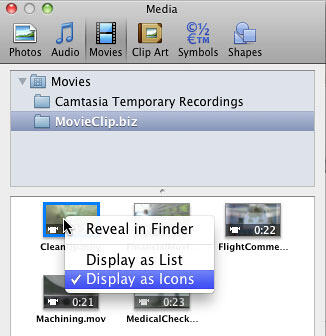
Figure 2: Display options for Preview pane in the Movies tab
There are three options in the contextual menu, and these are explained below:
This option will open the folder where the selected movie clip is located.
Choose this option to show the content in the Preview Pane as a list rather than icons. Compare Figure 3, below, which shows a list with Figure 2, above, that shows icons. The right-click menu has a check mark in front of the current display view (refer to the Display as Icons option checked in Figure 2, above).
When the Display as List option is selected, you see another option in the same right-click menu called Show Columns, as shown in Figure 3, below. Clicking this option brings up a submenu that lets you decide which columns you want to be visible (refer to Figure 3 again).
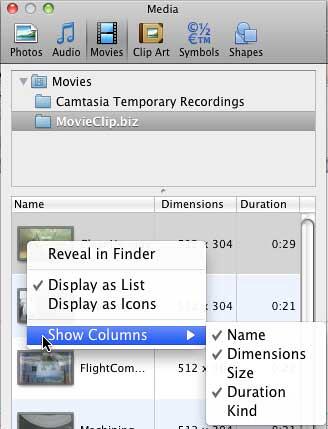
Figure 3: Show Columns submenu
This option displays the movie clips as icons (refer to Figure 1 or 2).
You can double-click any movie-clip thumbnail in the Preview Pane to enlarge its preview, as shown in Figure 4, below. Click the movie-clip again to restore its original preview size.
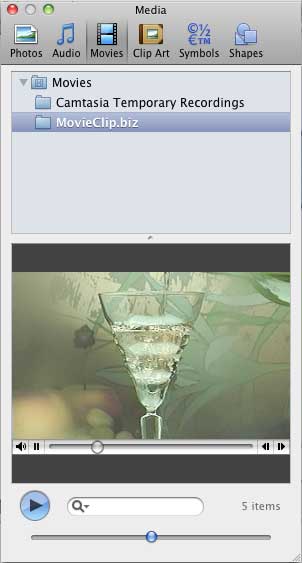
Figure 4: Enlarged movie clip within the Preview pane
To insert a movie from the Media Browser's Movies tab, just drag it from the Preview pane into your slide, as shown in Figure 5, below.
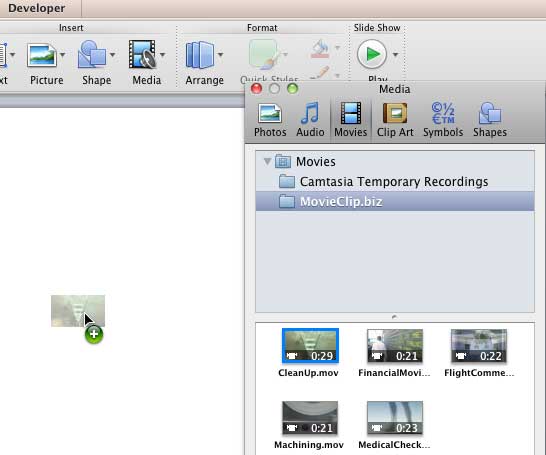
Figure 5: Movie clip being dragged and inserted onto the slide area
When the movie is inserted into your presentation, a movies Poster Frame is displayed, as shown in Figure 6, below. To preview the movie, click the Play button on the movie control bar, as shown highlighted in red within Figure 6.
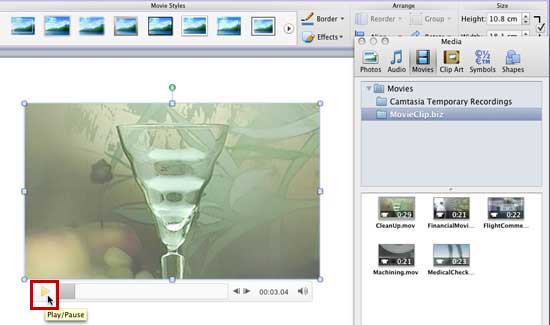
Figure 6: Movie clip inserted on the slide
The Movies Tab in the Media Browser provides quick access to video clips stored in your iMovie projects or Mac OS X Movies folder. It allows you to easily browse and insert videos directly into your PowerPoint slides, enhancing your presentations with multimedia content.
PowerPoint 2011 for Mac supports several video formats, including MOV, MP4, and M4V. Ensure your video files are in a compatible format to guarantee smooth playback during your presentation.
If your video doesn't play as expected, check compatibility. Ensure the video format is supported by PowerPoint 2011 for Mac. Also, make sure you have the latest updates installed for both PowerPoint and your macOS.
01 05 29 - Interface Overview: Media Browser - Movies Tab in PowerPoint (Glossary Page)
You May Also Like: Four Actionable Ways to Ramp up Your Confidence | Tortoise PowerPoint Templates



Microsoft and the Office logo are trademarks or registered trademarks of Microsoft Corporation in the United States and/or other countries.