
This is the print version of this page. All content is copyright Indezine.com 2000-2026.
Learn about the Clip Art tab within the Media Browser in PowerPoint 2011 for Mac.
Author: Geetesh Bajaj
Product/Version: PowerPoint 2011 for Mac
OS: Mac OS X
There are two types of tabs in the Media Browser in PowerPoint 2011 for Mac. The first type comprises those tabs that show media content within some designated folders on your computer, such as the Photos, Audio, and Movies tabs. The other three tabs, Clip Art, Symbols, and Shapes show media content that's part of the Microsoft Office collection.
In this tutorial, we will explore the Clip Art tab, which provides a quick and easy way in which you can browse Office 2011's Clip Art collection. The other option to access the Clip Art is through the Clip Gallery.
The Clip Art tab of the Media Browser displays the Clip Art collection installed as part of Microsoft Office 2011, as shown in Figure 1, below.
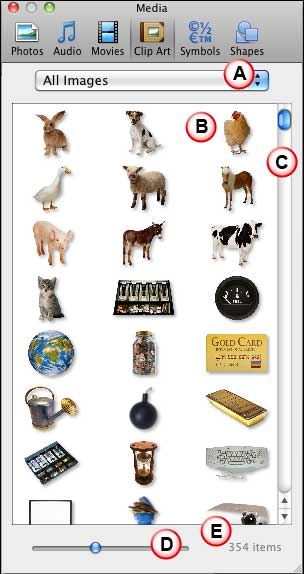
Figure 1: Clip Art tab within the Media Browser
You can even access the Clip Art tab of the Media Browser through the Insert | Clip Art | Clip Art Browser menu option, as shown in Figure 2, below.
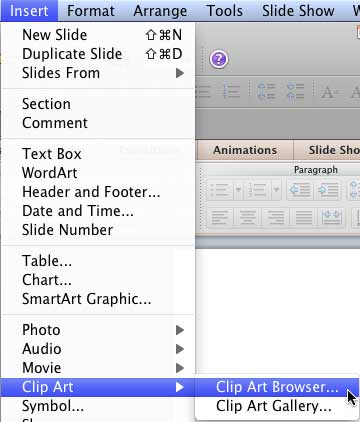
Figure 2: Insert Clip Art Browser menu option
The options within the Clip Art tab of Media Browser are explained below, as marked in Figure 1, above:
Click to bring up the list, as shown in Figure 3, below. Here you can filter the results by selecting a category. These categories cannot be customized inside PowerPoint, but you can get over that limitation using other options, as explained in our Customize Clip Art Categories within Media Browser in PowerPoint 2011 for Mac tutorial.
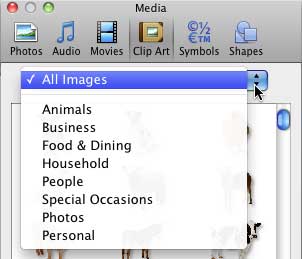
Figure 3: Categories drop-down list
Displays previews of all the clip art in a selected category.
Placed towards the right of the Media Browser window, this may not be visible when there are a few clip art thumbnails. If there are more clip art thumbnails than what the Preview pane can display, the vertical scroll bar allows you to scroll the window and view more thumbnails. Click one of the double-headed arrows at the bottom of the vertical scroll bar or drag the handle box in the vertical scroll bar to move up or down several thumbnails at a time.
Drag the slider to resize the clip art thumbnails within the Preview pane.
Lists the number of clip art in your Preview pane. This value changes depending upon the category you are browsing, and also dynamically changes when you enter a search term in the Search box.
To insert a Clip Art graphic on your slide, select it first within the Preview pane. Then, drag and drop it onto your slide, as shown in Figure 4, below.
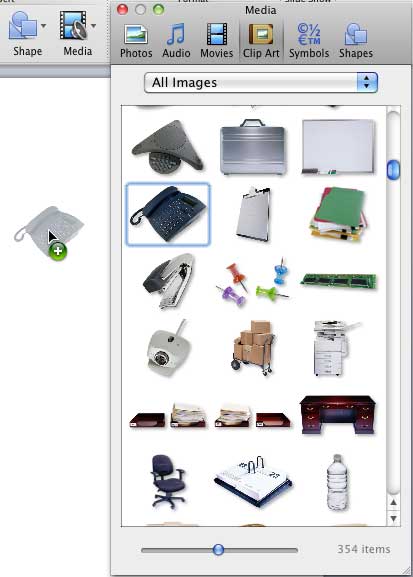
Figure 4: Clip Art graphic being dragged and inserted onto the slide area
Alternatively, you can right-click or (Ctrl + click) on your selected clip art graphic, and choose the Copy option from the resultant menu, as shown in Figure 5, below.
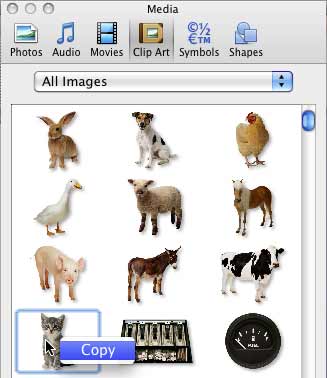
Figure 5: Copy the clip art graphic
Then, right-click or (Ctrl + click) on the slide and from the contextual menu. Then, choose the Paste option, or press Command + V, as shown in Figure 6, below.
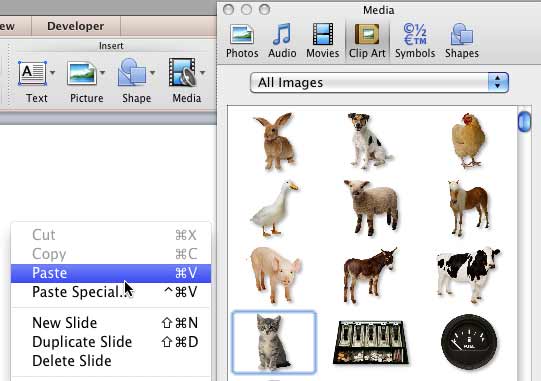
Figure 6: Paste the clip art on your slide
The Clip Art Tab in PowerPoint 2011 for Mac's Media Browser provides users with a collection of clip art images installed as part of Microsoft Office 2011. This feature allows for easy browsing and insertion of visual elements to enhance presentations.
The availability of clip art images depends on the installation of Microsoft Office 2011 and its associated media files. If certain images are missing, ensure that all media components were installed during the Office setup. Verify that the Media Browser is set to display all categories and not filtered views. If issues persist, consider reinstalling the media components or repairing the Office installation.
Yes, you can customize the Clip Art categories. Open the Clip Art tab in the Media Browser. Click on the gear icon or right-click within the category list to access customization options. Choose to add, rename, or remove categories as needed. This allows you to organize clip art images based on your preferences.
01 05 30 - Interface Overview: Media Browser - Clip Art Tab in PowerPoint (Glossary Page)
You May Also Like: Key Steps for Feedback When Someone Has Done a Dreadful Job | Tiger PowerPoint Templates




Microsoft and the Office logo are trademarks or registered trademarks of Microsoft Corporation in the United States and/or other countries.
