
This is the print version of this page. All content is copyright Indezine.com 2000-2026.
Learn about Shapes Tab within Media Browser in PowerPoint 2011 for Mac.
Author: Geetesh Bajaj
Product/Version: PowerPoint 2011 for Mac
OS: Mac OS X
The Shapes tab is the last tab within the Media Browser in PowerPoint 2011 for Mac, as shown in Figure 1, below. Here, you can find all the built-in shapes that PowerPoint provides to add to your slides. The shapes included in the Media Browser can also be found in the Insert tab of the Ribbon.
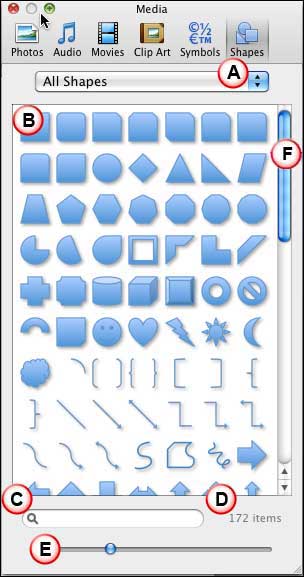
Figure 1: Shapes tab within Media Browser
The options within the Shapes tab of Media Browser are explained below, as marked in Figure 1, above:
Click to bring up a drop-down list, as shown in Figure 2, below. Within this list, you can filter the shapes shown by choosing pre-selected categories such as Rectangles, Basic Shapes, Flowcharts, etc.
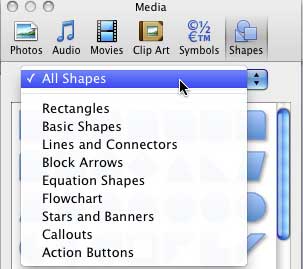
Figure 2: Categories drop-down list
Displays previews of shapes based on the category you choose in the drop-down list.
Type in a Shape's name in the search field, and get that shape within the Preview pane instantly.
Lists the number of shapes in your Preview pane. This value changes depending upon the category you are browsing, and also dynamically changes when you enter a search term in the Search box.
Drag the slider to resize the Shape previews within the Preview pane.
Placed towards the right of the Media Browser window, this may not be visible when there are a few Shapes in the Preview pane, if there are more Shapes than what the Preview pane can display, the vertical scroll bar allows you to scroll the window and view more shapes. Click one of the double-headed arrows at the bottom of the vertical scroll bar or drag the handle box in the vertical scroll bar to move up or down several Shapes at a time.
Here are the procedures for inserting shapes in your presentation. Within the Shapes tab of Media Browser click the required shape, and insert it into the slide following any of these methods:
Hold down the left mouse button and drag across the slide to draw a shape of the size you want, as shown in Figure 3, below.
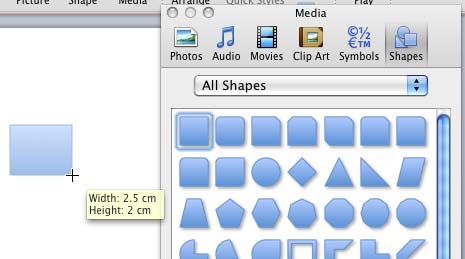
Figure 3: Shape inserted by dragging and drawing on the slide
Click on the slide to place the selected shape, as shown in Figure 4, below.
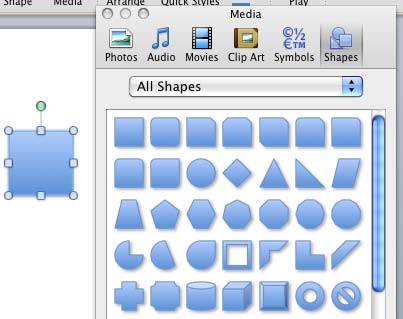
Figure 4: Shape inserted by clicking on the slide
Simply drag the selected shape from the Shape browser into the slide, as shown in Figure 5, below.
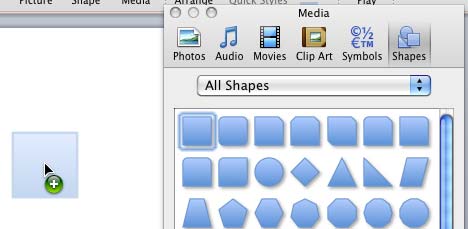
Figure 5: Shape being dragged and inserted into the slide area
Alternatively, you can also right-click (Ctrl + click) on the selected clip art graphic, and choose the Copy option from the resultant menu, as shown in Figure 6, below.
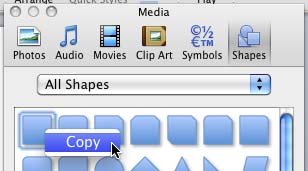
Figure 6: Copy the selected shape
Then, right-click on the slide, and from the contextual menu. Then, choose the Paste option, or press Command + V, as shown in Figure 7, below.
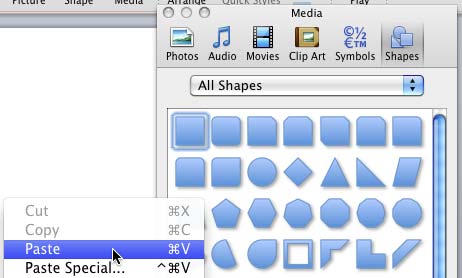
Figure 7: Paste the copied shape
The Shapes Tab in PowerPoint 2011 for Mac's Media Browser provides users with quick access to a variety of built-in shapes, such as lines, arrows, geometric figures, and callouts. This feature allows for easy insertion of these shapes into presentations, enhancing visual appeal and aiding in the illustration of concepts.
Yes, after inserting a shape, you can customize its size, color, and other formatting options using the formatting tools available in PowerPoint 2011 for Mac.
Yes, you can also access shapes by clicking the Shapes button on the Insert group of the Home tab on the Ribbon.
01 05 32 - Interface Overview: Media Browser - Shapes Tab in PowerPoint (Glossary Page)
You May Also Like: Six Ways to Win With Words | Horse PowerPoint Templates


Microsoft and the Office logo are trademarks or registered trademarks of Microsoft Corporation in the United States and/or other countries.
