Indezine Logo


Ribbon and Tabs in PowerPoint for iOS – iPad

Learn about the Ribbon and Tabs PowerPoint for iOS – iPad. There are so many interface elements within the Ribbon and its Tabs.


Author:

Product/Version: PowerPoint for iOS – iPad

OS: iOS


Learn PowerPoint

Learn how to export all slides to single-slide PowerPoint presentations.


One of the most important parts of the interface within PowerPoint for iPad is the Ribbon – a typically orange area that sports Tabs with options and commands. Now this Ribbon works almost the same in PowerPoint for iPad as it does in desktop versions of PowerPoint. The main difference here is that you will have to tap to make something happen rather than click! Of course, since the options available on the iPad are fewer, you end up with a thinner, more compact Ribbon as well, as shown in Figure 1, below.
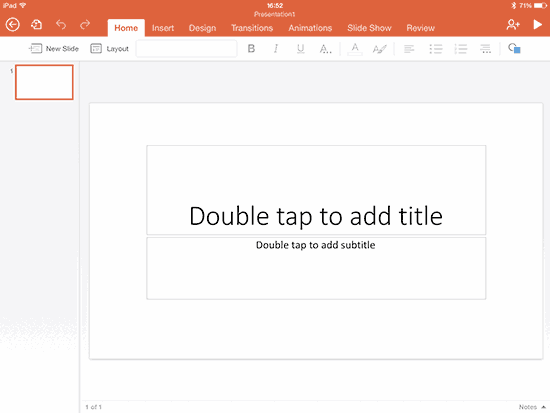
The Ribbon is the area in orange
Figure 1: The Ribbon is the area in orange

Tip: If you want more screen estate for a while, you can quickly hide the entire Ribbon except just the Tab headers by double-tapping on any of the visible Tabs (see Figure 2). Double-tap again to make them visible.
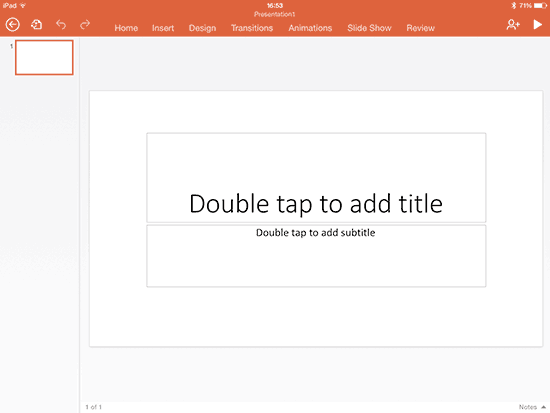
Hide and reveal Tabs in the Ribbon
Figure 2: Hide and reveal Tabs in the Ribbon

The Ribbon contains many options that are explained below, as they are marked within Figure 3, below, from left to right:

Options on the Ribbon
Figure 3: Options on the Ribbon

  1. Back: This button takes you back to the opening PowerPoint for iPad screen, as shown in our Running PowerPoint for iPad tutorial. Do note that this is as good as closing your existing presentation. If you have AutoSave turned on, then PowerPoint will save any changes you have made to the open presentation. If you do not have AutoSave turned on, then you will be prompted to save your presentation.
  2. File Options: This opens a drop-down menu that’s similar to the File menu in desktop versions of PowerPoint (see Figure 4, below). Tap once on this button to open this menu, and tap again to close.
  3. File Option
    Figure 4: File Option
  4. Undo and Redo: These buttons undo and redo your last steps – if these are grayed out, that means no Undo or Redo is possible.
  5. Tabs: These are the actual Tabs, and comprise the most important part of the Ribbon. Tab names describe the options available within that Tab – thus you will find names such as Home, Insert, Design, etc. The best part is that these same tab names show up in all instances of PowerPoint – on the desktop versions, the Online version, the Android versions, etc.
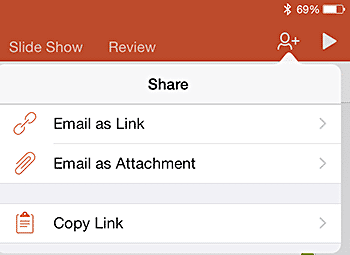
  6. Share: This button opens up the Share Gallery, as shown in Figure 5, below. We explore more in our Share Options in PowerPoint for iPad tutorial.
  7. Options to share
    Figure 5: Options to share
  8. Play: This last button on the Ribbon plays your presentation. Do note that the presentation is played from the active slide. So if you are on slide 2, and you tap the Play button – then the Slide Show will play from slide 2 onwards.
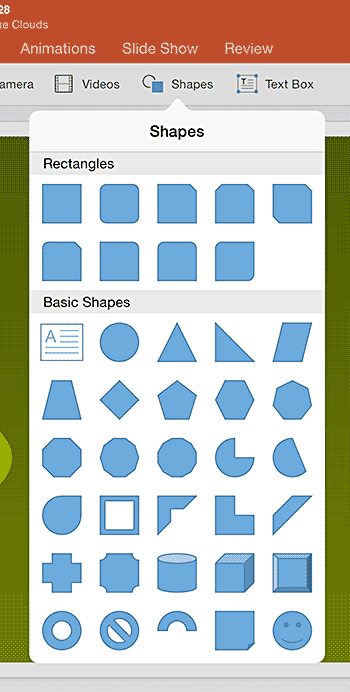
  9. Gallery: A Gallery is a collection of content, styles or properties, most Galleries can be seen as drop-down galleries as shown in Figure 6. To access these Galleries, you tap the button that represents that Gallery, that’s the reason you won’t see it in Figure 3, above, as a Ribbon option. For example, in Figure 6, you can see that we tapped on the Shapes button to open the Shapes Gallery.
  10. Galleries in PowerPoint for iPad
    Figure 6: Galleries in PowerPoint for iPad

See Also:

01 05 03 - Interface Overview: Ribbon and Tabs in PowerPoint (Glossary Page)

Ribbon and Tabs in PowerPoint 365 for Windows
Ribbon and Tabs in PowerPoint 365 for Mac
Ribbon and Tabs in PowerPoint 2019 for Windows
Ribbon and Tabs in PowerPoint 2016 for Windows
Ribbon and Tabs in PowerPoint 2016 for Mac
Ribbon and Tabs in PowerPoint 2013 for Windows
Ribbon and Tabs in PowerPoint 2011 for Mac
Ribbon and Tabs in PowerPoint 2010 for Windows
Ribbon and Tabs in PowerPoint 2007 for Windows
Ribbon and Tabs in PowerPoint for the Web

You May Also Like: Tango for Leaders: Conversation with Pablo Pugliese and Nancy Ancowitz | Human Organs PowerPoint Templates


Popular Posts

Apply Bevel Effects to Shapes in PowerPoint 2016 for Windows
Learn how to apply bevel effects to shapes in PowerPoint 2016 for Windows.

Creating Curved Shapes in PowerPoint 2010 for Windows
Learn how to create curved shapes in PowerPoint 2010.s

Shapes
Shapes
Learn how you can create and manipulate shapes in PowerPoint -- knowledge of working with shapes is significant because they are the building blocks of creativity in PowerPoint.

Insert Picture from the Office ClipArt Collection in PowerPoint 2013
Learn how to insert picture using Office ClipArt in PowerPoint 2013.


Jigsaw Shapes for PowerPoint (Full Slide Jigsaws)

This entire kit contains 5 different styles of jigsaw pieces: typical jigsaws, arrows, hearts, ovals, and rounded squares. Each jigsaw shape is available in three counts: small, medium, and large. We made these available in two slide sizes for both standard (4:3) and widescreen (16:9) resolutions.

You can get this kit for only $9.99.


Microsoft and the Office logo are trademarks or registered trademarks of Microsoft Corporation in the United States and/or other countries.

Home | PowerPoint | Photoshop | PowerPoint Templates | PowerPoint Tutorials | Blog | Notes | Ezine | Media Kit | Feedback | Site Map | About Us | Contact Us

Link to Us | Privacy | Testimonials

PowerPoint Backgrounds | Christian PowerPoint Backgrounds | Business PowerPoint Presentation Templates

Plagiarism will be detected by Copyscape

©2000-2025, . All rights reserved.