
This is the print version of this page. All content is copyright Indezine.com 2000-2026.
Explore how AutoSave works in PowerPoint for iOS – iPad. We explore enabling, disabling, and saving options.
Author: Geetesh Bajaj
Product/Version: PowerPoint for iOS – iPad
OS: Mac OS X
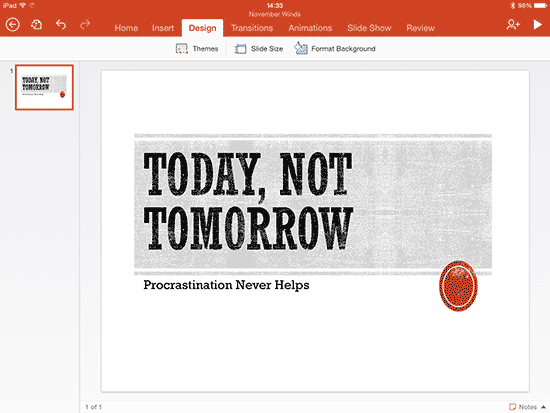
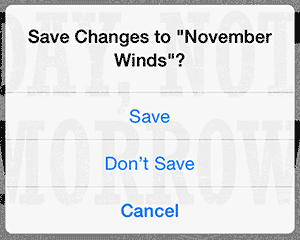
Desktop versions of PowerPoint let you choose where you want to save your files. They also prompt you to save your files if you close PowerPoint without saving your changes. Well, there is no such Save option within PowerPoint for iPad. Why? That's because most of the time, PowerPoint on the iPad will continuously auto-save your file as you make changes. It will also push these updated, saved versions to your cloud location.
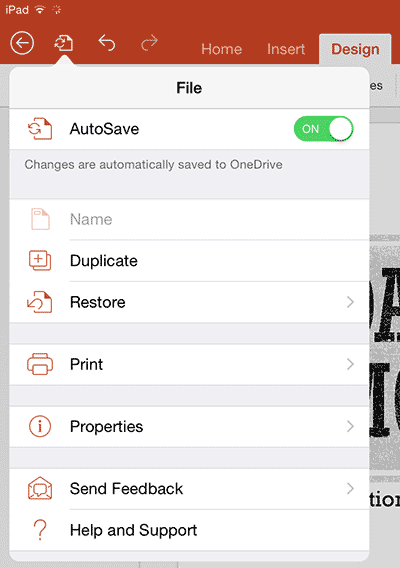
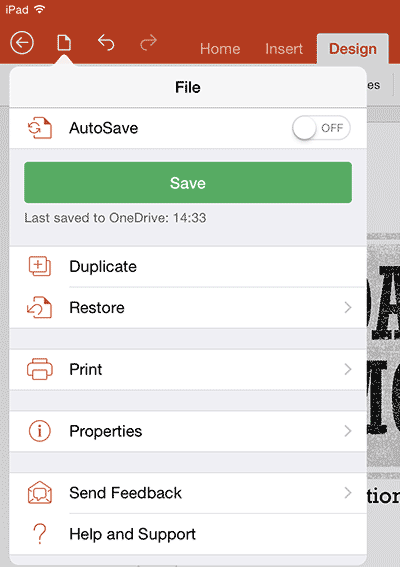
So essentially, you open a file, make changes, and then open a second file. You may not be aware, but the first file is saved on its own when you open the second file! Would you like a more conventional approach where you are prompted to save your file? You can do that by turning off the AutoSave option that is enabled by default.
Follow these steps to learn more:


This might be because your file isn’t stored in OneDrive or SharePoint, or you’re using an unsupported file format.
Yes. Cloud-saved presentations automatically build version history for recovery or comparison.
You may have lost internet connection, signed out, or moved the file out of the cloud.
01 08 30 - File Types, File Menu, and Backstage View: AutoSave in PowerPoint (Glossary Page)
You May Also Like: How to Raise Yourself From Garden Talker to Go-to Speaker | Mauritania Flags and Maps PowerPoint Templates


Microsoft and the Office logo are trademarks or registered trademarks of Microsoft Corporation in the United States and/or other countries.
