Indezine Logo


Add Your Folder Within the Media Browser in PowerPoint 2011 for Mac

Add new folders within the Photos, Audio, and Movies tabs of the Media Browser in PowerPoint 2011 for Mac.


Author:

Product/Version: PowerPoint 2011 for Mac

OS: Mac OS X


Learn PowerPoint

Show Some Love to PowerPoint Tables


The Media Browser in PowerPoint 2011 for Mac is a central repository of media content that you can use in your presentations. It has six tabs that we have covered extensively: Photos, Audio, Movies, Clip Art, Symbols, and Shapes.

These six tabs are primarily of two types:

  1. Tabs that catalog content in your Mac OS X special collections, such as your iTunes collection for the Audio tab, the iMovie collection for the Movies tab, and your iPhoto library for the Photos tab.
  2. Tabs that catalog Microsoft Office assets, such as installed clip art for the Clip Art tab, quick access to symbols in the Symbols tab, and access to shapes that are part of Microsoft Office within the Shapes tab.

Although the first category of tabs may appear restricted to the Mac OS X special collections, they can be tweaked to show content from any other folder on your computer. In fact, you can add more folders to the Folder/Browser pane, as shown highlighted in red within Figure 1, below. In this example, we will explore adding another folder to the Photos tab, but you can do the same for the Audio and Movies tabs too.
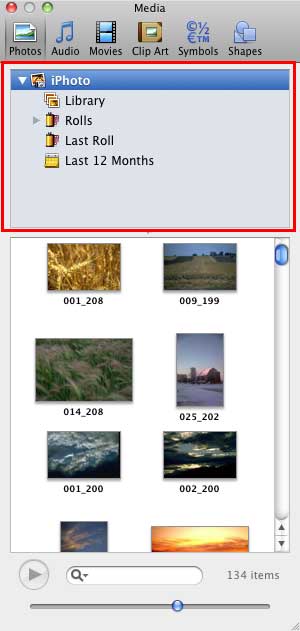
Folder/Browser pane displaying iPhoto content
Figure 1: Folder/Browser pane displaying iPhoto content

Follow these steps to add your own folder within the Media Browser:
  1. With the Photos tab active within the Media Browser, make sure that it shows the Folder/Browser in the top pane rather than a drop-down list. To learn more about the Photos tab, and how to change the top pane to the Folder/Browser view, explore our Media Browser (Photos tab) tutorial.
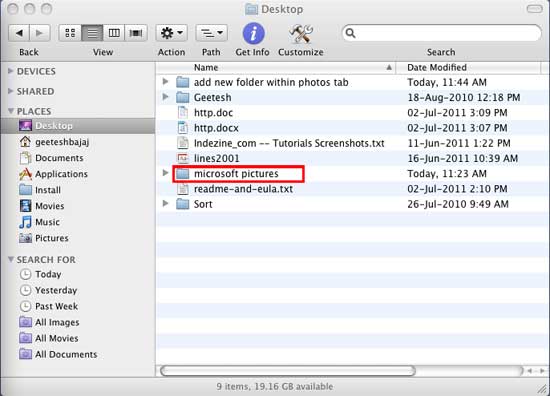
  2. In the Mac OS X Finder, navigate to the folder which you want to add, as shown in Figure 2, below. For this tutorial, we selected a folder containing some pictures downloaded from Microsoft Office site, as shown highlighted in red within Figure 2.
  3. Navigate to the folder which has to be added
    Figure 2: Navigate to the folder which has to be added
  4. Now, we need to drag a shortcut (alias) for that folder to within the Folder/Browser pane of the Media Browser, but that is easier said than done. The minute you select the Finder window; Media Browser will disappear! You have to start using PowerPoint again to make Media Browser visible, and then the Finder is no longer active! But there's a way to get around this limitation!
  5. Make sure that the Finder window is not minimized, drag it to the left side of your desktop, and resize it so that it is small enough to be unobtrusive but large enough to be visible. The folder that you want to add to Media Browser should be visible, as shown in Figure 2, above.
  6. Activate Media Browser within PowerPoint, and place it towards the right side of the desktop (we already placed the Finder window on the left side in the previous step).
  7. Then, minimize PowerPoint and you'll find that the Media Browser is still visible. Now, both Media Browser and Finder are visible, you are ready to proceed to the next step very carefully!
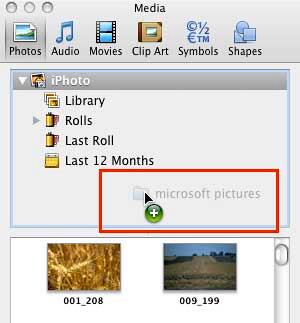
  8. Now, click on the folder in the Finder window, do not release your mouse at all, keep the primary mouse button pressed. Then, without letting go off the primary mouse button, drag and drop the folder to the Folder/Browser section of the Photos tab until you see a green circle with a plus sign which denotes that the folder is being added to the Photos tab, as shown in Figure 3, below. At this point, let go off the primary mouse button.
  9. Folder being dragged
    Figure 3: Folder being dragged
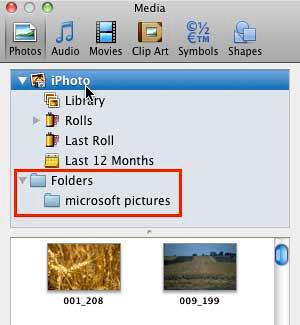
  10. The folder which was selected earlier is now added within the Folder/Browser pane of Photos tab, as shown highlighted in red within Figure 4, below.
  11. New folder added within the Finder / Browser pane
    Figure 4: New folder added within the Finder/Browser pane
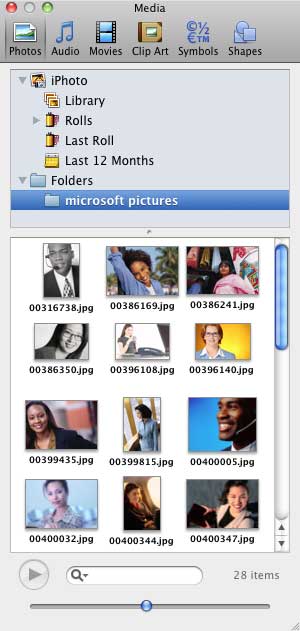
  12. Select the added folder to view the pictures within the Preview pane of the Photos tab, as shown in Figure 5, below.
  13. Pictures displayed within the Preview Pane
    Figure 5: Pictures displayed within the Preview pane
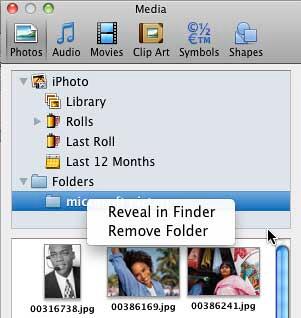
  14. Right-click on the added folder to get a contextual menu, as shown in Figure 6, below.
  15. Options within the contextual menu after right clicking the added folder
    Figure 6: Options within the contextual menu after right clicking the added folder
  16. There are two options in the contextual menu, which are explained below:
  17. i. Revel in Finder

  18. Select this option to launch this folder within Finder.
  19. ii. Remove Folder

  20. This option deletes the selected folder from Folder/Browser pane of the Photos tab, of course you can add this or any other folder using the procedure explained on this page.

People Also Ask:

Can I add my own folder to the Media Browser in PowerPoint 2011 for Mac?

Yes, you can add a custom folder to the Photos, Movies, and Audio tabs in the Media Browser. This allows you to quickly access your frequently used media files directly within PowerPoint.

Does adding a folder in the Media Browser copy the files to PowerPoint?

No, adding a folder in the Media Browser only creates a shortcut to that folder. Your media files remain stored in their original location on your Mac. If you move or delete the folder, PowerPoint will no longer be able to access those files from the Media Browser.

Can I add multiple custom folders to the Media Browser?

Yes! PowerPoint 2011 allows you to add multiple folders to the Photos, Movies, and Audio tabs. This is useful if you store media in different locations and want quick access to various image, video, or audio collections.

01 05 33 - Interface Overview: Add Your Folder Within the Media Browser in PowerPoint (Glossary Page)

You May Also Like: Developing Your Leadership Capabilities | Western Plaids PowerPoint Templates


Popular Posts

Restoring Earlier Versions of Presentations in PowerPoint 2010 for Windows
Learn how to restore earlier versions of your current presentation in PowerPoint 2010.

What is Animation in PowerPoint?
Learn what animations is and how to effectively plan animation for PowerPoint.

Apply Bevel Effects to Shapes in PowerPoint 2016 for Windows
Learn how to apply bevel effects to shapes in PowerPoint 2016 for Windows.

Creating Curved Shapes in PowerPoint 2010 for Windows
Learn how to create curved shapes in PowerPoint 2010.s


Polygon Center Circles for PowerPoint

These special circles have polygon centers: the centers are made of triangles, squares, pentagons, and hexagons! And based on the sides of the polygon, the rest of the circle has that many segments.

Download and use these Polygon Center Circles in your slides for just $4.99


Microsoft and the Office logo are trademarks or registered trademarks of Microsoft Corporation in the United States and/or other countries.

Home | PowerPoint | Photoshop | PowerPoint Templates | PowerPoint Tutorials | Blog | Notes | Ezine | Media Kit | Feedback | Site Map | About Us | Contact Us

Link to Us | Privacy | Testimonials

PowerPoint Backgrounds | Christian PowerPoint Backgrounds | Business PowerPoint Presentation Templates

Plagiarism will be detected by Copyscape

©2000-2025, . All rights reserved.