
This is the print version of this page. All content is copyright Indezine.com 2000-2026.
Learn about the Share tab of Backstage view in PowerPoint 2016 for Mac. You can share via OneDrive, as a PDF, or as an email attachment.
Author: Geetesh Bajaj
Product/Version: PowerPoint 2016 for Mac
OS: Mac OS X
Think of PowerPoint on Windows as a fancy restaurant menu—it gives you lots of tabs, including a Backstage view where you can order up sharing options with just a click. Now, flip over to PowerPoint 2016 for Mac, and guess what? That "Share" entrée is missing from the menu!
Unlike the Windows version, you won’t find Share options tucked inside the Backstage view on the Mac. Instead, you’ll need to hunt them down elsewhere in the interface. It’s a bit like opening the fridge expecting your favorite soda, only to realize it’s been stored in the pantry instead. Instead, all share options are accessed via conventional menu options. These options share the current presentation through the cloud via OneDrive. You can also email the presentation as an attachment, a link, or a PDF.
Follow these steps to learn more about Share options in PowerPoint 2016 for Mac:

If you are working on a local file (or any other file that's not opened from your OneDrive or SharePoint drive), clicking the Invite People option brings up a message window, as shown in Figure 2, below, asking you to save the presentation file to an online cloud location, typically your OneDrive or SharePoint accounts. You must click the Save to Cloud button to proceed.
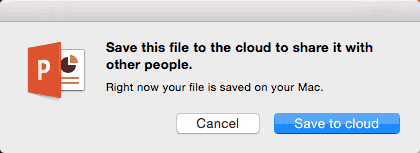
Figure 2: Share options
Doing so brings up the Save As dialog box with a list of cloud locations. You can also click the Add a Place option, as shown highlighted in red within Figure 3, below, that will allow you to add more OneDrive and SharePoint cloud locations.
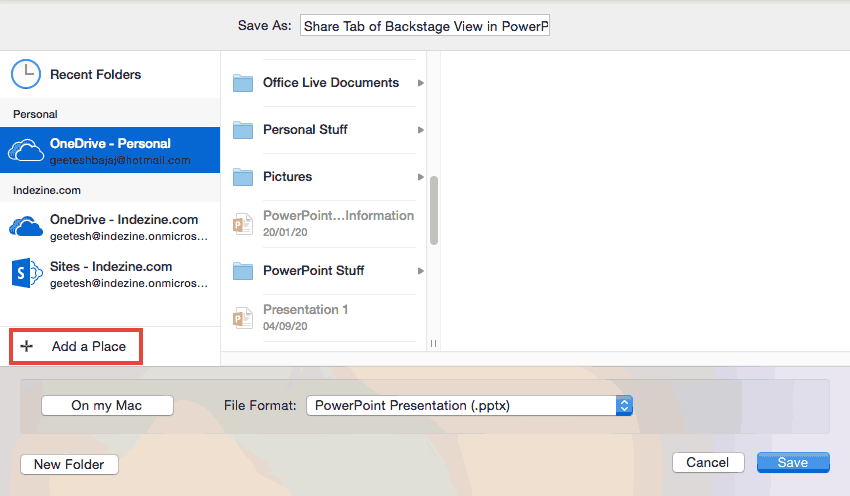
Figure 3: Choose a Place
Once you save your file to a cloud location, or if you open a file from your OneDrive or SharePoint location, the Share flyout in the File menu changes, as shown highlighted in red within Figure 4, below. Compare with Figure 1.

Figure 4: Share options for files on OneDrive or SharePoint
We will now explore the following three options: Invite People, Copy View-only Link, and Copy View and Edit Link.
Clicking this option brings up the screen, as shown in Figure 5, below.
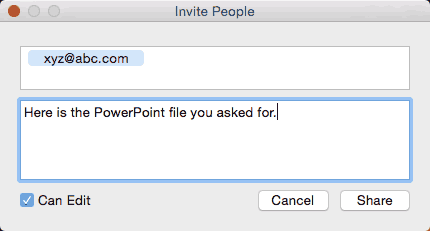
Figure 5: Invite people to view and edit
You can type in one or more email addresses and a message to the recipient of the share. Additionally, you can check the Can Edit option that allows recipients to edit the PowerPoint presentation. If you do not want them to be able to edit, make sure that this option is not checked. Once you have made your choices, click the Share button.
This option copies a view-only (read-only) link to the clipboard so that you can share the link via email, chat, or any other messaging platform. You may see a Loading share link notification, as shown in Figure 6, below, for a moment before the link is available on the clipboard.
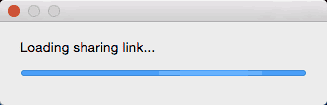
Figure 6: Loading share link notification
This option copies an edit-enabled link to the clipboard so that you can share the link via email, chat, or any other messaging platform. You may see a Loading share link notification, as shown in Figure 6, above, for a moment before the link is available on the clipboard.
Selecting this option opens a new email in your default mail application, with a copy of the PowerPoint file attached.
Exports your presentation as a PDF file that attaches to a new email in your default mail application.
01 08 11 - File Types, File Menu, and Backstage View: Share Tab of Backstage View in PowerPoint (Glossary Page)
Share Tab of Backstage View in PowerPoint 365 for Windows
Share Tab of Backstage View in PowerPoint 365 for Mac
Share Tab of Backstage View in PowerPoint 2019 for Windows
Share Tab of Backstage View in PowerPoint 2019 for Mac
Share Tab of Backstage View in PowerPoint 2016 for Windows
Share Tab of Backstage View in PowerPoint 2013 for Windows
You May Also Like: Convert a PowerPoint Line to a Motion Path Animation: Conversation with Jamie Garroch | Footwear PowerPoint Templates


Microsoft and the Office logo are trademarks or registered trademarks of Microsoft Corporation in the United States and/or other countries.
