
This is the print version of this page. All content is copyright Indezine.com 2000-2026.
Learn about the Share tab of Backstage view in PowerPoint 365 for Windows. You can share via OneDrive, as a PDF, or as an email attachment.
Author: Geetesh Bajaj
Product/Version: PowerPoint 365 for Windows
OS: Microsoft Windows 10 and higher
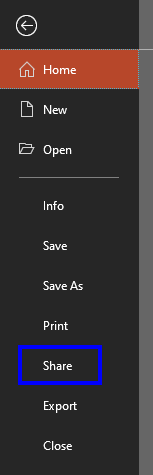
Among the tabs within Backstage view, we have already explored the Open, New, and Save tabs. In this tutorial, we will explore the Share tab, that provides you with options to share the current presentation through the cloud via OneDrive. You can also email the presentation as an attachment, a link, or a PDF.
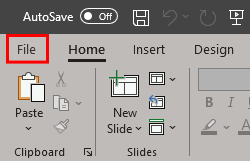
Follow these steps to learn more about Share options within Backstage view in PowerPoint 365 for Windows:
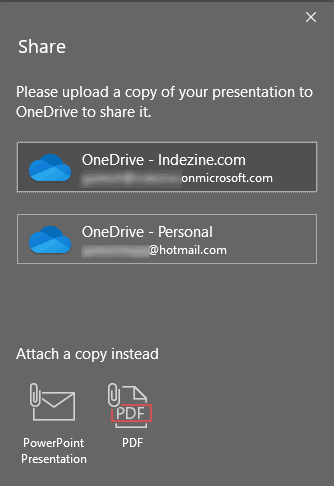
Selecting this option opens a new email in your default mail application, with a copy of the PowerPoint file attached.
Exports your presentation as a PDF file that attaches to a new email in your default mail application.
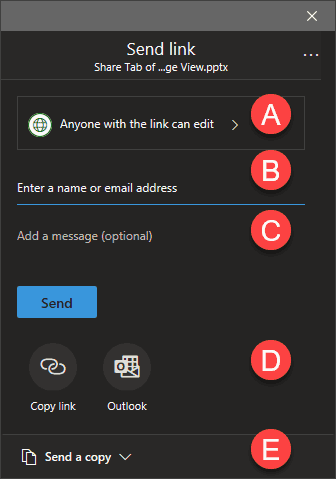
Clicking the Anyone with the link can edit option opens up another screen with several sharing options, shown in Figure 6, below. You can choose from these options:
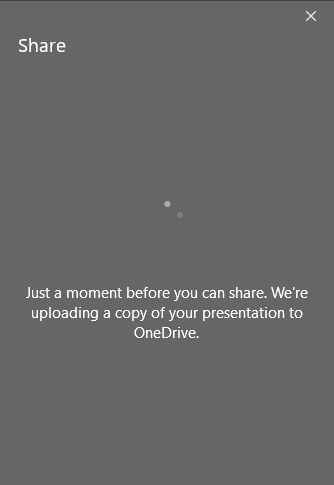
Once you upload your presentation to OneDrive, do note that you now have two copies of the same presentation. One is your original local copy, and the second one is now on OneDrive.
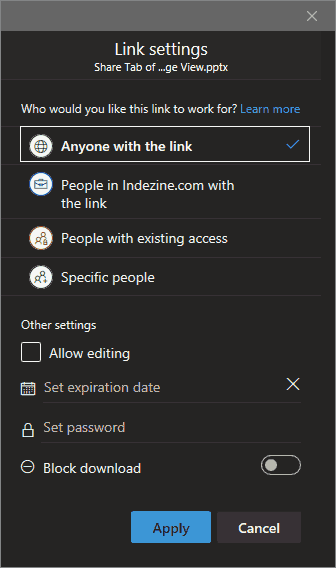
Figure 6: Share with people
You can also allow or prevent recipients from editing the PowerPoint file. Plus, you can set an expiration date, set a password, and also block downloads of the file. Some of these options may not be available if you change whom you are sharing the file with.
Once you make choices, click the Apply button to get back to the dialog box, as shown in Figure 5, previously on this page.
Here, you can type in the name or email address of the recipient. Unless the names are saved within your organization, you will have to type in complete email addresses. You can type multiple email addresses separated by commas.
Optionally, you can type in a message in this area for the recipients.
You can use the large Send button to share your file. You can also click the Copy link button to bring up a window with a share link, as shown in Figure 7, below. In this dialog box, click the Copy button to copy the link to your clipboard so that it can be pasted elsewhere.

Figure 7: Copy link
You can also click the Outlook button to launch a new email that already has a link to share your presentation, as shown in Figure 8, below.
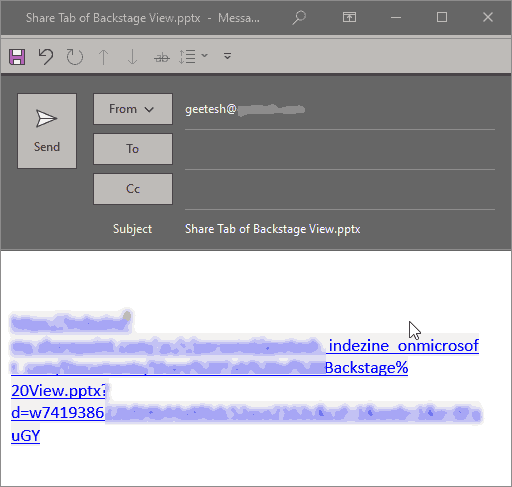
Figure 8: Launch email application with a link pasted
Clicking this option brings up a flyout menu with two options, as shown in Figure 9, below.
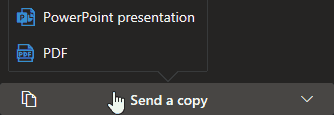
Figure 9: Send a copy
Yes, cloud-shared presentations allow co-authoring, letting multiple people edit simultaneously.
Yes, animations and transitions are lost when exporting to PDF from the Share tab.
No, you must first save selected slides as a new file before sharing.
01 08 11 - File Types, File Menu, and Backstage View: Share Tab of Backstage View in PowerPoint (Glossary Page)
Share Tab of Backstage View in PowerPoint 365 for Mac
Share Tab of Backstage View in PowerPoint 2019 for Windows
Share Tab of Backstage View in PowerPoint 2019 for Mac
Share Tab of Backstage View in PowerPoint 2016 for Windows
Share Tab of Backstage View in PowerPoint 2016 for Mac
Share Tab of Backstage View in PowerPoint 2013 for Windows
You May Also Like: Overcoming the Challenges of Staying Connected | Uzbekistan Flags and Maps PowerPoint Templates



Microsoft and the Office logo are trademarks or registered trademarks of Microsoft Corporation in the United States and/or other countries.
