
This is the print version of this page. All content is copyright Indezine.com 2000-2026.
Learn how to add new placeholders within Slide Layouts in PowerPoint 2011 for Mac. With new placeholders, you can make your layouts more powerful and customized.
Author: Geetesh Bajaj
Product/Version: PowerPoint 2011 for Mac
OS: Mac OS X
A placeholder is a boilerplate container that you can use to fill in with some sort of content. When you launch PowerPoint, you will see those distinctive boxes that invite you to add some content. Haven't you noticed the "Click to add title" suggestions? All these boxes are placeholders. When selected, these boxes have a grey border around them, as shown in Figure 1 below.
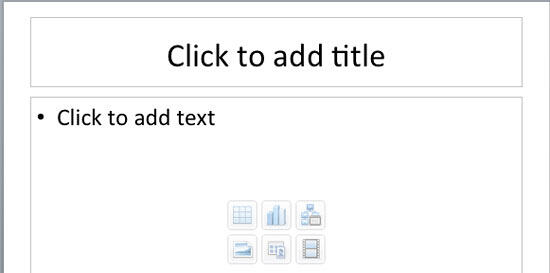
Figure 1: Part of a new slide showing placeholders with grey borders
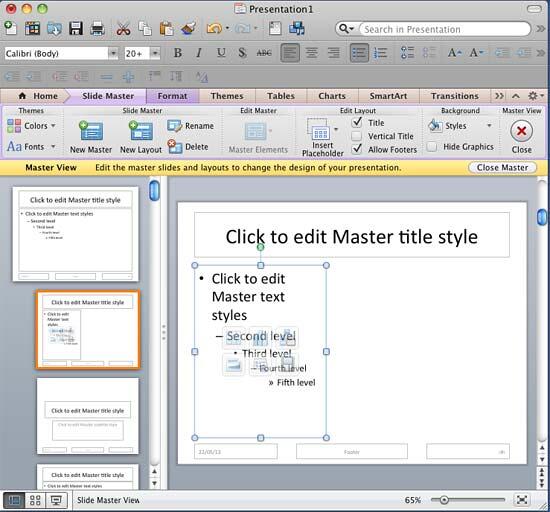
All of PowerPoint's built-in slide layouts except the Blank layout contain placeholders. PowerPoint provides several placeholders that can contain various types of content such as text, tables, charts, pictures, clip art, SmartArt diagrams, or media clips. If you add a new slide based on the Title and Content layout, you'll find two placeholders: one for the slide title and the other for any single content type, as shown in Figure 1, above. Each of the default layouts comprises a collection of various placeholders. If none of the available layouts work for you, you can create your own with custom placeholder(s), as explained in the following steps:

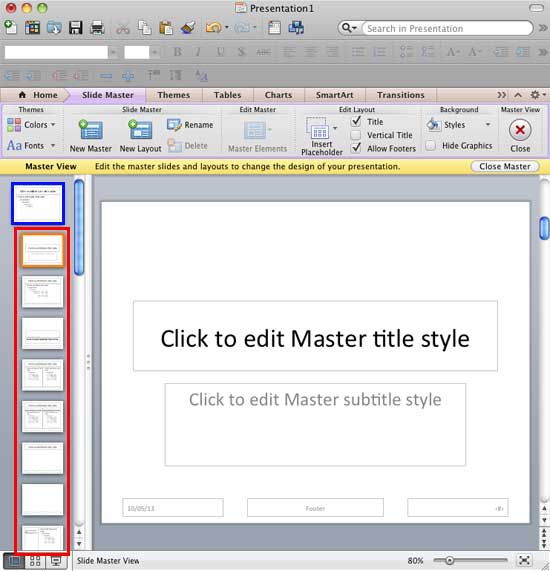
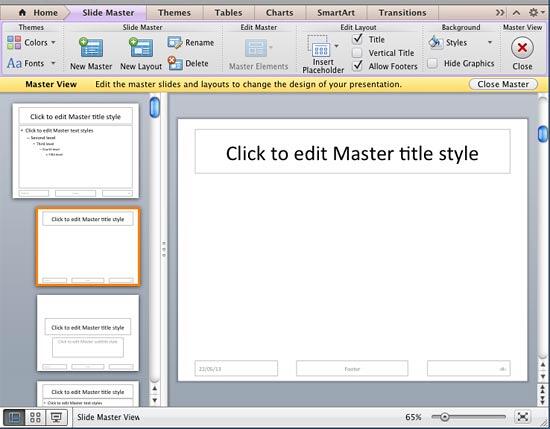
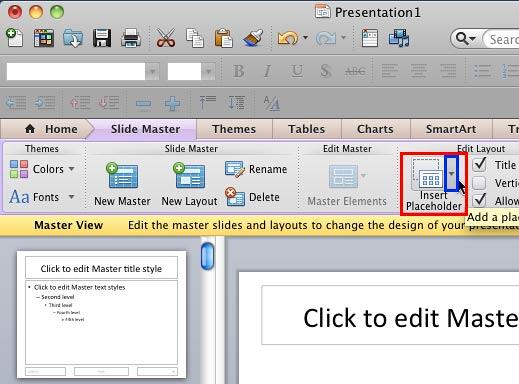
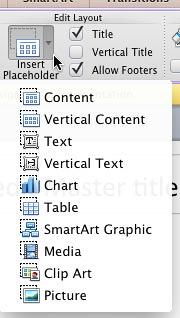
If you click the left portion of the Insert Placeholder button, you will end up selecting your last-used placeholder type.
A Content placeholder is a combination of seven types of content: text, pictures, charts, tables, SmartArt, media clips, and clip art. This placeholder appears almost like a text placeholder. But it additionally contains a small palette of icons in the center, one for each of the other 6 non-text content types. Note that each Content placeholder can hold only one type of content at a time. Figure 1, earlier on this page shows a Content placeholder.
For inserting a Content placeholder rotated 90 degrees clockwise.
For interring a bulleted text.
For inserting a Text placeholder rotated 90 degrees clockwise.
For inserting a chart.
For inserting a table.
For inserting a SmartArt diagram.
For inserting media files such as audio or video clips.
For inserting a clip art.
For inserting a picture.
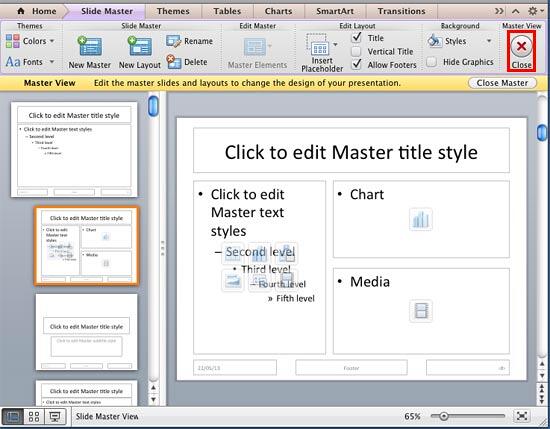
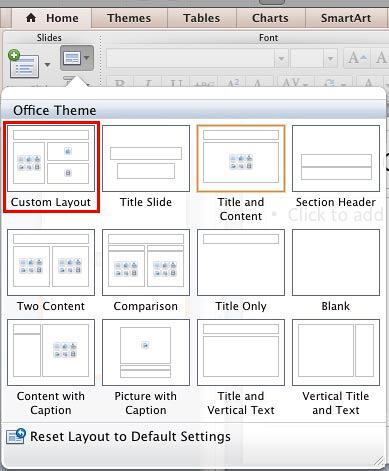
The new layouts you create are saved as part of the presentation, and are not available in any other presentations you create. Other than adding placeholders to your new slide layouts, you can also change their slide backgrounds. Also, these new layouts can be renamed so that they have distinctive names rather than the conventional Custom Layout. To do so, explore our Duplicate, Rename, and Edit Slide Layouts in PowerPoint 2011 for Mac tutorial.
See Also:
Slide Master and Slide Layouts: Inserting New Placeholders Within Slide Layouts in PowerPoint (Index Page)
Inserting New Placeholders Within Slide Layouts in PowerPoint 2016 for WindowsYou May Also Like: Business Storytelling: Conversation with Gavin McMahon | Doughnut PowerPoint Templates



Microsoft and the Office logo are trademarks or registered trademarks of Microsoft Corporation in the United States and/or other countries.
