Indezine Logo


Inserting New Placeholders Within Slide Layouts in PowerPoint 2016 for Mac

Learn how to add new placeholders within Slide Layouts in PowerPoint 2016 for Mac. With new placeholders, you can make your layouts more powerful and customized.


Author:

Product/Version: PowerPoint 2016 for Mac

OS: Mac OS X


Learn PowerPoint

Export Word Documents to PowerPoint Slides


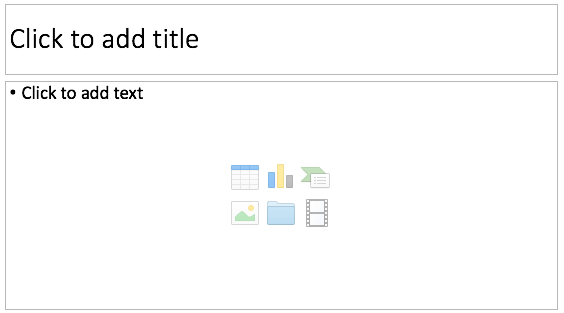
In PowerPoint, a placeholder is a container that you can use to fill in with some content. When you launch PowerPoint, you will see distinctive boxes that invite you to add some content. Haven't you noticed the "Click to add title," "Click to add text,” or “Click to add picture” suggestions? All these boxes are placeholders. When selected, these boxes have a solid border around them, as shown in Figure 1, below.
Part of a new slide showing placeholders with solid borders
Figure 1: Part of a new slide showing placeholders with solid borders

Placeholders and Text Boxes

These placeholders are different than text boxes that you insert within your existing slides. Learn more in our Text Placeholders vs. Text Boxes in PowerPoint 2016 for Mac tutorial.

All of PowerPoint's built-in Slide Layouts except the Blank layout contain placeholders. PowerPoint provides several placeholders that can contain various types of content such as text, tables, charts, pictures, clip art, SmartArt diagrams, or media clips. For example, if you add a new slide based on the Title and Content layout, you'll find two placeholders: one for the slide title and the other for any single content type, as shown in Figure 1, previouly on this page. Each of the default layouts comprises a collection of various placeholders. If none of the available layouts work for you, you can create your own layout with custom placeholders in PowerPoint 2016 for Mac, as explained in the following steps:
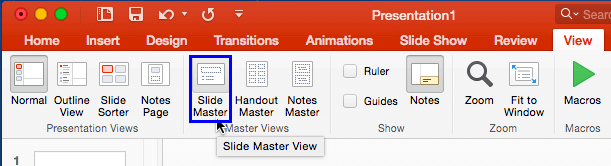
  1. Launch PowerPoint. You will see the Presentation Gallery. Here, select the Blank Presentation to open a blank presentation with a new slide. Access the View tab of the Ribbon and click the Slide Master button, as shown highlighted in blue within Figure 2, below.
  2. Slide Master button within the View tab of the Ribbon
    Figure 2: Slide Master button within the View tab of the Ribbon
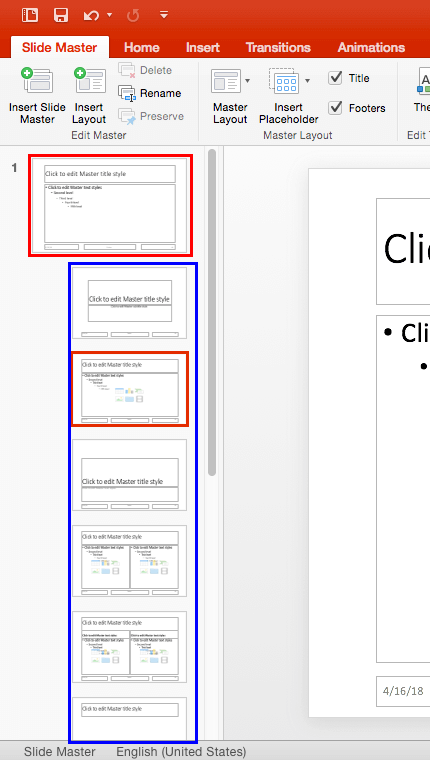
  3. Doing so opens Slide Master view, as shown in Figure 3, below. In Slide Master view, you'll see that the left pane contains two distinctly different elements: a larger thumbnail representing the Slide Master, as shown highlighted in red within Figure 3, below, and several smaller slide thumbnails below representing individual Slide Layouts, as shown highlighted in blue within Figure 3.
  4. Slide Master and Slide Layouts within PowerPoint
    Figure 3: Slide Master and Slide Layouts within PowerPoint
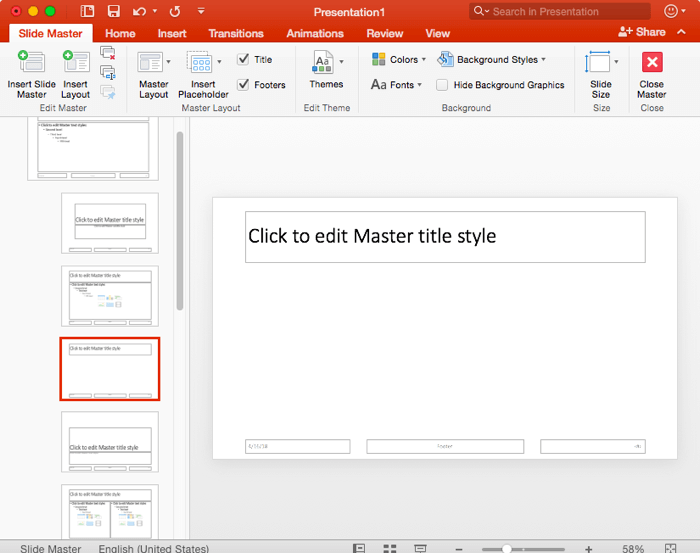
  5. Now, insert a new Slide Layout and make sure it is selected, as shown in Figure 4, below. We will add one or more placeholders to this layout. Optionally, you can follow the same procedure to add placeholders to any of the existing Slide Layouts.
  6. New Slide Layout selected
    Figure 4: New Slide Layout selected
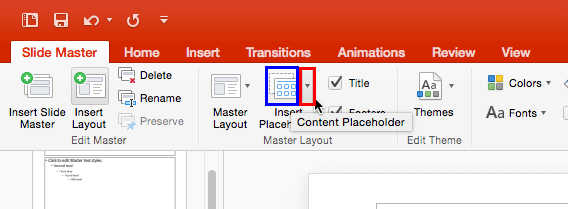
  7. With the Slide Layout still selected, click the down-arrow of the Insert Placeholder button, as shown highlighted in red within Figure 5, below, within the Slide Master tab of the Ribbon.
  8. Insert Placeholder button
    Figure 5: Insert Placeholder button
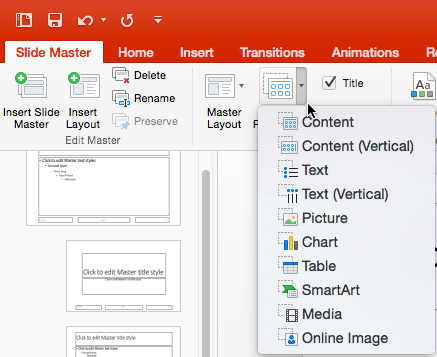
  9. This brings up a drop-down gallery, as shown in Figure 6, below.
  10. Insert Placeholder drop-down gallery
    Figure 6: Insert Placeholder drop-down gallery
    Note:

    If you click the left portion of the Insert Placeholder button, as shown highlighted in blue within Figure 5, previously on this page, you will end up selecting your last-inserted placeholder type.

  11. All the placeholder types within the Insert Placeholder drop-down gallery can be populated with the content types explained below.

    Content

    A content placeholder is a combination of seven types of content: text, pictures, charts, tables, SmartArt, media clips, and clip art. This placeholder appears almost like a text placeholder. But it additionally contains a small palette of icons in the center: one for each of the other 6 non-text content types. Note that each Content placeholder can hold only one type of content at a time within a slide. Figure 1, previously on this page shows a Content placeholder.

    Content (Vertical)

    This placeholder is same as Content placeholder, but text and content will be placed vertically, as shown highlighted in red within Figure 7, below.
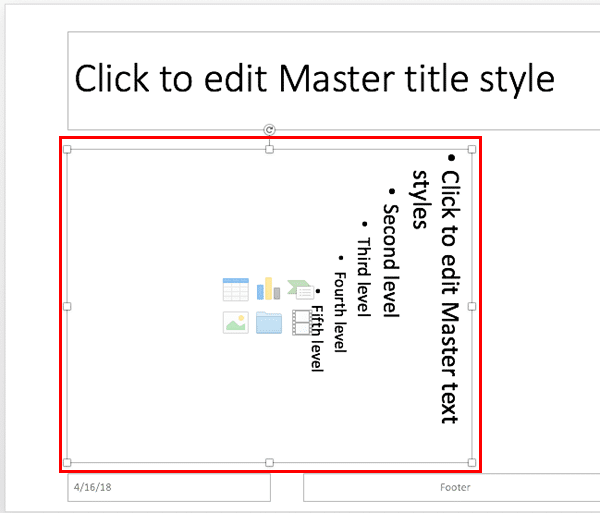
    Content (Vertical) placeholder
    Figure 7: Content (Vertical) placeholder

    Text

    For bulleted text.

    Text (Vertical)

    This placeholder is same as Text placeholder, but the text will be placed vertically. It looks just like the Place holder, as shown in Figure 7, above, but there will be no content place holders.

    Picture

    For a picture.

    Chart

    For a chart.

    Table

    For a table.

    SmartArt

    For a SmartArt diagram.

    Media

    For media files such as audio or video clips.

    Online Image

    For an online image.

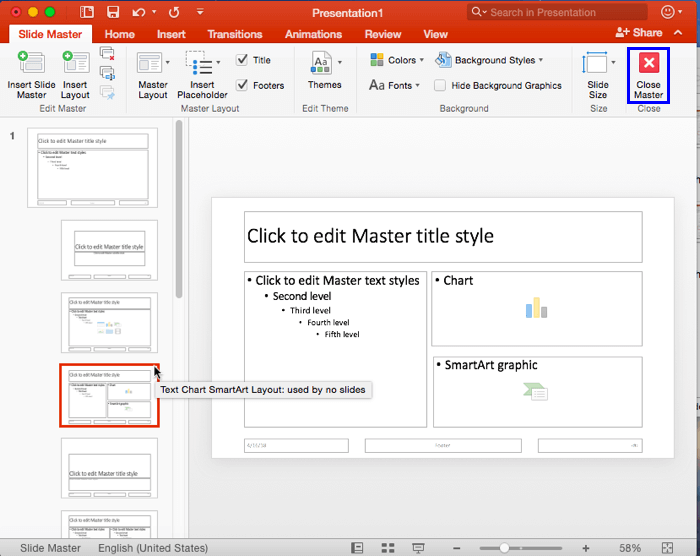
  12. Choose the placeholder type you want to add, and drag on the slide layout to insert the placeholder. You can insert multiple placeholders one after the other to create your customized layout. For this tutorial we have added Text, Chart, and SmartArt placeholders, as shown in Figure 8, below. Compare with Figure 4, shown previously on this page.
  13. Placeholders added to the new slide layout
    Figure 8: Placeholders added to the new slide layout
  14. You can then rename the new slide layout as explained in our Duplicate, Rename, and Edit Slide Layouts in PowerPoint 2016 for Mac tutorial. We renamed our new layout as "Text Chart SmartArt", which can be seen in the tool-tip in Figure 8, above.
  15. When done, click the Close Master View button on the Slide Master tab of the Ribbon , as shown highlighted in blue within Figure 8, below. This will get you back to Normal View.
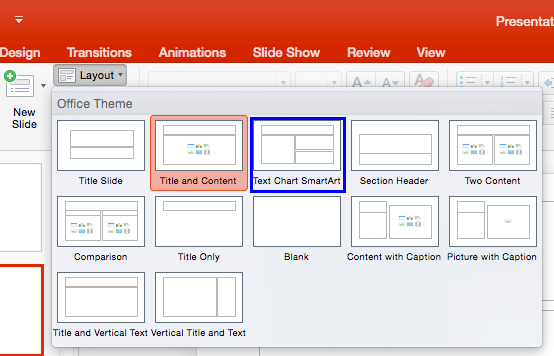
  16. Access the Home tab of the Ribbon and click the Layout button to bring up the Layout drop-down gallery, as shown in Figure 9, below. Notice that your new layout shows up here with the name that you provided, as shown highlighted in blue within Figure 9, ready to be used to create a new slide.
  17. Custom Layout added with new placeholders
    Figure 9: Custom Layout added with new placeholders.
    Note:

    The new layouts you create are saved as part of the presentation, and are not available in any other presentations you create. Other than adding placeholders to your new Slide Layouts, you can also change their slide backgrounds.

    Additionally, you can rename Slide Layouts as explained in our Duplicate, Rename, and Edit Slide Layouts in PowerPoint 2016 for Mac tutorial.

  18. Save your presentation often.

See Also:

Slide Master and Slide Layouts: Inserting New Placeholders Within Slide Layouts in PowerPoint (Index Page)

Inserting New Placeholders Within Slide Layouts in PowerPoint 2016 for Windows
Inserting New Placeholders Within Slide Layouts in PowerPoint 2013 for Windows
Inserting New Placeholders Within Slide Layouts in PowerPoint 2011 for Mac
Inserting New Placeholders Within Slide Layouts in PowerPoint 2010 for Windows

You May Also Like: Rituals Roadmap: Conversation with Erica Keswin | Eggplant PowerPoint Templates


Popular Posts

Flowchart Symbols: What They Represent?
Explore various flowchart symbols, and learn about what they represent.

Types of Animation in PowerPoint 2010 for Windows
Learn about different animation types in PowerPoint 2010 for Windows.

Restoring Earlier Versions of Presentations in PowerPoint 2010 for Windows
Learn how to restore earlier versions of your current presentation in PowerPoint 2010.

What is Animation in PowerPoint?
Learn what animations is and how to effectively plan animation for PowerPoint.


Jigsaw Graphics for PowerPoint

Here are 10 jigsaw graphics containing different shapes. These graphics are available in both black and white and are contained within separate sample presentations that you download. Additionally, these jigsaw graphics are vector shapes, so you can easily edit them within your Microsoft Office program by changing fills, lines, and effects or even applying Shape Styles.

Download and use these Jigsaw Graphics in your slides for just $4.99+


Microsoft and the Office logo are trademarks or registered trademarks of Microsoft Corporation in the United States and/or other countries.

Home | PowerPoint | Photoshop | PowerPoint Templates | PowerPoint Tutorials | Blog | Notes | Ezine | Media Kit | Feedback | Site Map | About Us | Contact Us

Link to Us | Privacy | Testimonials

PowerPoint Backgrounds | Christian PowerPoint Backgrounds | Business PowerPoint Presentation Templates

Plagiarism will be detected by Copyscape

©2000-2026, . All rights reserved.